Set up deposits for services
Take a deposit when patients book online, for every service or just some of them.
- Updated
- 3 min read, 1 min 57 sec video
- For owners and admins can set the clinic deposit. Managers can also give one service its own deposit in Services & Pricing.
In the app:SettingsthenOnline Booking
On this page
A deposit is what a patient pays by card when they book online. You set one clinic deposit that your services follow, then give any service its own amount, or none at all.
When the patient comes in, the deposit comes off what they owe. If a booking is cancelled, you decide whether to keep it or refund it.
Before you start
- Connect Stripe first, because deposits are taken by card. See Set up payment processing.
Read the transcript
Here's how to set up deposits for your services.
Deposits are taken by card, so connect Stripe first.
Then, in Settings, open Online Booking.
Turn on Deposit Required.
Choose a fixed amount, a percentage, or full prepayment.
A deposit is never more than the price of the treatment.
Click Save Changes. This is now the default for your services.
To change one service, open Services & Pricing, and click the service.
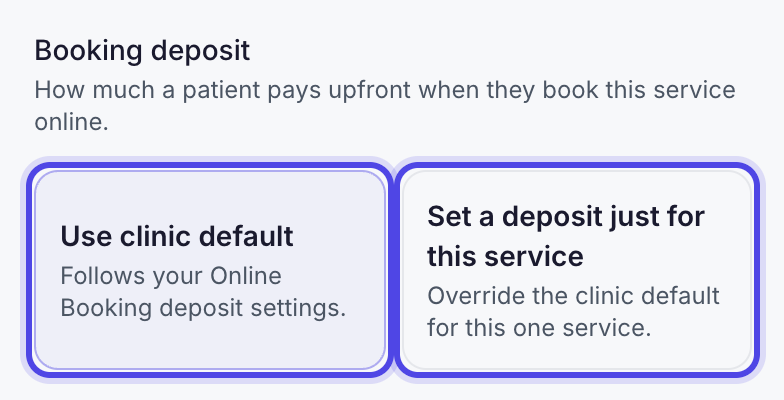
Under Booking deposit, choose Set a deposit just for this service.
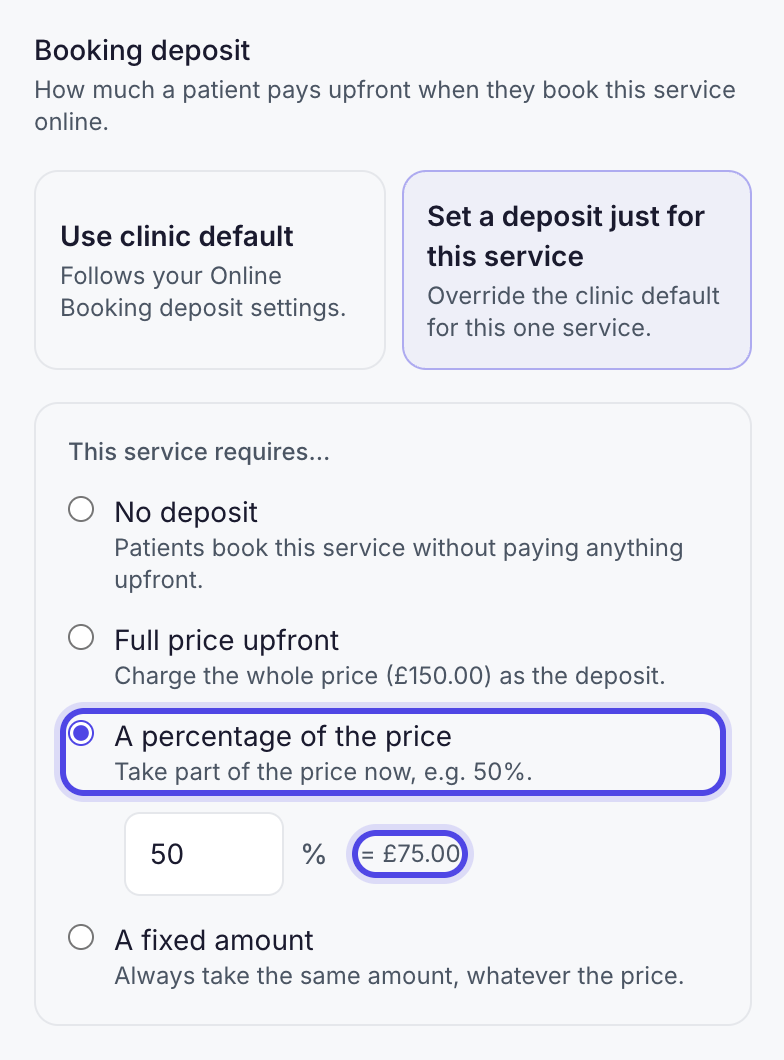
Pick no deposit, the full price, a percentage, or a fixed amount.
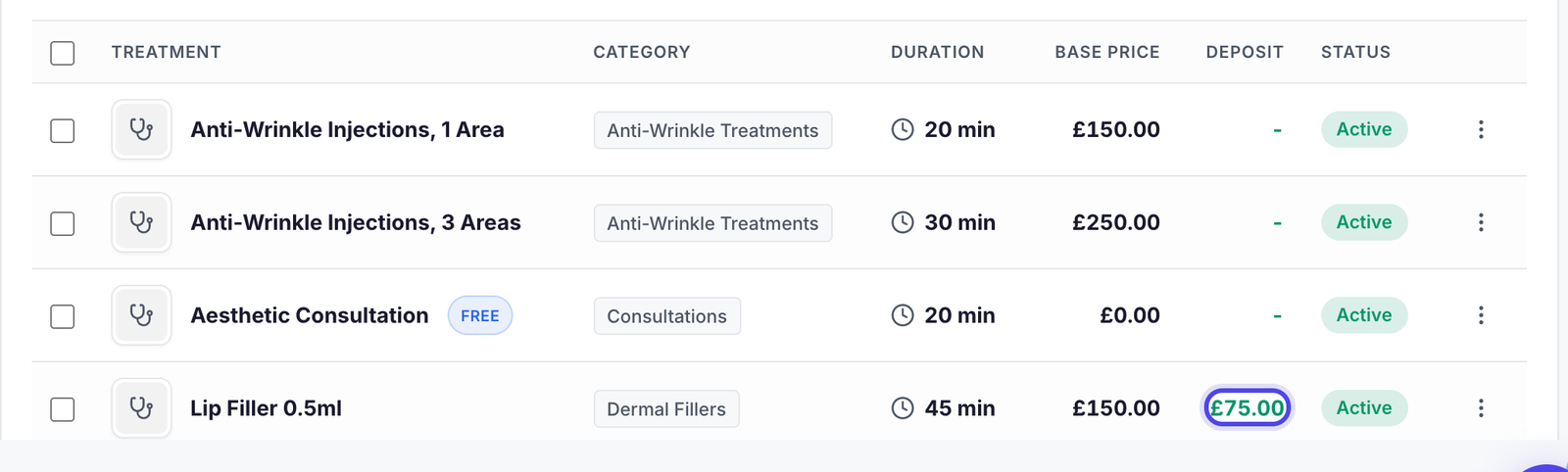
Save, and the Deposit column shows that service's amount. A dash usually means it follows your clinic deposit.
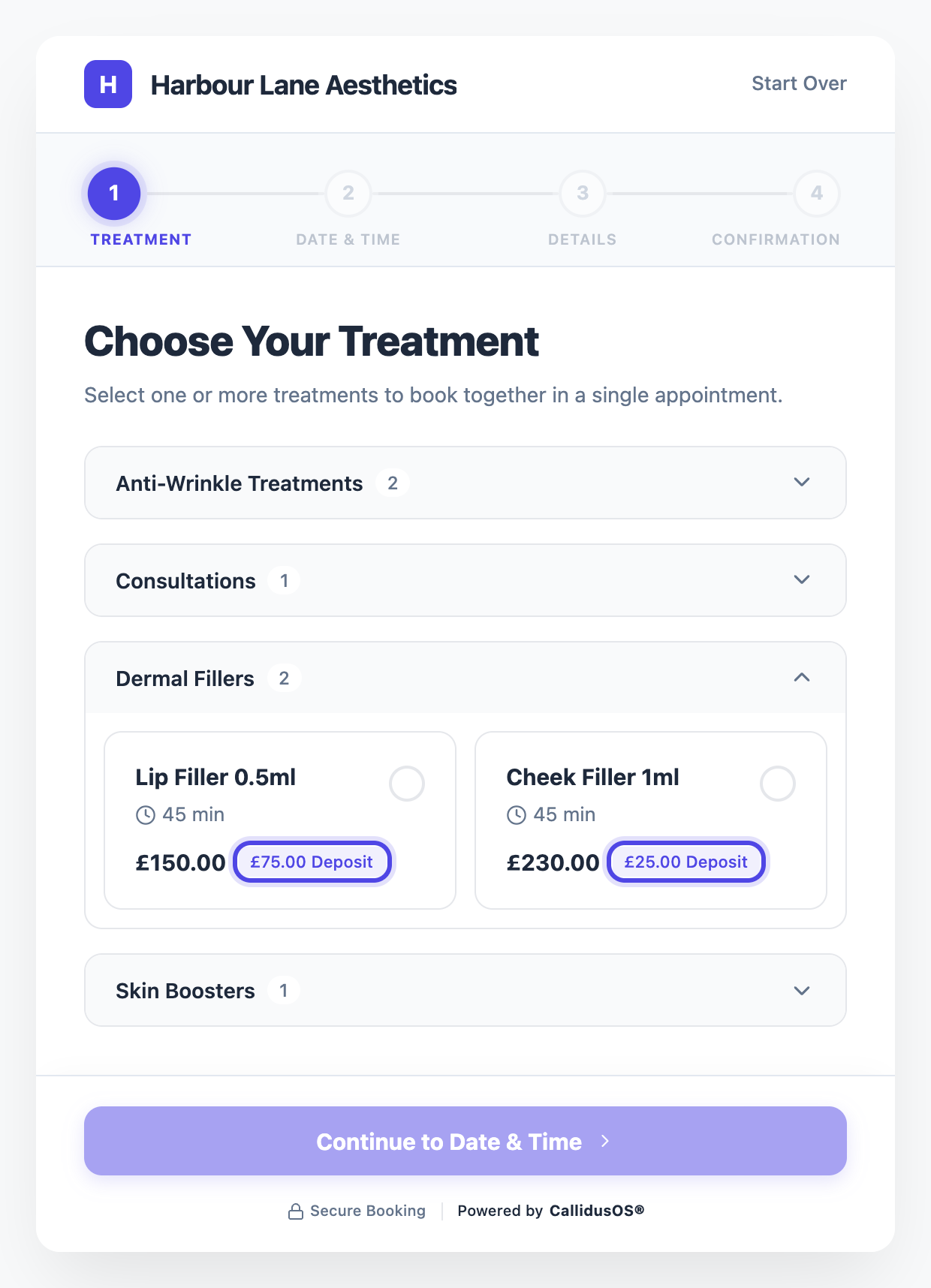
Patients see the deposit on your booking page, and pay it by card when they book.
At checkout, the deposit comes off what they owe.
If you cancel the booking, you choose to retain or refund the deposit.
The full guide is in our help centre.
Step 1: Check Stripe is connected
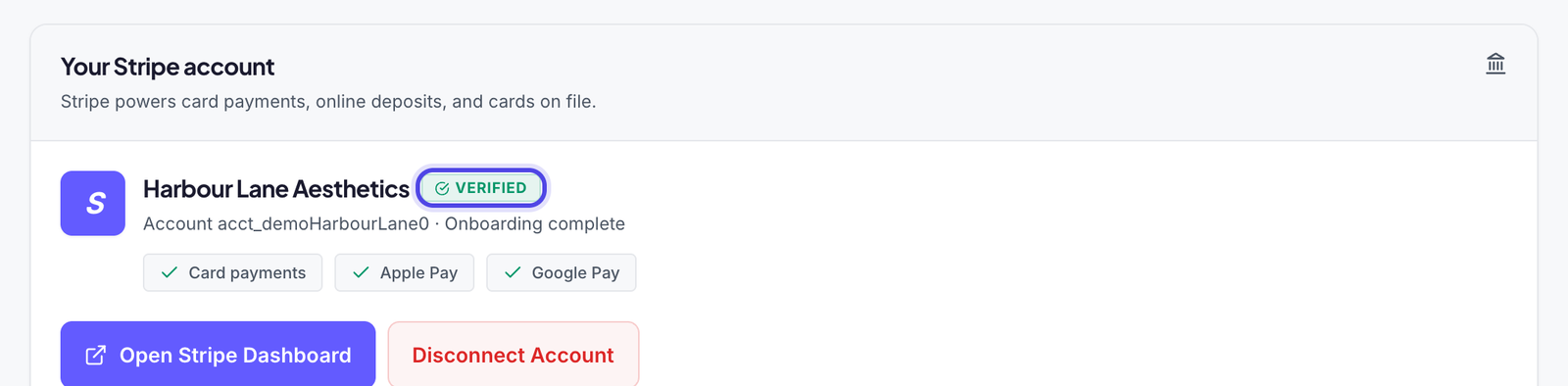
Open Settings, then Payment Processing. Under Your Stripe account, your clinic should show as Verified.
Until Stripe is connected, your booking page shows no deposits and patients book without paying one.
Good to know: Stripe's own fee and the CallidusOS platform fee apply to deposits, as they do to other card payments. Cash and bank transfers have no fee. See Set up payment processing.
Stripe connected and verified. Step 2: Set your clinic deposit
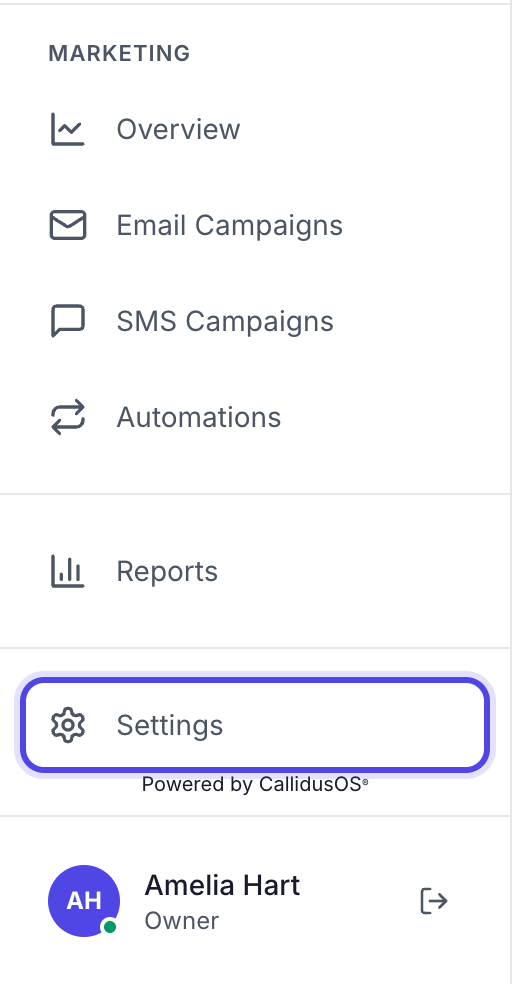
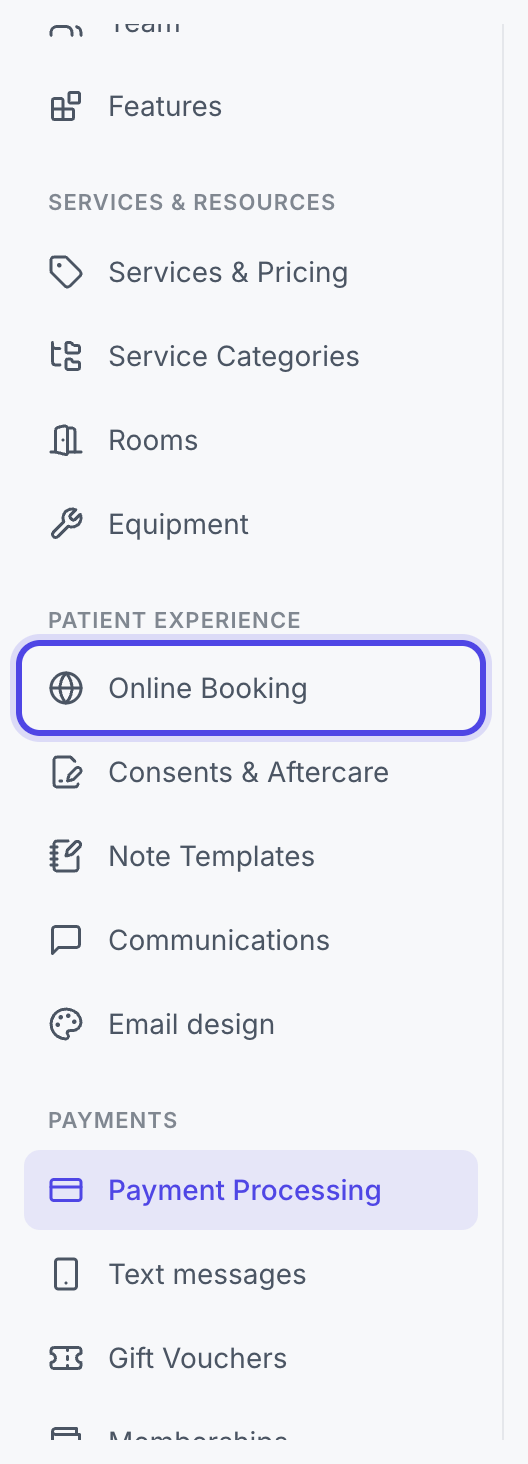
Click Settings at the bottom of the left-hand menu. In the settings menu, under Patient Experience, click Online Booking.
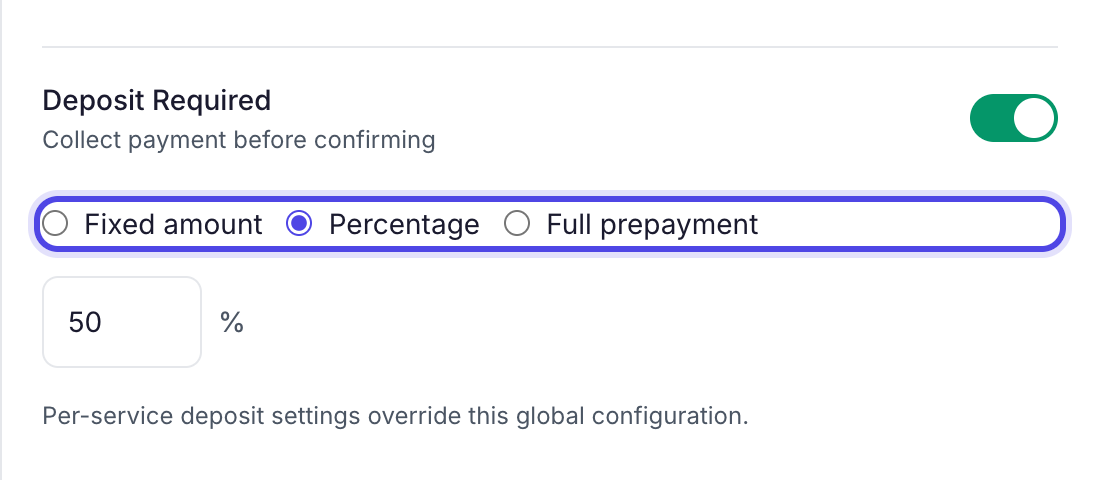
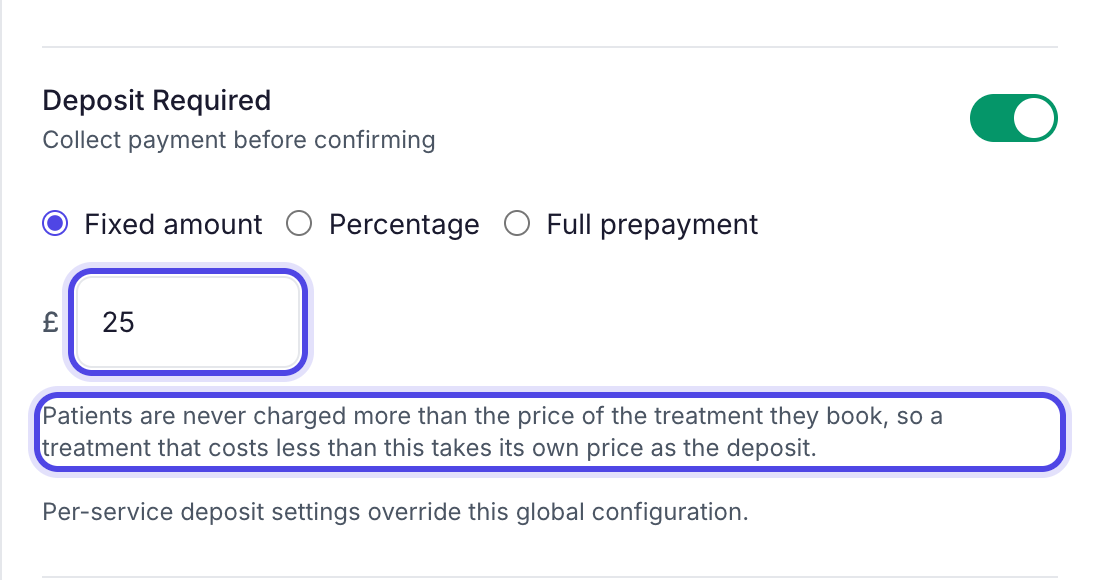
Scroll down to Booking Settings and switch on Deposit Required. Then choose Fixed amount and type the amount, Percentage and type the percentage of the treatment price, or Full prepayment to take the whole price when they book.
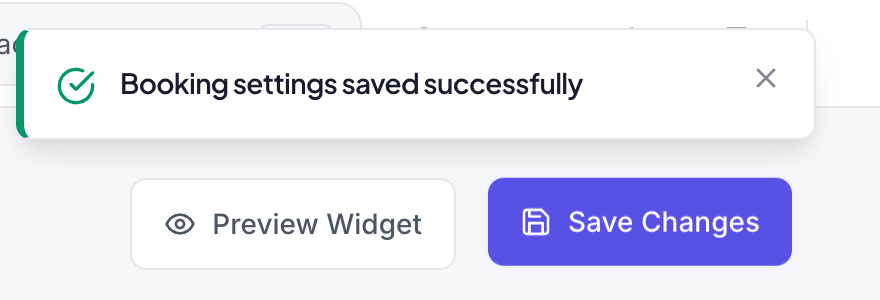
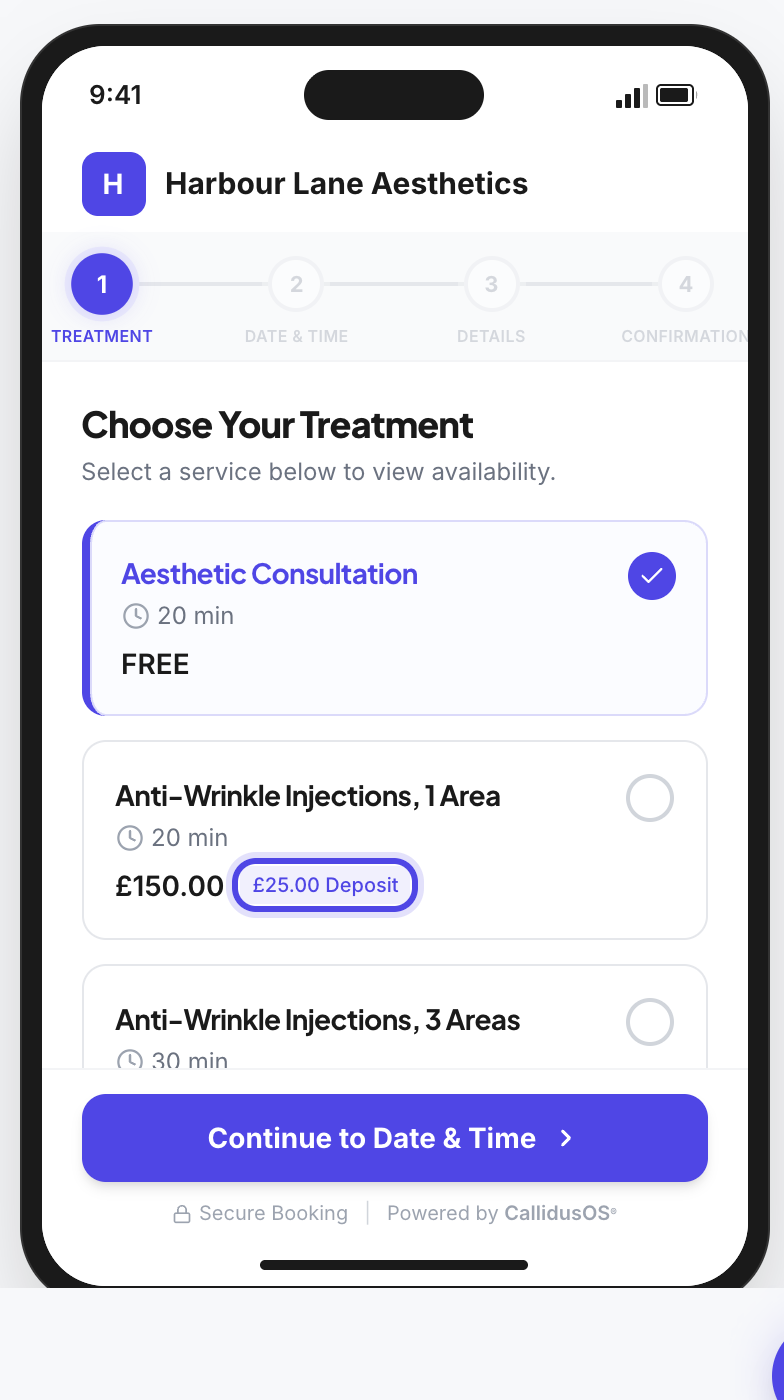
Scroll back to the top and click Save Changes. A Booking settings saved successfully message confirms it. The phone preview on the same page shows the deposit on each treatment.
Good to know: A deposit is never more than the price of the treatment. A treatment that costs less than your fixed amount takes its own price as the deposit, and a free one takes no deposit.
Tip: Just below, Cancellation Policy Notice sets the number of hours patients must acknowledge when they book: cancelling within that window may forfeit their deposit.
Settings is at the bottom of the menu. Online Booking, under Patient Experience. Three ways to set the deposit. A fixed £25 deposit. Save Changes is at the top of the page. The preview shows the deposit. Step 3: Give one service its own deposit
Your services follow the clinic deposit until you change them. To change one, open Services & Pricing in the settings menu and click the service.
In the panel, scroll to Booking deposit and choose Set a deposit just for this service.
Pick No deposit, Full price upfront, A percentage of the price or A fixed amount. For a percentage, the panel shows what that comes to in pounds. Click Save Changes.
Tip: To put a service back on the clinic deposit, open it again and choose Use clinic default.
Click a service to open it. Use the clinic deposit, or set one here. 50% of a £150 treatment is £75. Step 4: See what patients see
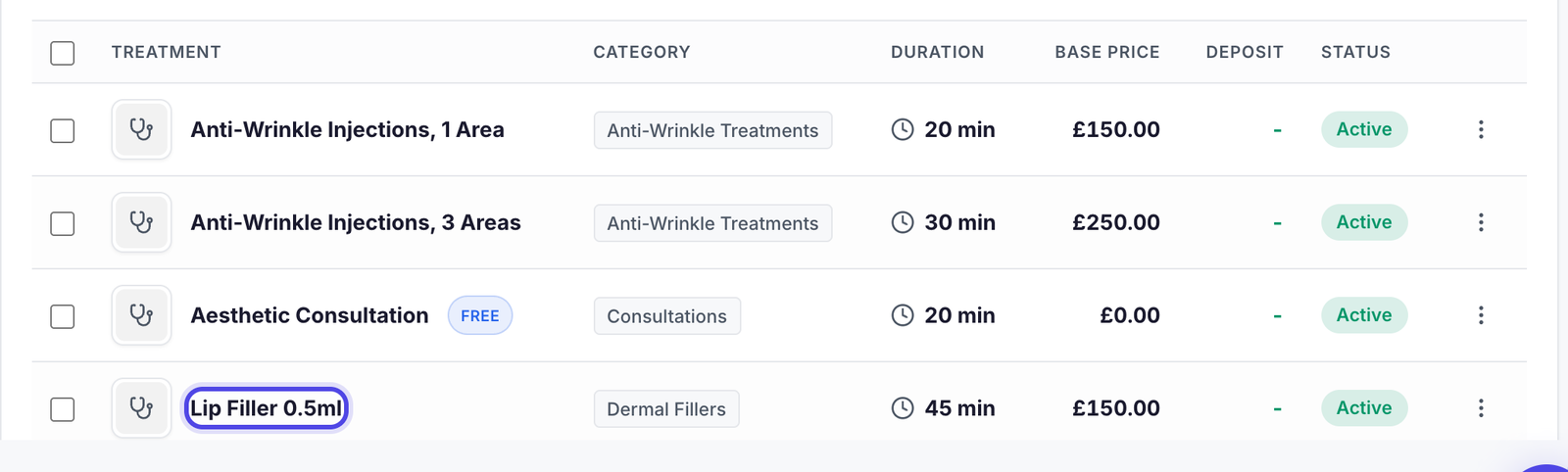
Back in Services & Pricing, the Deposit column shows the amount for any service with its own deposit.
On your booking page, each treatment shows its deposit, or No deposit. If a patient books several treatments together, their deposits are added up. The patient then pays by card to secure the booking and is emailed a receipt.
To see the page for yourself, click Preview Widget at the top of Online Booking.
Check this: A dash in the Deposit column means the service has no deposit of its own. It still takes your clinic deposit unless you chose No deposit for it, so check your booking page to see what a patient will pay.
The Deposit column shows a service's own deposit. What patients see on your booking page. Step 5: At checkout, and if a booking is cancelled
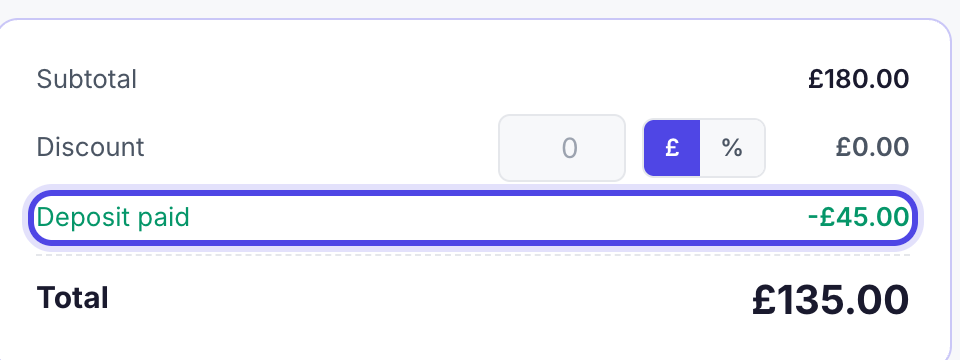
When the patient comes in, open their appointment and click Go to Checkout. Deposit paid comes off the total, so they only pay what is left.
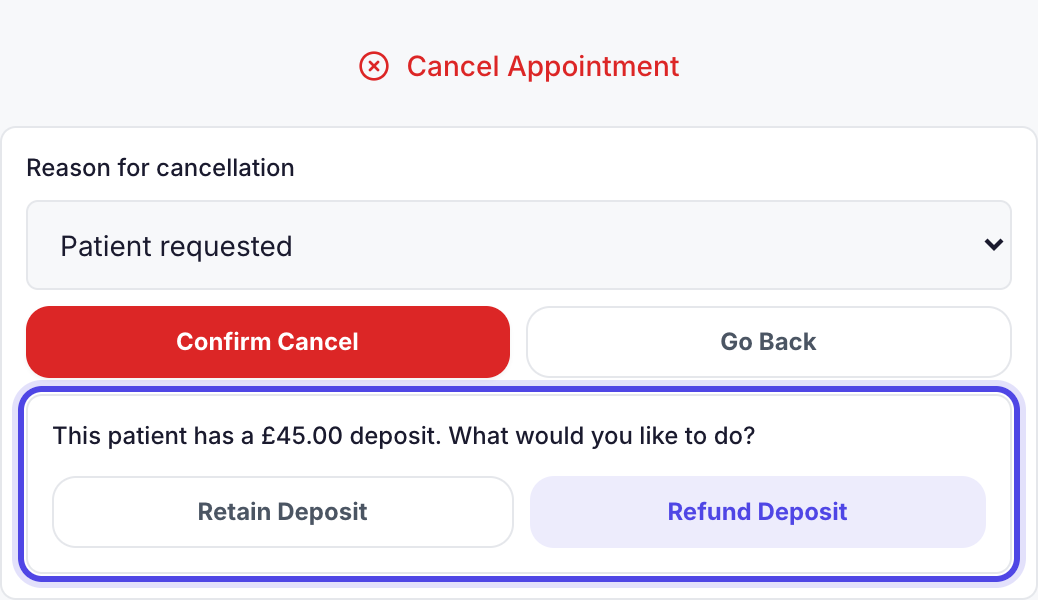
If you cancel the appointment, click Cancel Appointment, choose a reason and click Confirm Cancel. If the patient paid a deposit, you then choose Retain Deposit or Refund Deposit. Mark as No-Show asks the same question.
Refund Deposit sends the money back through Stripe. Owners, admins and managers can refund a deposit.
Good to know: If you decline a booking request, a deposit the patient has paid is refunded automatically. If a patient cancels online through their reschedule or cancel link, no money moves: you get a high-priority task to decide whether to retain or refund it.
The deposit comes off the total. You choose what happens to the deposit.
What happens next
- New online bookings take the deposit you set, by card, when the patient books.
- The deposit shows on the appointment and comes off the total at checkout.
- Stripe pays the money into your bank automatically.
Was this guide helpful?
Still stuck?
Real people, here to help. Pick whichever suits you.
- Live chatMessage our UK team from inside the app.Open the app
- Email usWe get back to you within 24 hours, usually much sooner.support@callidusos.co.uk
- Book a callA free 1-to-1 call with our team to set things up together.Book a call
Every way to reach us, plus free setup and data migration, is on Help and support.