Set up online booking
Check your booking link, choose your notice, deposit and which treatments patients can book, then add it to your website.
- Updated
- 5 min read, 1 min video
- For owners and admins
In the app:SettingsthenOnline Booking
On this page
Online booking lets patients book themselves from your website or a link, at times your team is free. Every clinic already has a booking link, so these steps check your settings, choose what patients can book and put it in front of them.
Before you start
- Add the treatments you offer first. See Add a new service.
- To take a deposit when patients book, connect card payments in Payment Processing in Settings. See Set up payment processing.
Read the transcript
Here's how to set up online booking.
Open Settings, then Online Booking.
Your booking link is already made from your clinic name. Copy it here.
Check Online Booking Enabled is switched on.
Switch on Deposit Required to take a deposit when patients book.
Set how much notice you need. Ours is 24 hours.
New bookings come in as requests to approve, unless you turn on Auto-confirm.
Mark each treatment patients can book as Bookable.
Then click Save Changes.
In Team, check everyone who takes bookings has working hours.
To add it to your website, copy the code from Embed & Share.
Or copy the link to share in emails and on social media.
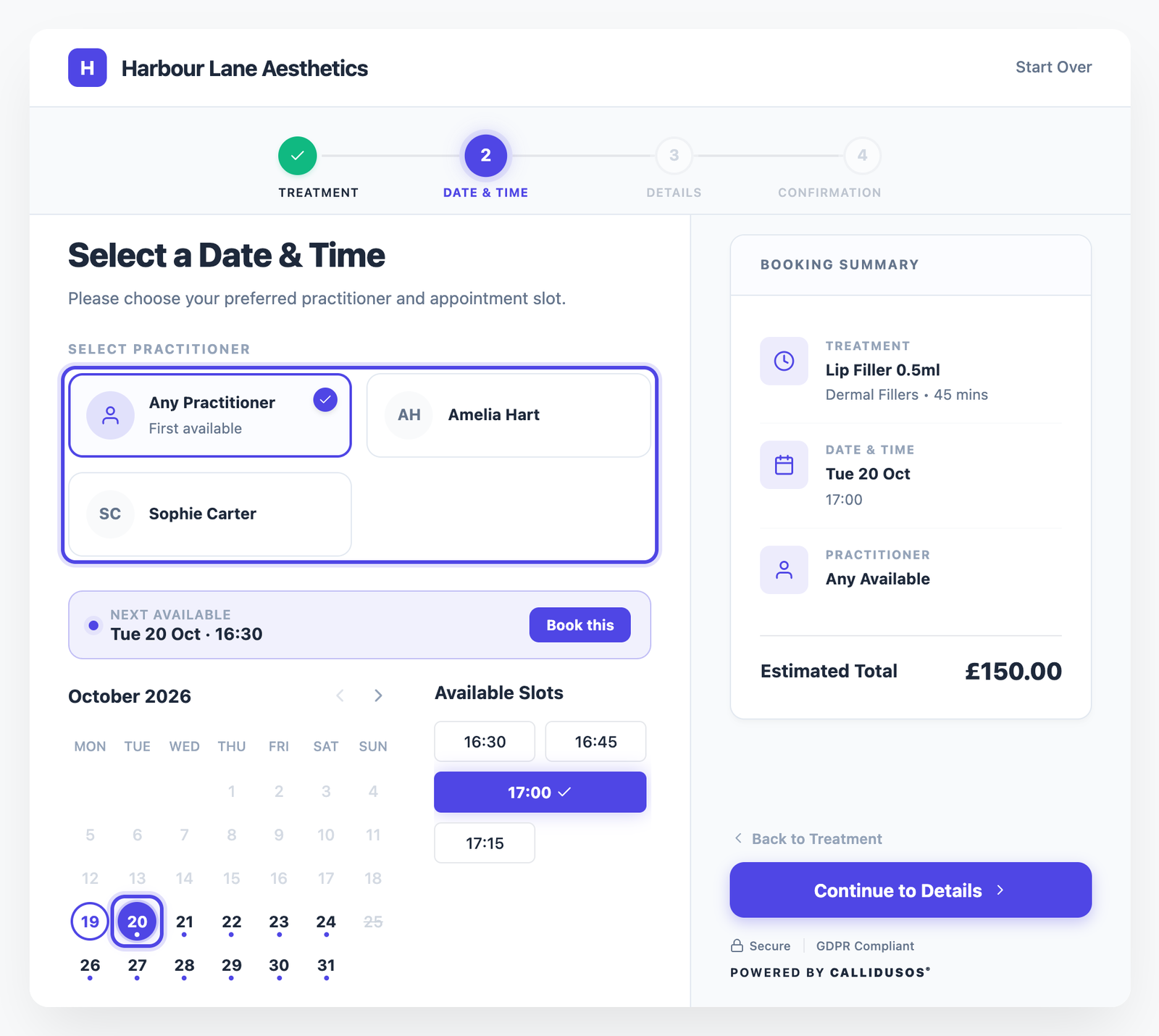
And this is what your patients see.
The full guide is in our help centre.
Step 1: Open Online Booking
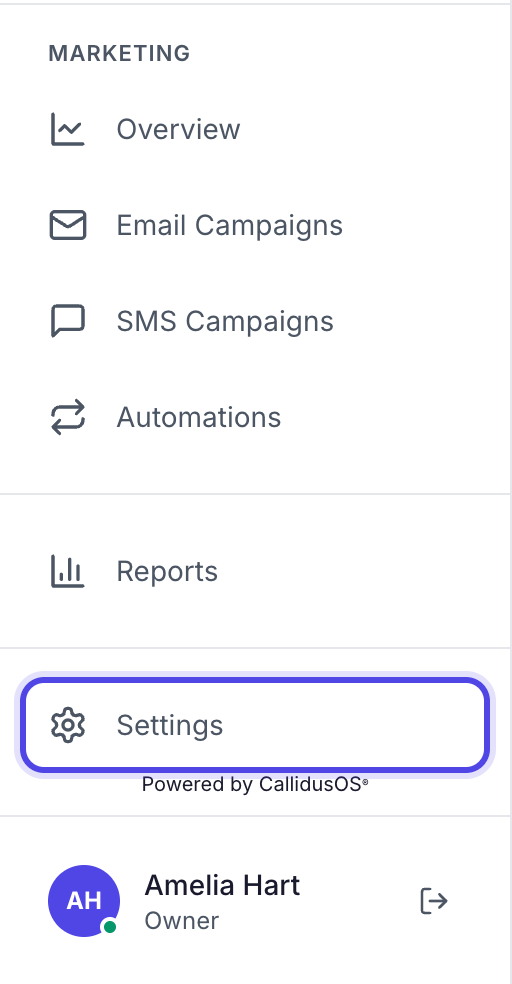
Click Settings at the bottom of the left-hand menu, just above your name. On a smaller screen, scroll the menu down to find it.
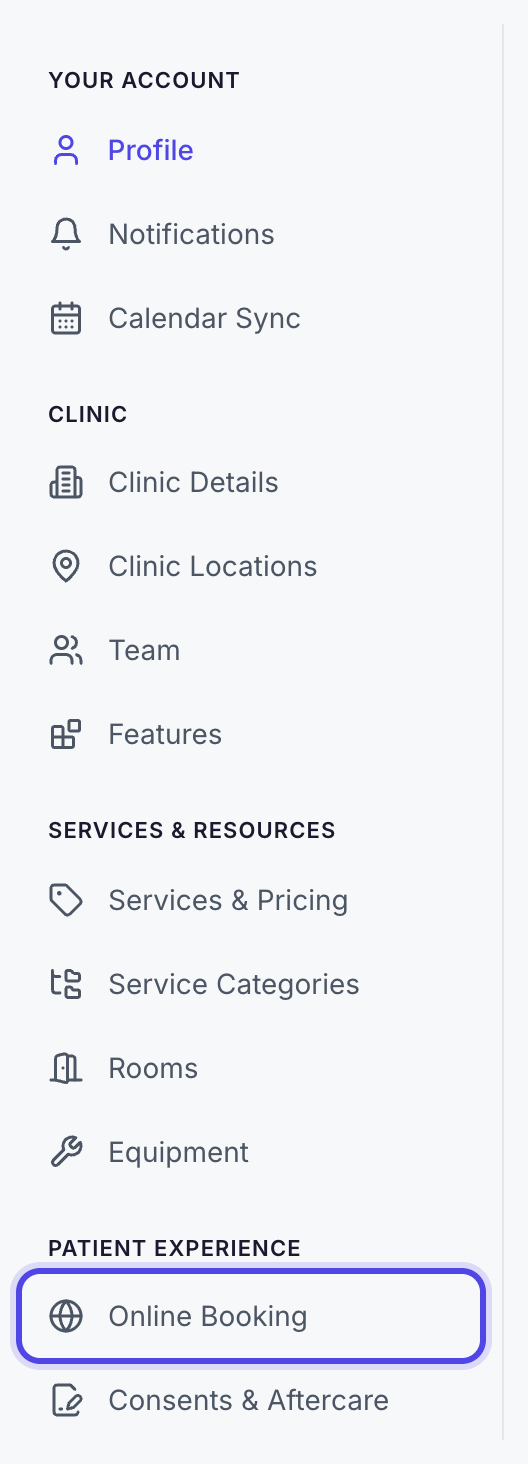
Settings opens on your profile. In the settings menu, under Patient Experience, click Online Booking.
Tip: In a hurry? Press Ctrl+K (Cmd+K on a Mac), type "booking" and choose Online Booking.
Settings is at the bottom of the menu. Online Booking, under Patient Experience. Step 2: Check your booking link
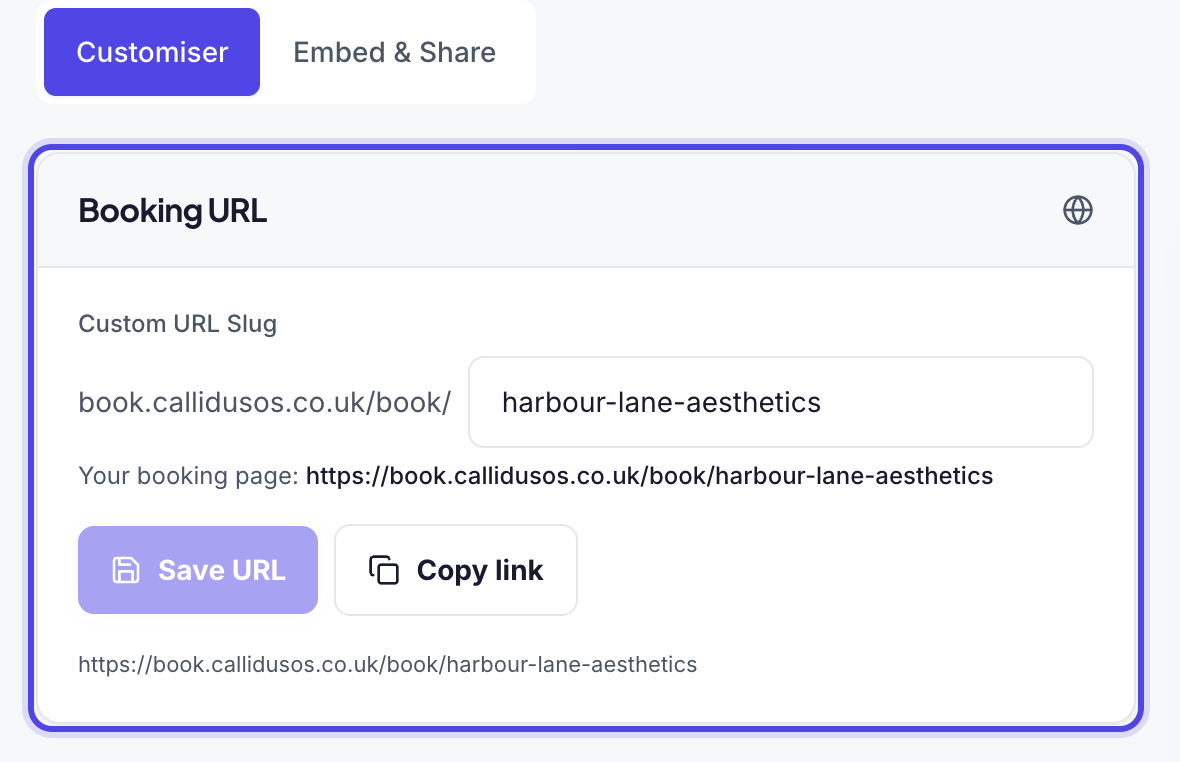
The page opens on the Customiser tab. The Booking URL card shows your booking link, made from your clinic name when you signed up. Click Copy link to copy it.
To change the end of the link, edit Custom URL Slug and click Save URL.
Check this: If you change your link, the old one stops working. Update it anywhere you have already shared it, such as your website or social media profiles.
Your booking link, ready to copy. Step 3: Check online booking is on, and choose a deposit
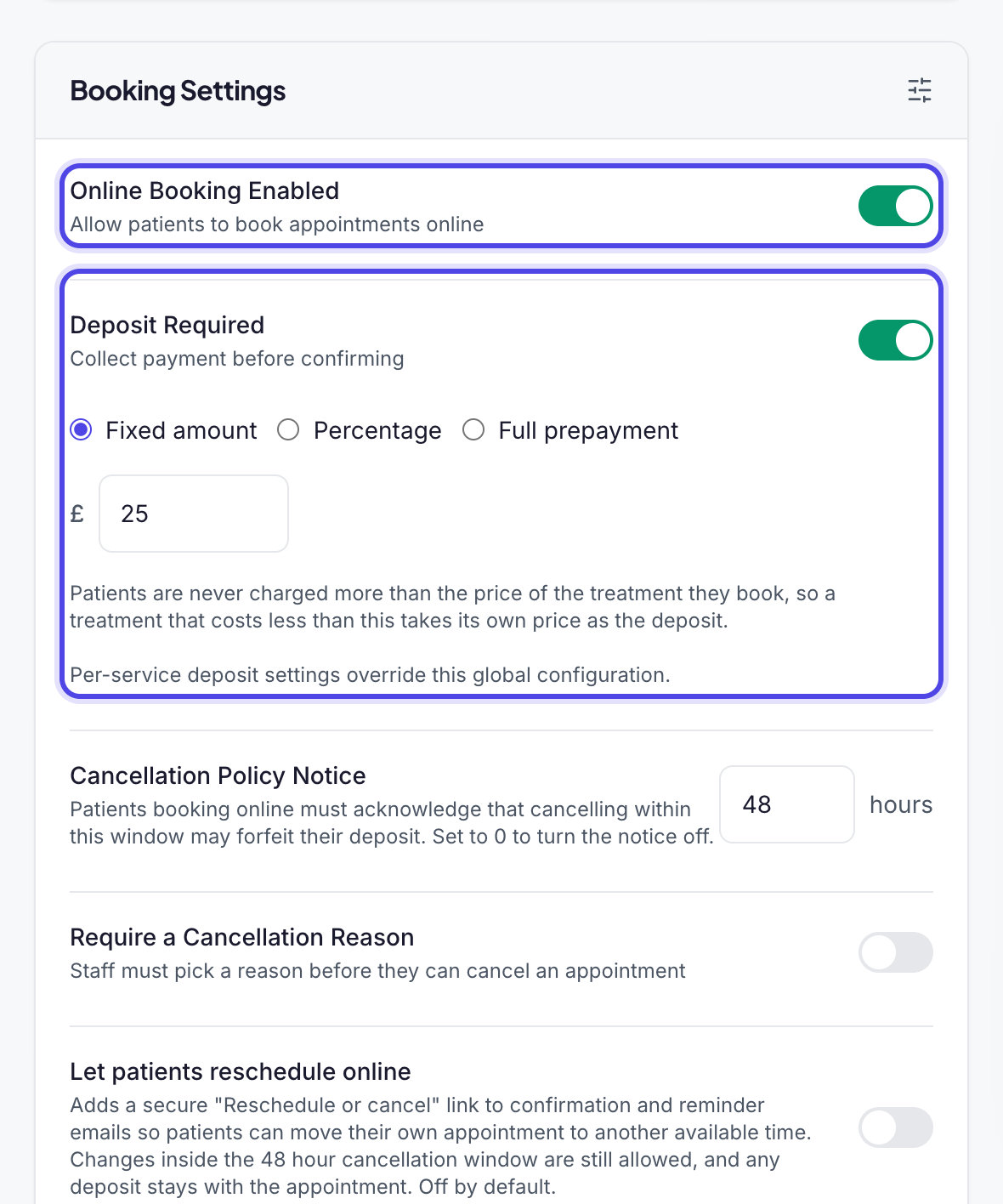
Scroll down to Booking Settings. Online Booking Enabled should be on. Switch it off to pause online booking: your link keeps working, but patients see a message that online booking is unavailable.
To take a deposit on every online booking, switch on Deposit Required and choose Fixed amount, Percentage or Full prepayment. A deposit set on a single service takes priority over this one.
Check this: Deposits are only taken once card payments are connected in Payment Processing in Settings. A patient is never charged a deposit bigger than the price of the treatment. See Set up payment processing.
Online booking on, with a £25 deposit for the clinic. Step 4: Choose your notice and how bookings are confirmed
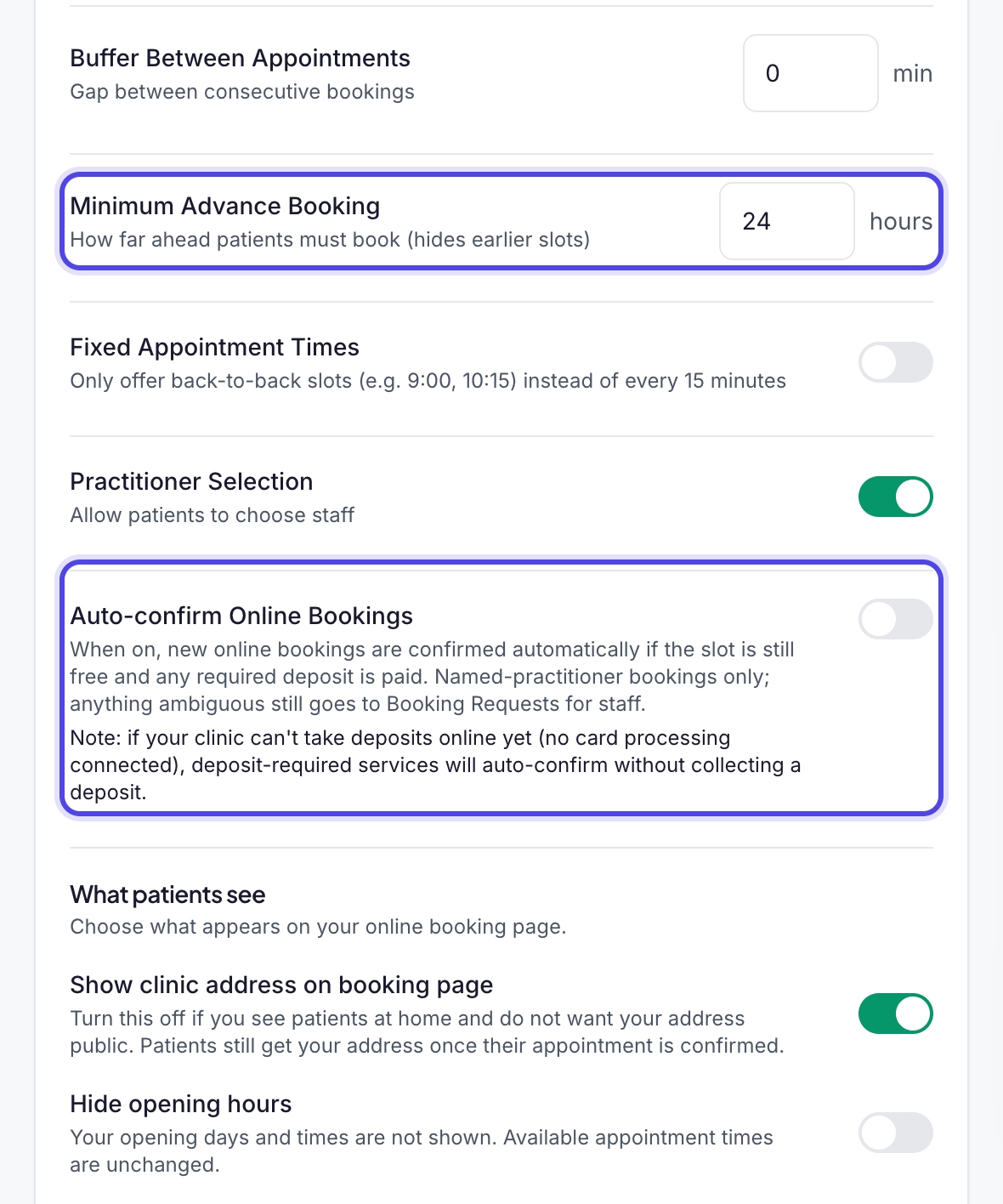
Minimum Advance Booking is how many hours ahead patients must book. It starts at 24 hours; enter 0 to allow same-day bookings. Above it, Cancellation Policy Notice sets the cancellation window patients agree to when they book.
Auto-confirm Online Bookings is off to start with, so every online booking comes in as a request for your team to approve or decline. Switch it on to confirm a booking automatically when the patient picks a named practitioner, the time is still free and any deposit is paid. Anything else still comes in as a request.
Good to know: Requests wait in Booking Requests in the main menu, and as dashed blocks on your calendar. A request nobody answers expires after 7 days, so check them every day. See Handle a booking request.
Tip: Under What patients see, you can hide your clinic address (useful if you see patients at home), hide your opening hours or skip the medical screening questions.
24 hours' notice, with bookings coming in as requests. Step 5: Choose which treatments patients can book
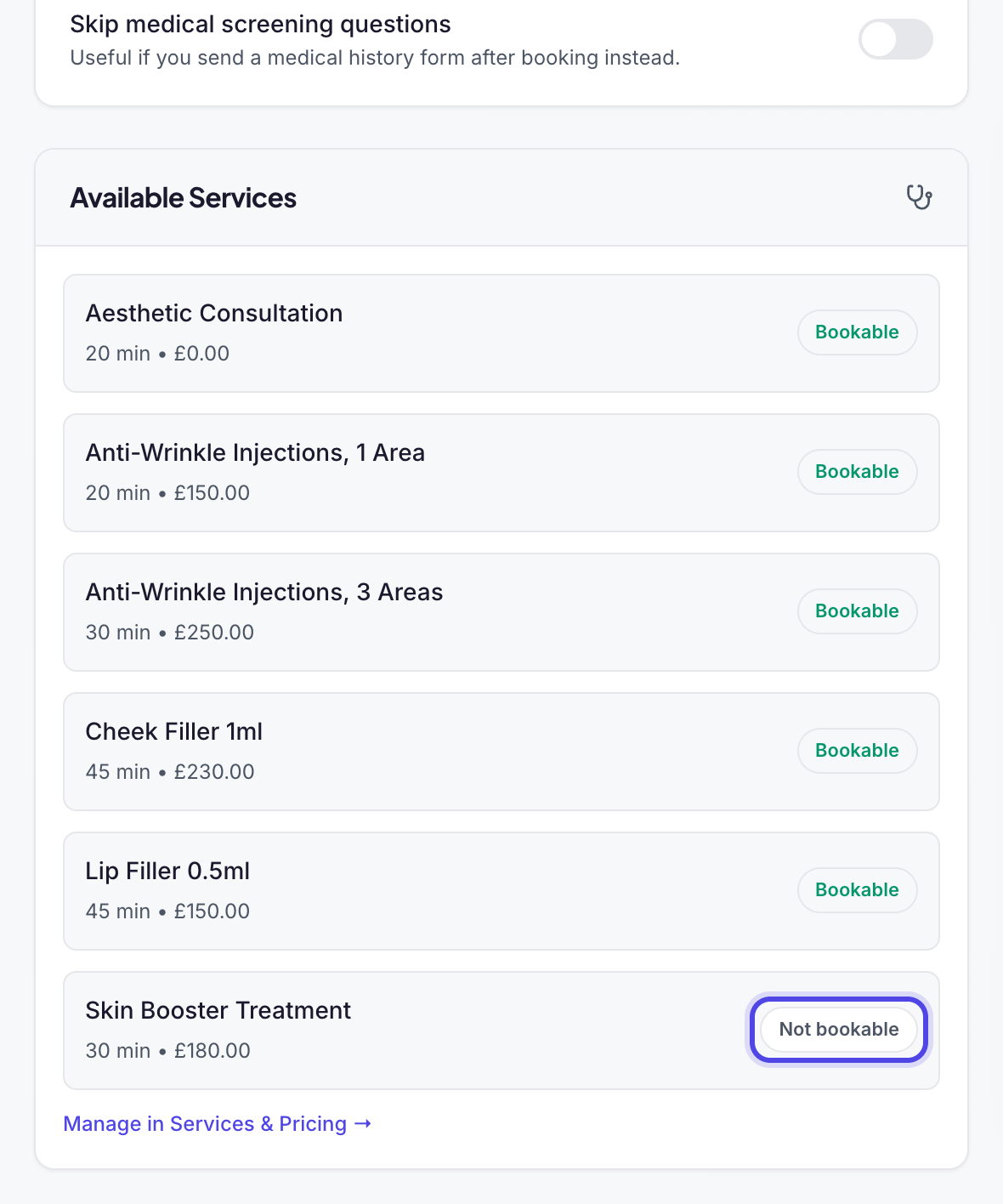
Scroll down to Available Services. Each treatment shows Bookable or Not bookable. Click it to switch: it saves straight away.
This is the same setting as Available for Online Booking in a service's own panel in Services & Pricing.
Check this: Every new service starts as Not bookable, so patients will not see it online until you switch it on. See Add a new service.
Click Not bookable to make a treatment bookable. Step 6: Save your changes
Click Save Changes at the top right of the page. A Booking settings saved successfully message confirms it. Your link and the Bookable buttons save on their own; everything else needs Save Changes.
Tip: Click Save Changes once even if you have changed nothing. It ticks Configure online booking in your Setup Checklist.
Save Changes is at the top right. Step 7: Check who takes bookings, and their hours
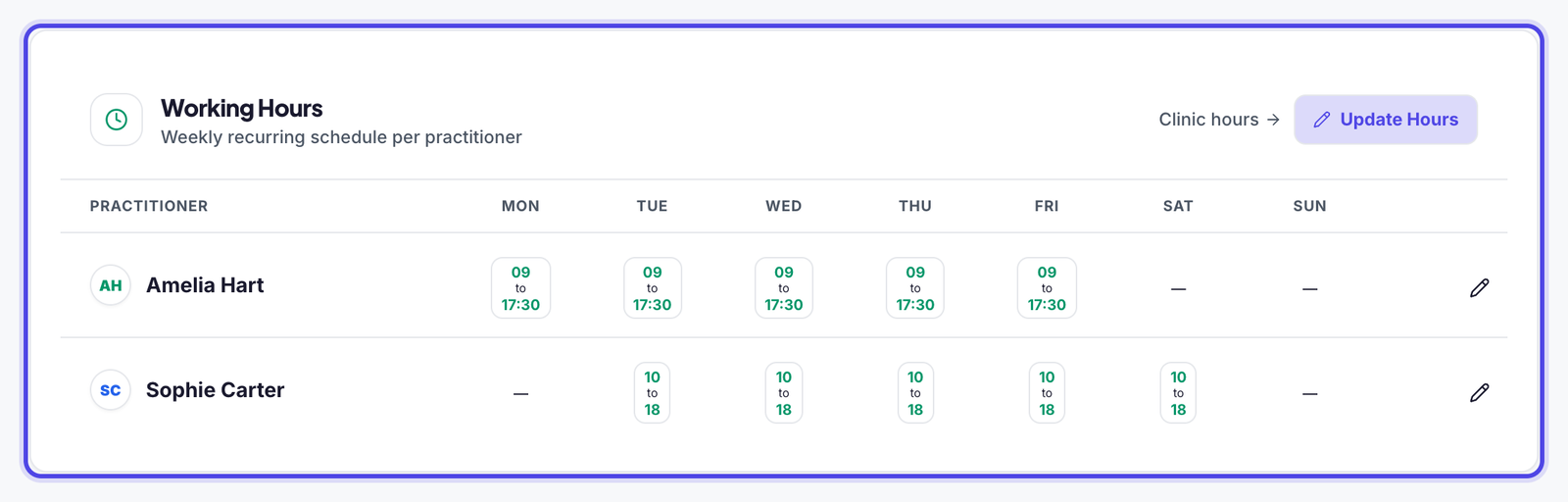
Patients are only offered times when a practitioner is working. In the settings menu, click Team. Everyone with a Bookable label appears as a practitioner on your booking page.
Scroll down to Working Hours to see each person's week, and click Update Hours to change them. For a rota or one-off changes, use Shifts & Time Off in the main menu.
Check this: A new clinic has no working hours yet, so the booking page shows no times until you add them. Your opening hours, in Clinic Details in Settings under Clinic Availability, also limit the times offered.
Online times come from these working hours. Step 8: Add it to your website, or share the link
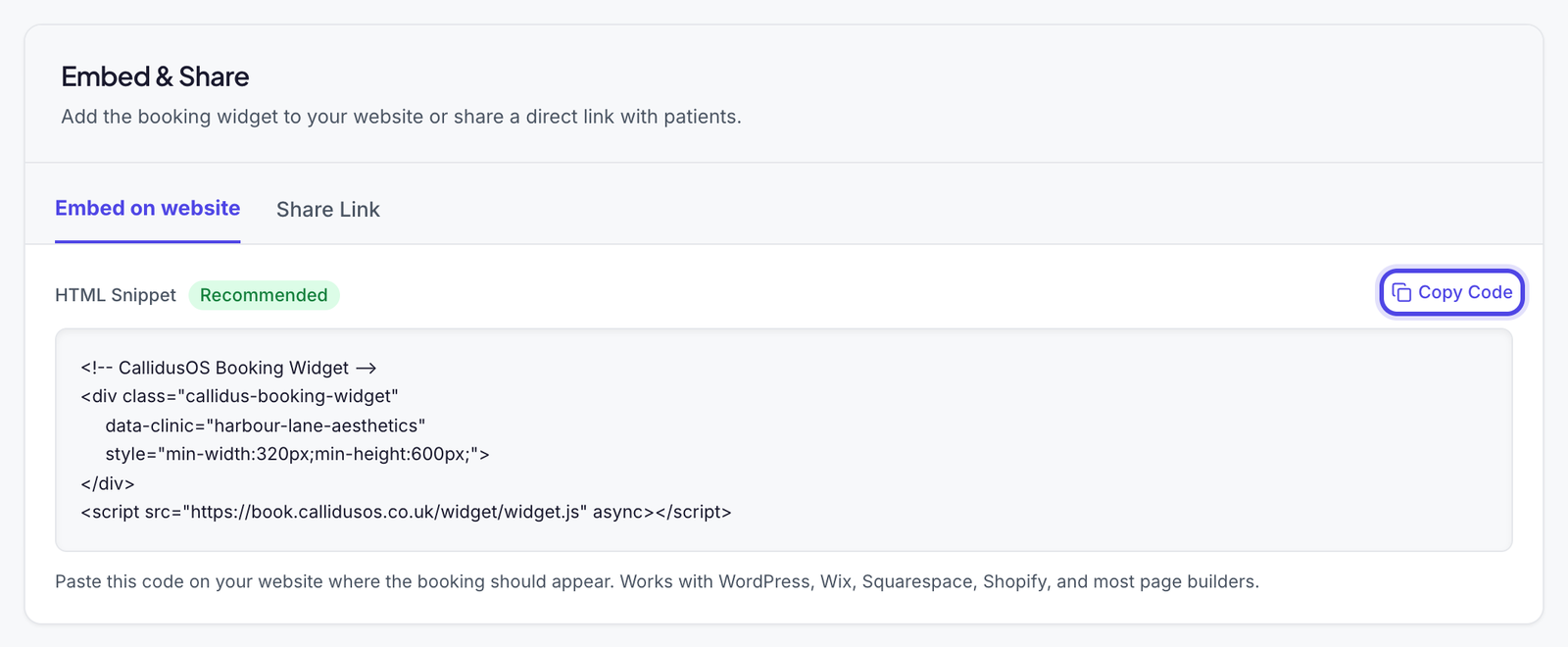
Go back to Online Booking and click the Embed & Share tab. Under Embed on website, click Copy Code and paste the code into your website where you want booking to appear. Most website builders have a block for pasting code like this.
To share the link instead, click Share Link, then Copy Link, and add it to emails, texts and social media profiles.
The code for your website, with Copy Code. Step 9: Check it as a patient
Click Preview Widget at the top of Online Booking to open your booking page. It shows your saved settings, so save first.
Patients choose a treatment, then a practitioner, day and time, then enter their details.
What patients see when they choose a time.

What happens next
- Patients book from your link or your website. Your team is told in the app, and an email goes to your clinic's email address.
- Unless you switched on auto-confirm, each booking waits in Booking Requests until someone approves or declines it.
- When a booking is approved, it goes into your Calendar, the patient gets a confirmation email and any consent forms linked to the treatment are sent.
- If a deposit applies and card payments are connected, the patient pays it as they book.
Was this guide helpful?
Still stuck?
Real people, here to help. Pick whichever suits you.
- Live chatMessage our UK team from inside the app.Open the app
- Email usWe get back to you within 24 hours, usually much sooner.support@callidusos.co.uk
- Book a callA free 1-to-1 call with our team to set things up together.Book a call
Every way to reach us, plus free setup and data migration, is on Help and support.