Add a new service
Add a treatment with its price, length and deposit, link its consent form and aftercare, and let patients book it online.
- Updated
- 6 min read, 1 min 1 sec video
- For owners, admins and managers
In the app:SettingsthenServices & Pricing
On this page
Every treatment you offer lives in Services & Pricing. Adding one takes a few minutes, and it is then ready to book in your calendar and, if you choose, on your online booking page.
Before you start
- If the category you want is not in the list, add it first in Service Categories in Settings. New clinics start with a ready-made set, such as Dermal Fillers and Consultations, so most clinics can skip this.
- To link a consent form or aftercare, set them up first in Consents & Aftercare in Settings. See Set up consent forms.
- To take a deposit when patients book online, connect card payments in Payment Processing in Settings. See Set up payment processing.
- Managers can add services, but only owners and admins can open Online Booking and Consents & Aftercare. Ask one of them to set up consent forms, aftercare and your clinic's default deposit.
Read the transcript
Here's how to add a new service.
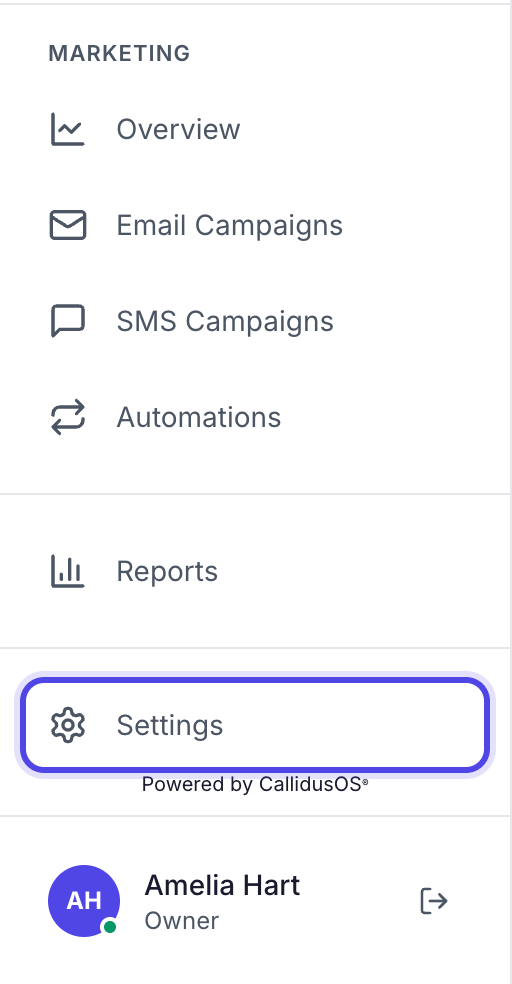
Scroll the menu down and open Settings.
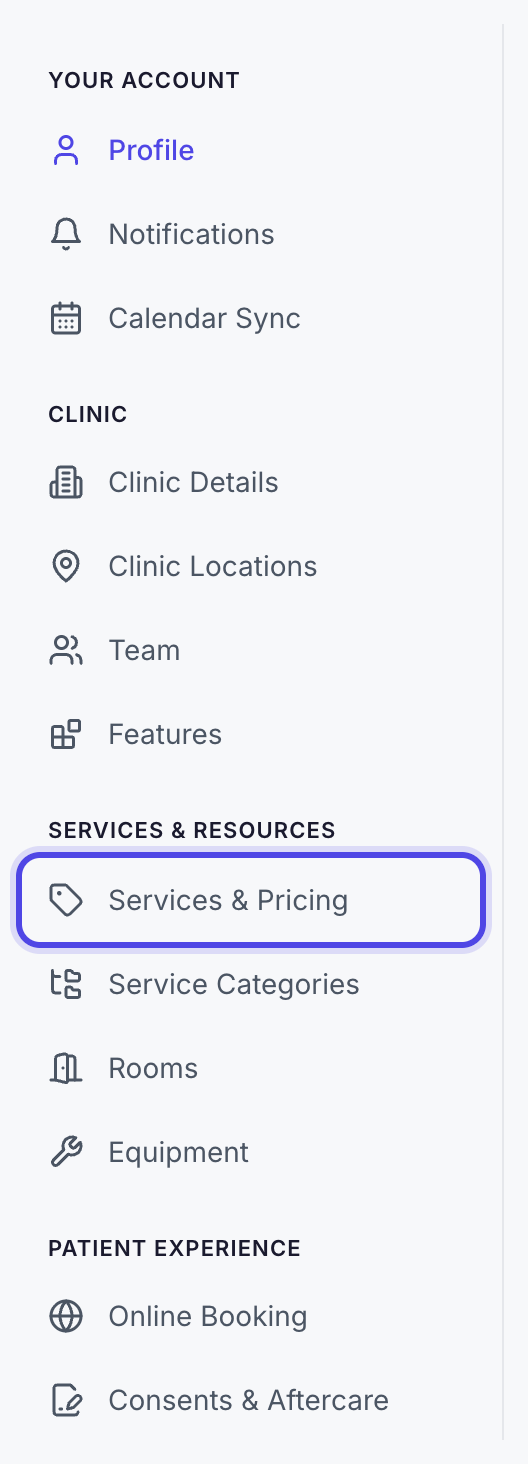
Choose Services & Pricing.
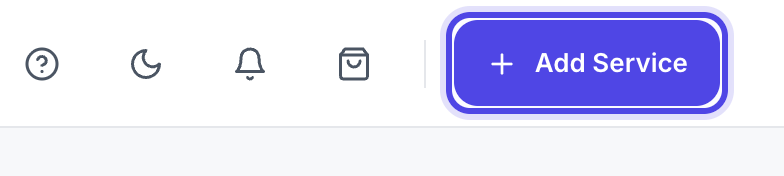
Click Add Service, top right.
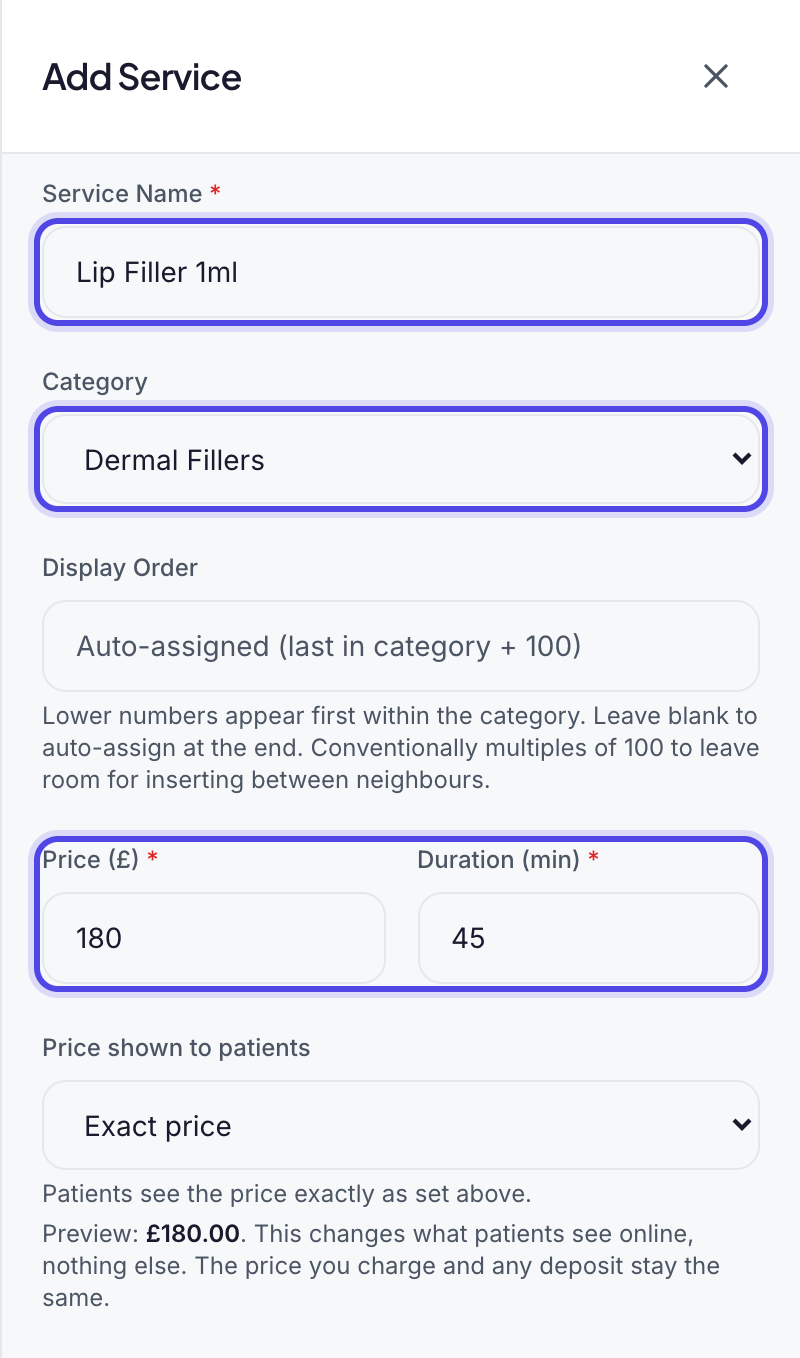
Add the name, category, price and how long it takes.
Ours is £180, for 45 minutes.
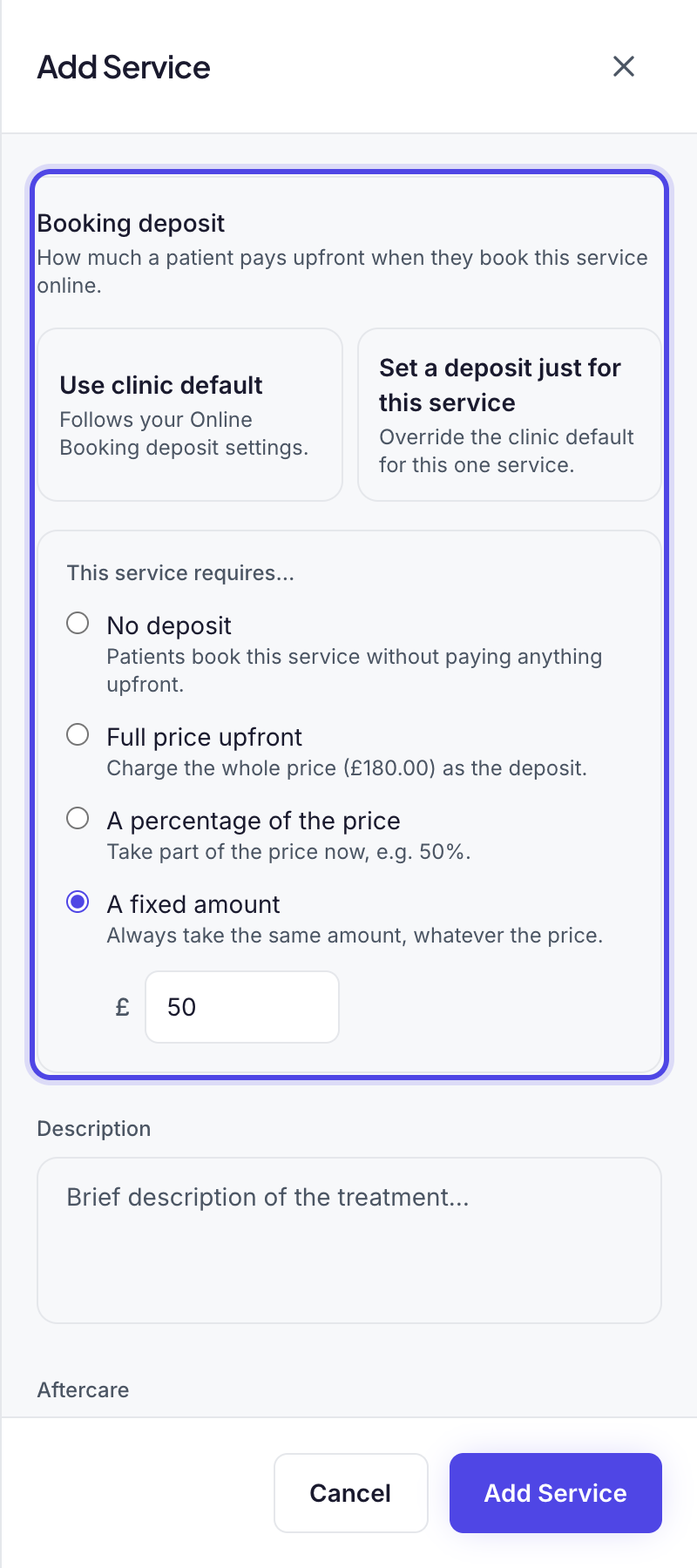
Use the clinic default, or set a deposit here. We've used £50.
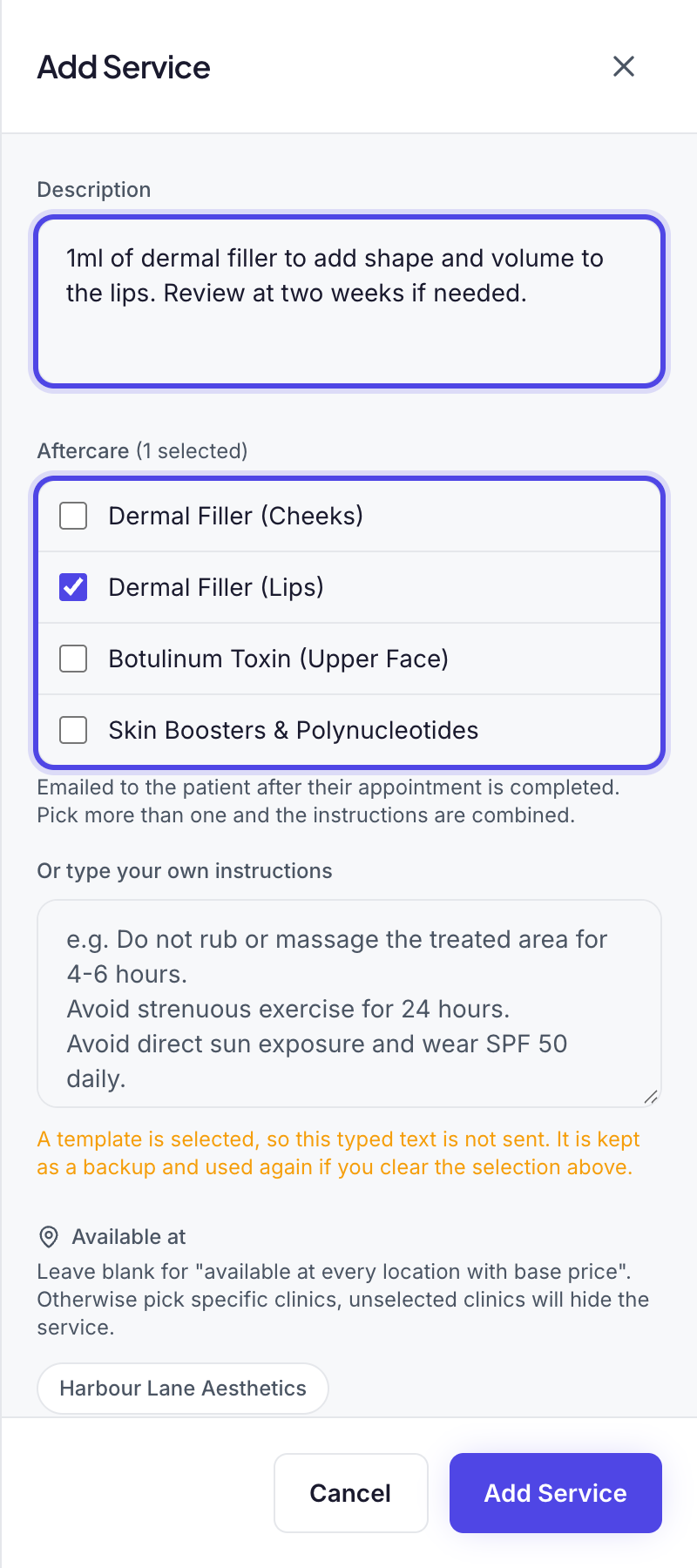
Tick the aftercare to send afterwards.
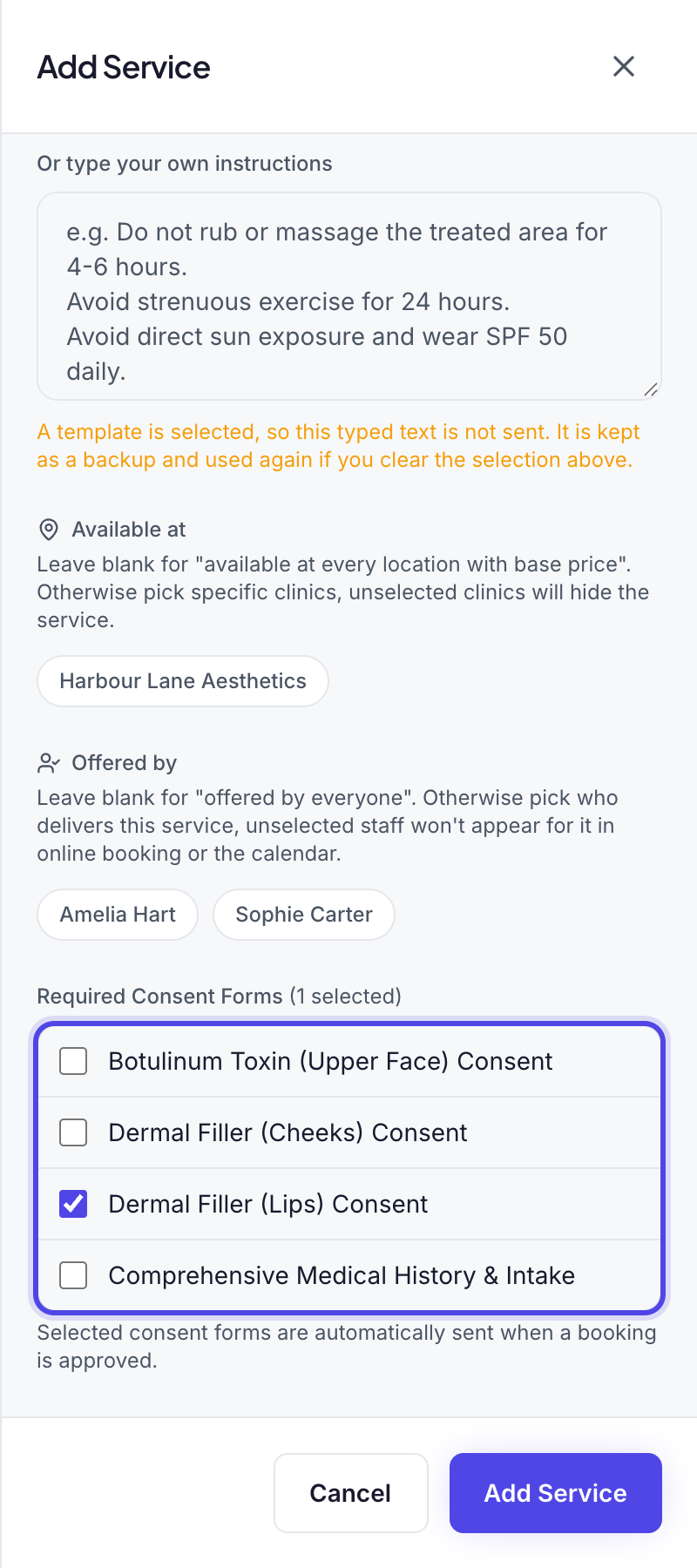
Then tick its consent form.
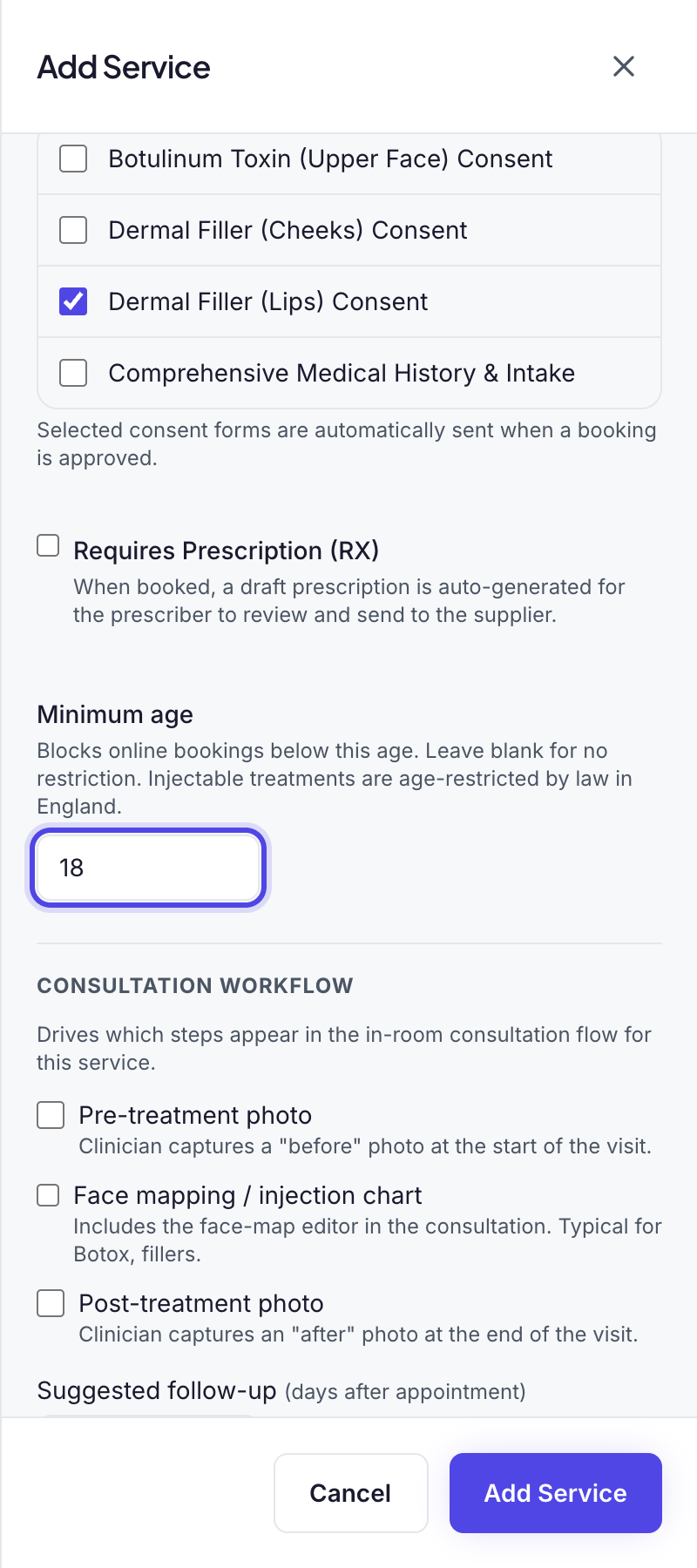
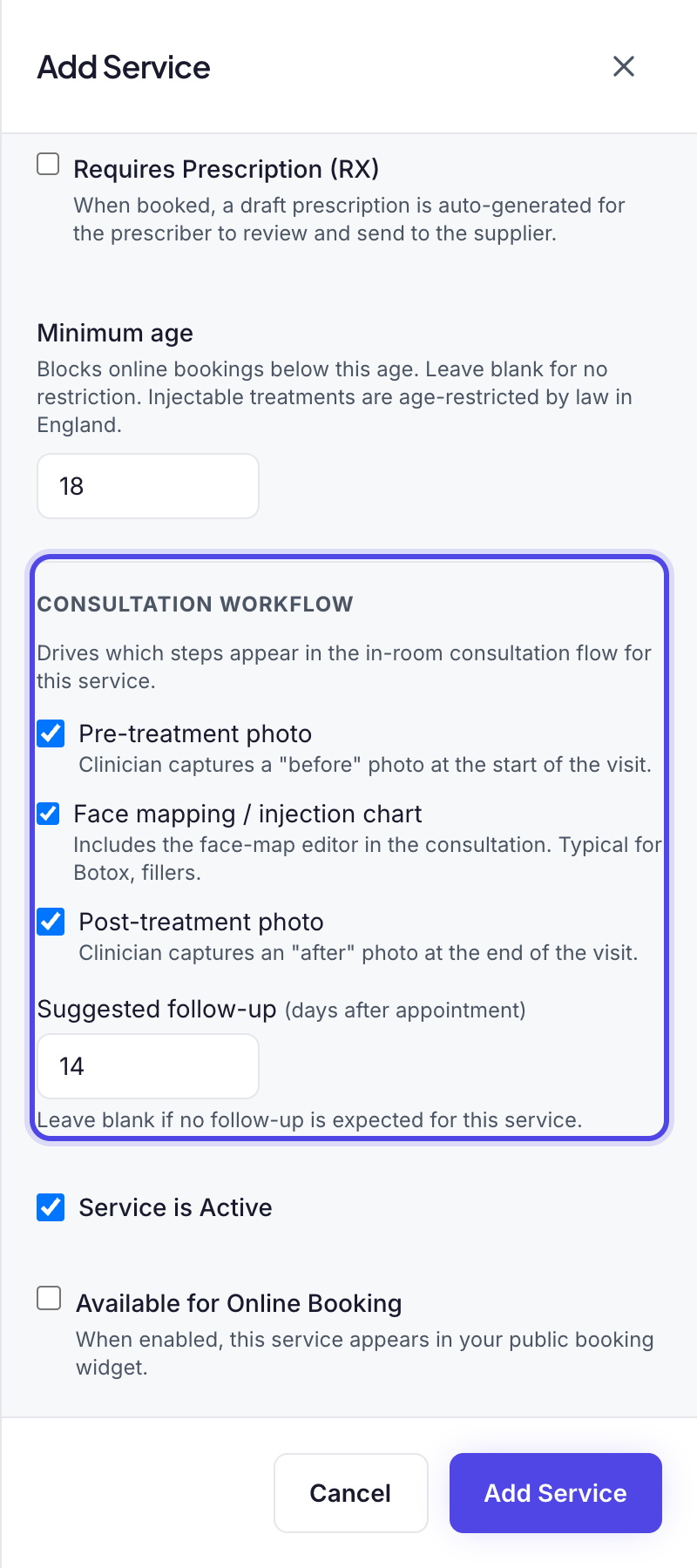
For injectables, set a minimum age of 18.
Choose the consultation steps, like before and after photos.
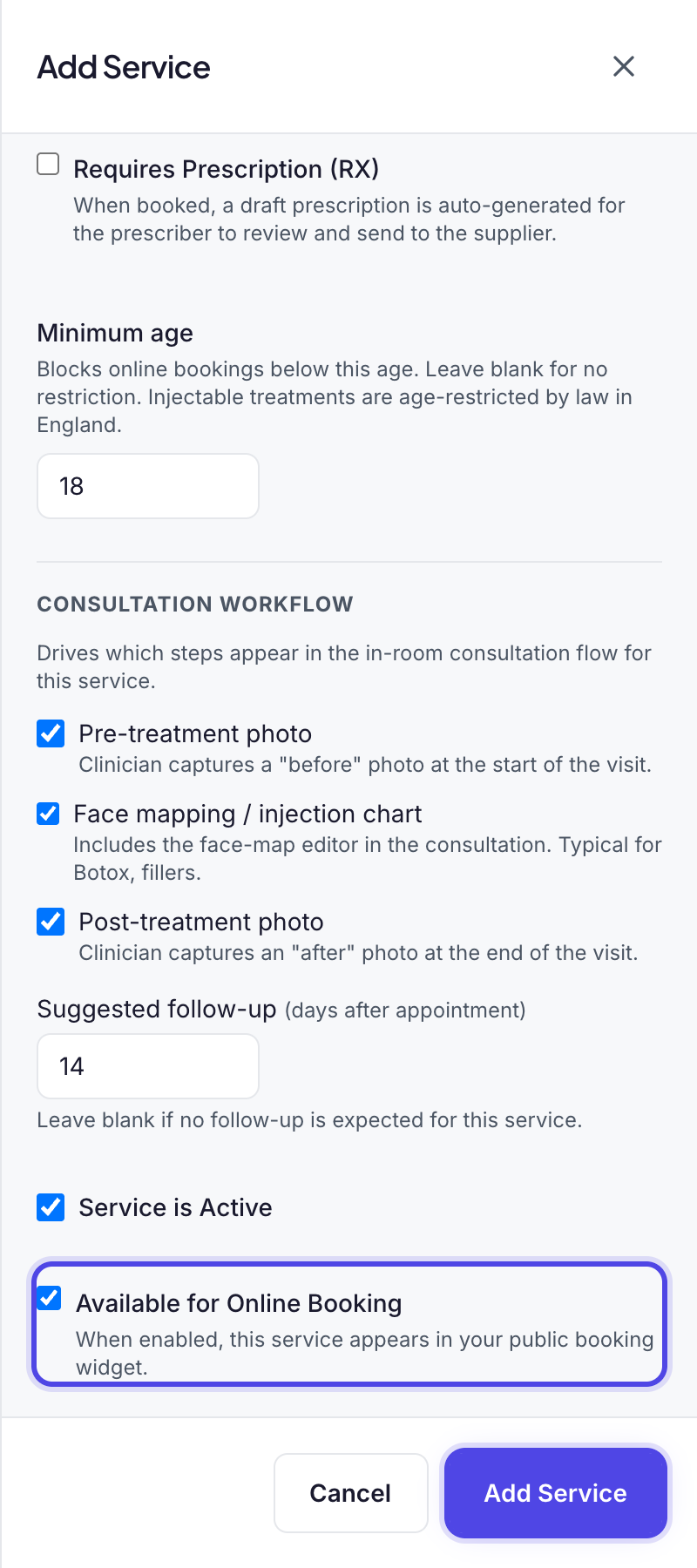
New services start hidden online, so tick Available for Online Booking.
Click Add Service to save.
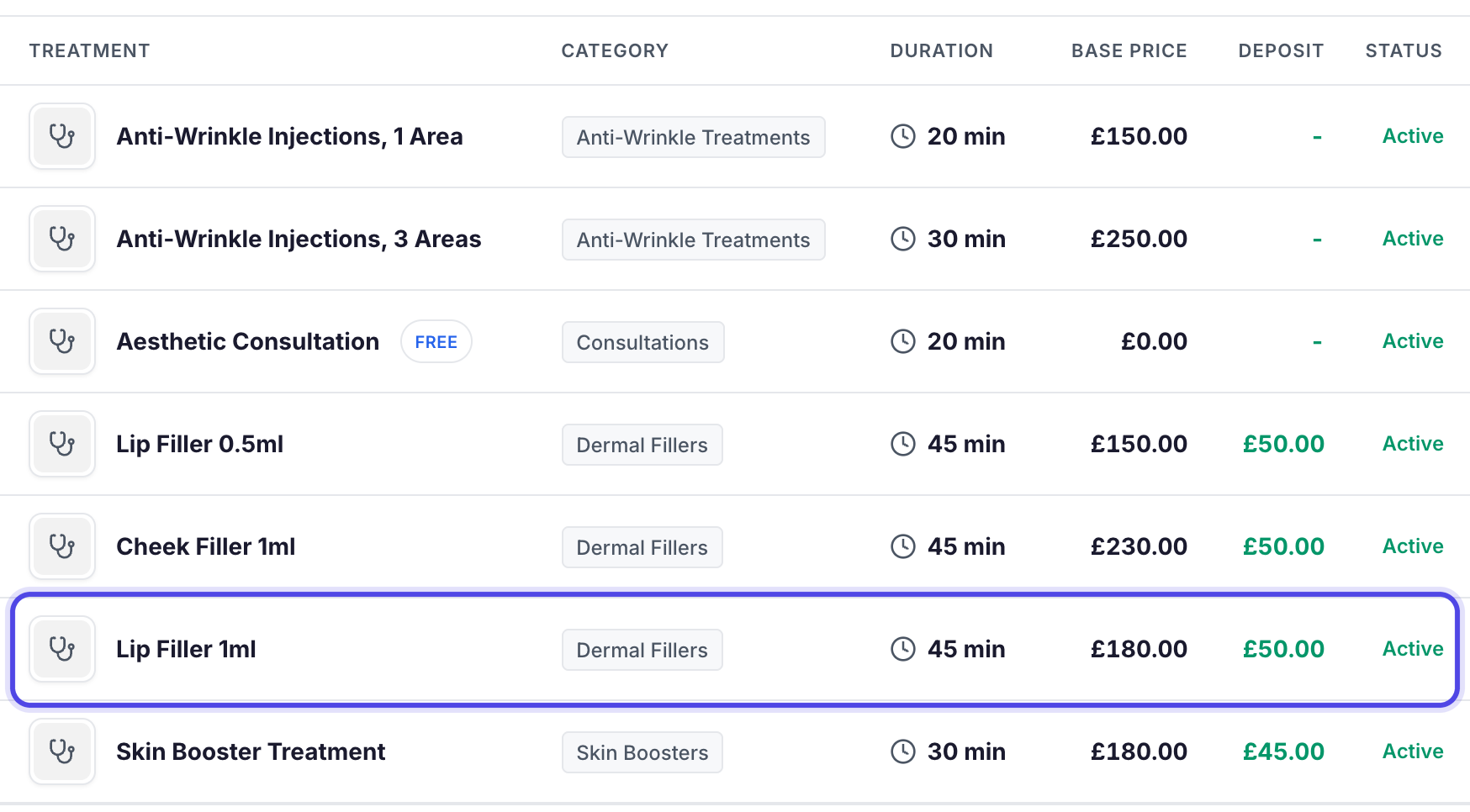
It's on your list now.
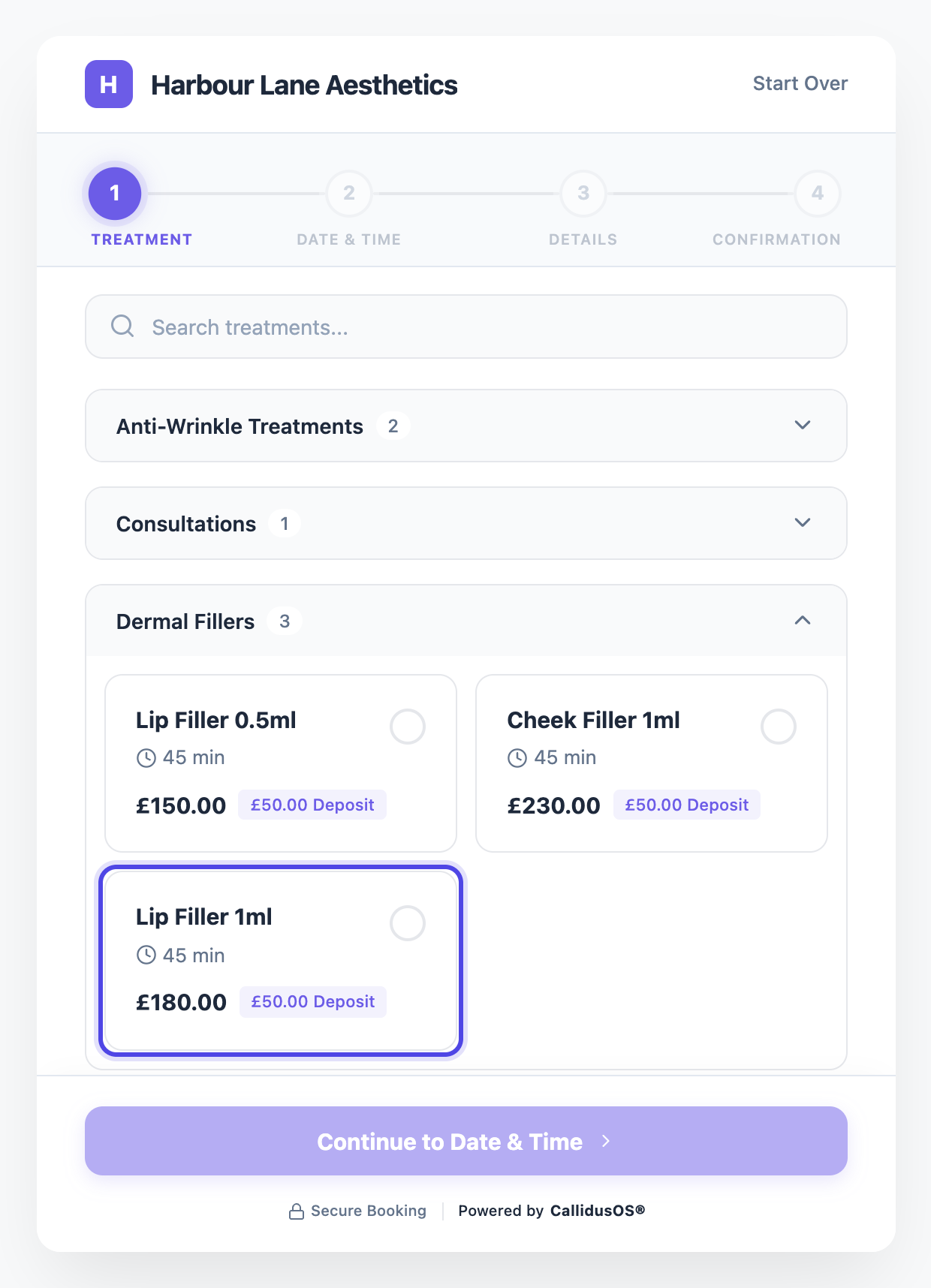
And patients can book it online.
The full guide is in our help centre.
Step 1: Open Services & Pricing
Click Settings at the bottom of the left-hand menu, just above your name. On a smaller screen, scroll the menu down to find it.
Settings opens on your profile. In the settings menu, under Services & Resources, click Services & Pricing.
Tip: In a hurry? Press Ctrl+K (Cmd+K on a Mac), type "services" and choose Services & Pricing.
Settings is at the bottom of the menu. Services & Pricing, under Services & Resources. Step 2: Click Add Service
The page lists every treatment you already offer, under the heading Services Portfolio. Click Add Service at the top right of the page. On a phone it shows as a + button.
Good to know: Lots of treatments to add? At the bottom of the services list, Add from library lets you pick from ready-made treatments, and Import CSV brings in a spreadsheet with Name, Price and Duration columns.
Add Service is at the top right of the page. Step 3: Enter the name, category, price and duration
The Add Service panel opens on the right. Fill in Service Name, Price (£) and Duration (min): these three are required. Enter 0 as the price for a free treatment, such as a consultation. The duration sets how long the appointment is in your calendar and which times patients can book online.
Choose a Category so the treatment sits with similar ones. Leave Display Order blank and the new service goes to the end of its category.
Tip: Always pick a category. It keeps your booking page tidy, and a service without one is flagged with a warning triangle in your list.
Good to know: Price shown to patients only changes the wording on your booking page. Choose From price for treatments you price at consultation, or Don't show price to leave the price off. What you charge stays the same.
Our example: Lip Filler 1ml, Dermal Fillers, £180, 45 minutes. Step 4: Choose the booking depositOptional
Under Booking deposit, leave Use clinic default to follow the deposit set in your Online Booking settings. For a different deposit on this treatment, choose Set a deposit just for this service, then pick No deposit, Full price upfront, A percentage of the price or A fixed amount.
Our example takes a fixed £50 when a patient books online.
Check this: Deposits are only taken online once card payments are connected in Payment Processing in Settings. Until then, your booking page shows no deposit. See Set up payment processing.
A fixed £50 deposit for this one service. Step 5: Add a description and aftercareOptional
Scroll down. Use Description for a short note about the treatment, for your team's reference. It is not shown on your booking page.
Under Aftercare, tick the instructions for this treatment. Tick more than one and they are combined. To write your own instead, use Or type your own instructions and leave the list unticked. They are emailed to the patient an hour after their appointment is marked completed. Owners and admins can change this to 24 hours, or switch off Post-care instructions, in Communications in Settings.
Good to know: The list shows the aftercare set up in Consents & Aftercare in Settings. Leave it all blank to send no aftercare. See Set up aftercare emails.
Dermal Filler (Lips) aftercare ticked for this treatment. Step 6: Choose the consent formsOptional
If you see Available at and Offered by, leave them blank to offer the treatment at every location and with everyone who takes bookings, or pick the ones who provide it.
Under Required Consent Forms, tick the form for this treatment. It is sent to the patient automatically when their booking is approved.
Check this: Only forms already switched on in Consents & Aftercare in Settings appear here. Not sure which treatments need one? See Should I require a consent form for this service?
The lip filler consent form, sent when the booking is approved. Step 7: Set a minimum ageOptional
Enter a Minimum age to stop anyone younger booking this treatment online. Leave it blank for no limit.
Just above it, tick Requires Prescription (RX) for prescription-only treatments, such as anti-wrinkle injections. A draft prescription is then created for your prescriber to review whenever the treatment is booked. A filler does not need it, so it stays unticked here.
Tip: Injectable treatments are age-restricted by law in England, so set a minimum age of 18 for them.
A minimum age of 18 for an injectable treatment. Step 8: Choose the consultation stepsOptional
Under Consultation Workflow, tick the steps you want in the in-room consultation for this treatment: Pre-treatment photo, Face mapping / injection chart and Post-treatment photo.
If you usually see patients again, add a Suggested follow-up in days. Otherwise leave it blank.
Before and after photos, a face map and a 14 day follow-up. Step 9: Switch on online booking, then save
Service is Active is already ticked. Tick Available for Online Booking so patients can book this treatment on your booking page.
Click Add Service at the bottom of the panel. A Service added message confirms it is saved.
Check this: Available for Online Booking starts unticked on every new service. Without it, your team can still book the treatment, but patients will not see it online.
Tick Available for Online Booking, then click Add Service. Step 10: Check it in your list
The panel closes and your new service is in the list, with its category, duration, price, deposit and status. If you left Use clinic default, the Deposit column shows a dash, but your clinic's default deposit still applies when patients book online.
To change it later, click its name, or click the three dots and choose Edit Service. To stop offering it without deleting it, choose Deactivate Service from the same menu.
Good to know: A warning triangle beside a service name means it has no category or is not available for online booking.
Lip Filler 1ml is in the list, ready to book. Step 11: See it on your booking page
Open your booking page to see what patients see. Owners and admins can open it with Preview Widget at the top of Online Booking in Settings. Managers can ask one of them for the link. The treatment sits under its category, with its length, price and deposit.
What patients see when they choose a treatment.
What happens next
- Your team can choose the treatment when they book an appointment in the Calendar.
- If it is available for online booking, patients can book it on your booking page and pay any deposit as they book.
- Linked consent forms are sent to the patient when a booking is approved.
- Aftercare is emailed to the patient an hour after their appointment is marked completed, unless your clinic has changed this in Communications.
Was this guide helpful?
Still stuck?
Real people, here to help. Pick whichever suits you.
- Live chatMessage our UK team from inside the app.Open the app
- Email usWe get back to you within 24 hours, usually much sooner.support@callidusos.co.uk
- Book a callA free 1-to-1 call with our team to set things up together.Book a call
Every way to reach us, plus free setup and data migration, is on Help and support.