Set up payment processing
Connect Stripe to take card payments, booking deposits and invoice pay links, choose how you take payment, and see where payouts and fees show.
- Updated
- 4 min read, 1 min 53 sec video
- For owners and admins. Managers can open the page and see the account, but not change it.
In the app:SettingsthenPayment Processing
On this page
CallidusOS takes card payments through Stripe, using your clinic's own Stripe account, so the money goes to your bank. Once it is connected you can take booking deposits, send patients a link to pay an invoice online, charge a card at the till, and save cards to charge later.
You also choose which ways of paying you accept, from card and cash to bank transfer, Klarna and Clearpay, and which of them your invoices mention.
Before you start
- Have your business details, your ID and the bank account you want paid into ready. Stripe asks for them when you connect.
Read the transcript
Here's how to set up payment processing.
Open Settings, then Payment Processing.
Click Connect with Stripe and give Stripe your business and bank details.
Once Stripe has checked them, your account shows as Verified.
Then choose how you take payment: card, cash, bank transfer, Klarna and Clearpay.
Show on invoice puts each one on your invoice emails.
Klarna and Clearpay also need turning on in your Stripe dashboard.
Save, then email a pay link from any unpaid invoice.
The patient pays by card, or Klarna or Clearpay if you offer them.
Online booking deposits are taken by card.
Payouts and fees are in your Stripe dashboard.
Stripe's fees apply, plus a 0.1% platform fee.
The full guide is in our help centre.
Step 1: Open Payment Processing
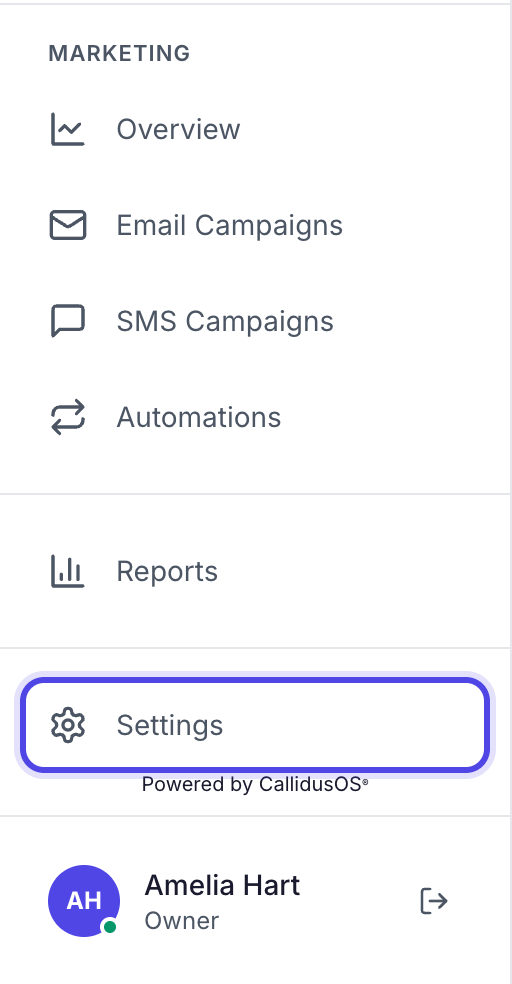
Click Settings at the bottom of the left-hand menu, just above your name. On a smaller screen, scroll the menu down to find it.
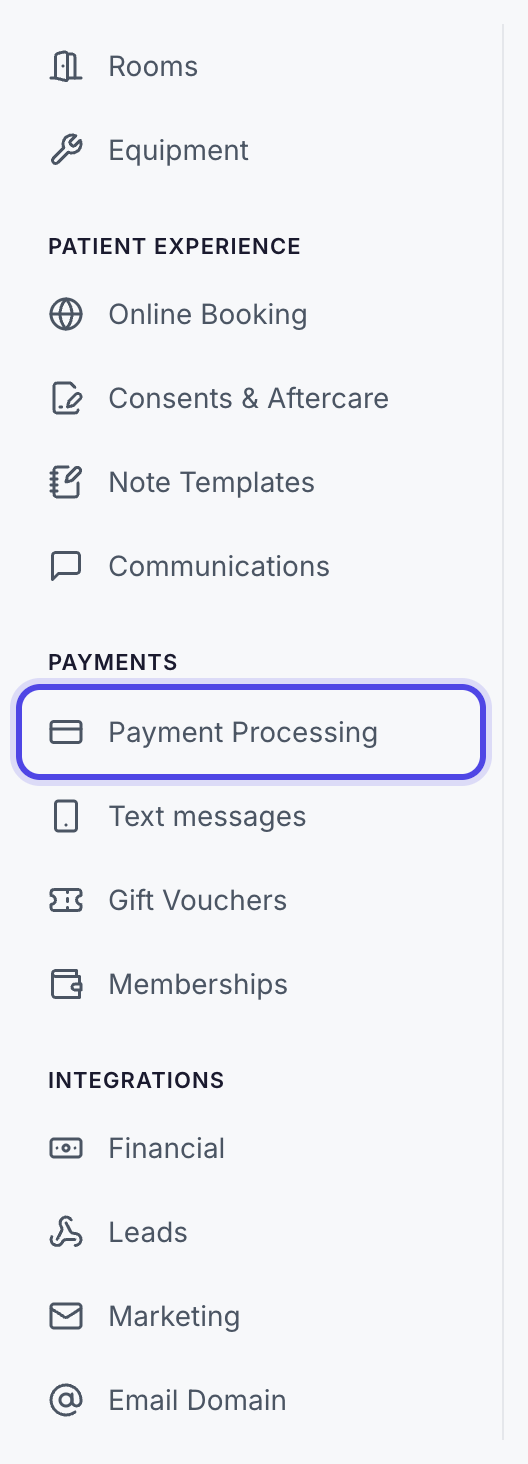
In the settings menu, under Payments, click Payment Processing.
Tip: In a hurry? Press Ctrl+K (Cmd+K on a Mac), type "payment" and choose Payment Processing.
Settings is at the bottom of the menu. Payment Processing, under Payments. Step 2: Connect your Stripe account
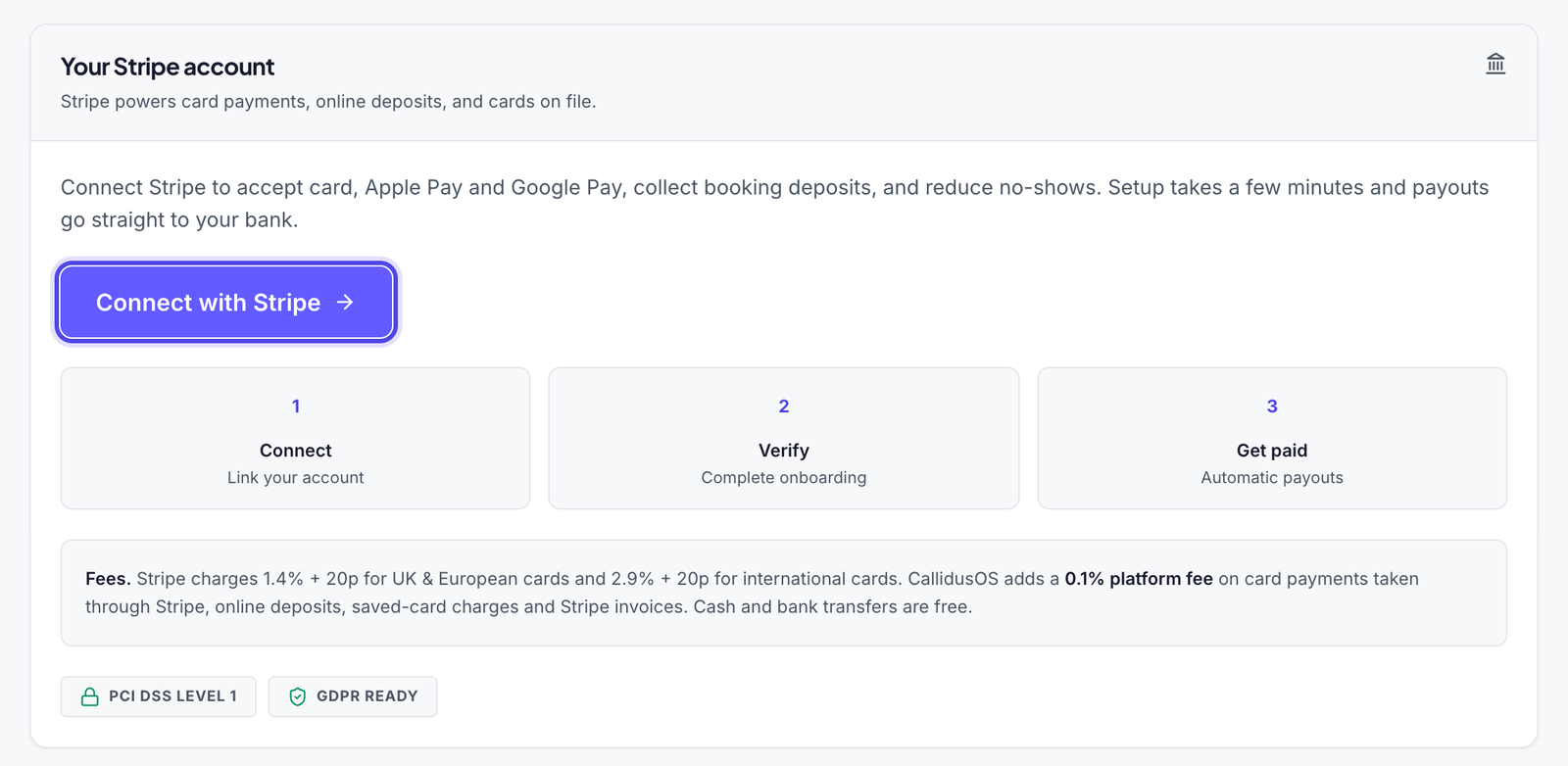
Under Your Stripe account, click Connect with Stripe. Stripe's own setup opens, where you sign in or create an account and give your business details, your ID and the bank account for your payouts.
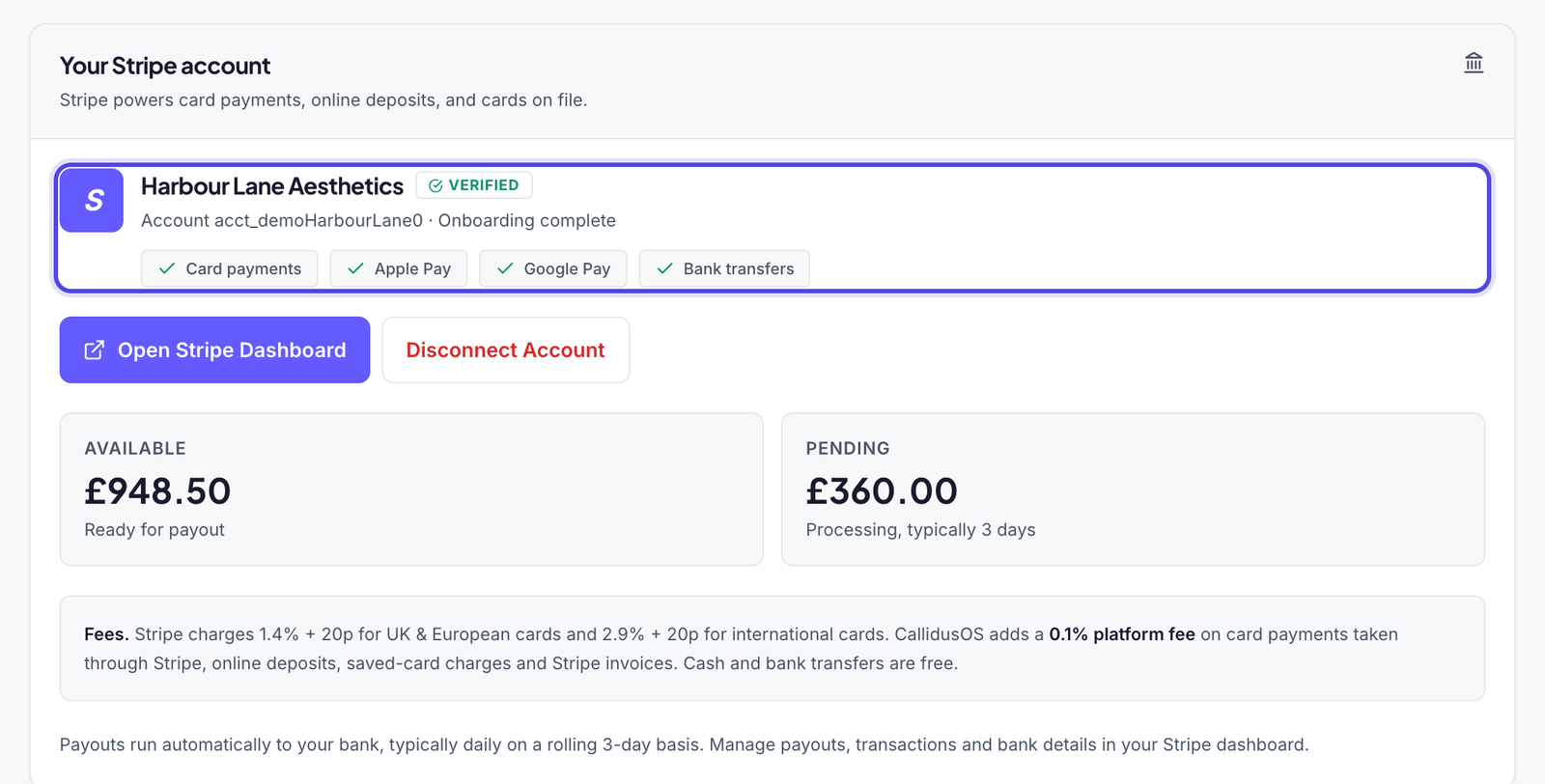
When you finish, Stripe brings you back to Payment Processing. Your account shows as Verified once Stripe has checked your details, with Onboarding complete under your clinic's name. Until then it shows Pending.
Check this: If it says Complete Onboarding instead, Stripe still needs something from you. Click it to carry on where you left off. You cannot take card payments, deposits or pay links until the account is verified.
Good to know: Card details are entered on Stripe's secure pages and kept by Stripe, never by CallidusOS.
Connect with Stripe starts Stripe's own setup. Connected and verified. Step 3: Choose how you take payment
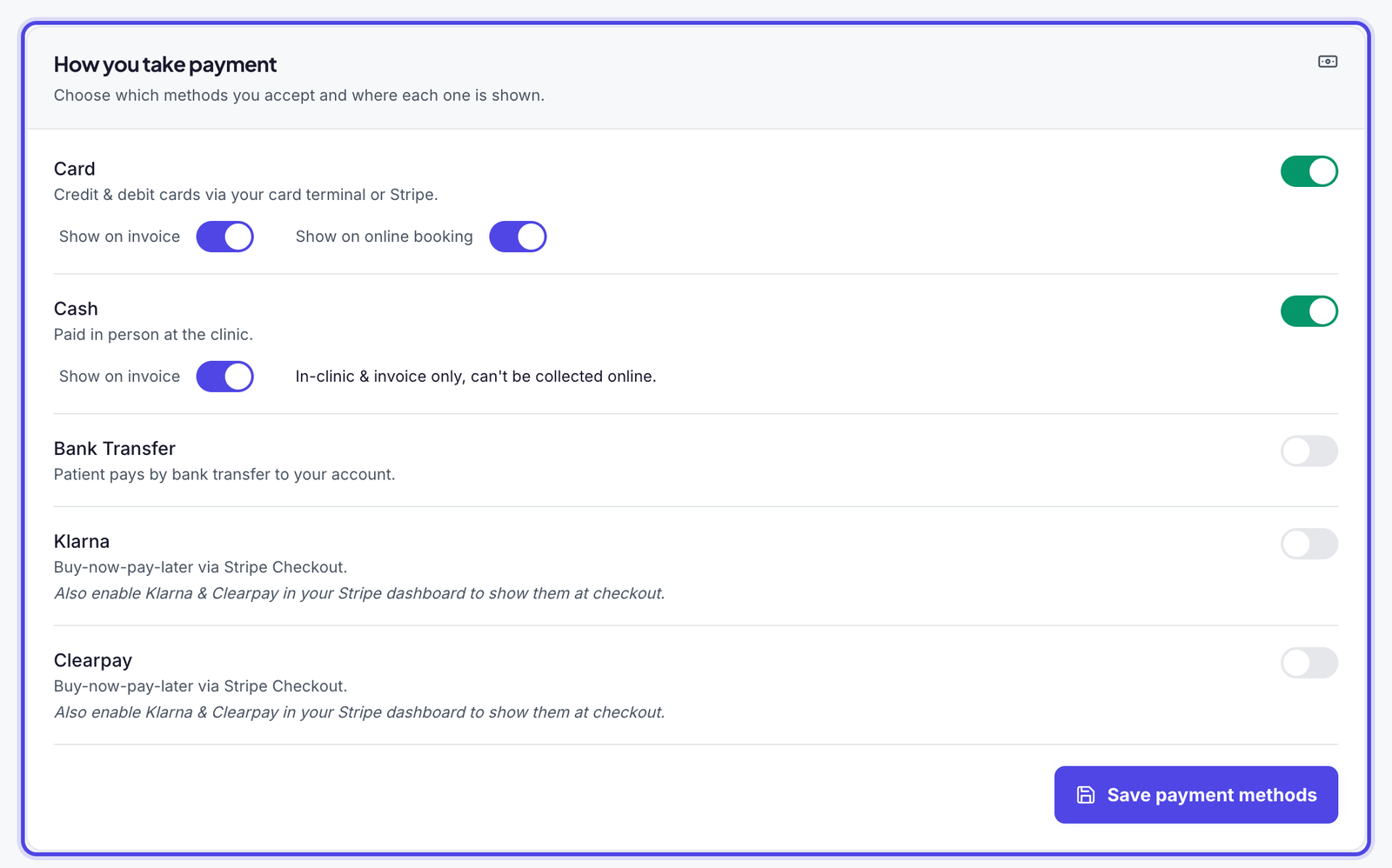
Under How you take payment, switch on each way you accept payment: Card, Cash, Bank Transfer, Klarna and Clearpay. A new clinic starts with Card and Cash on.
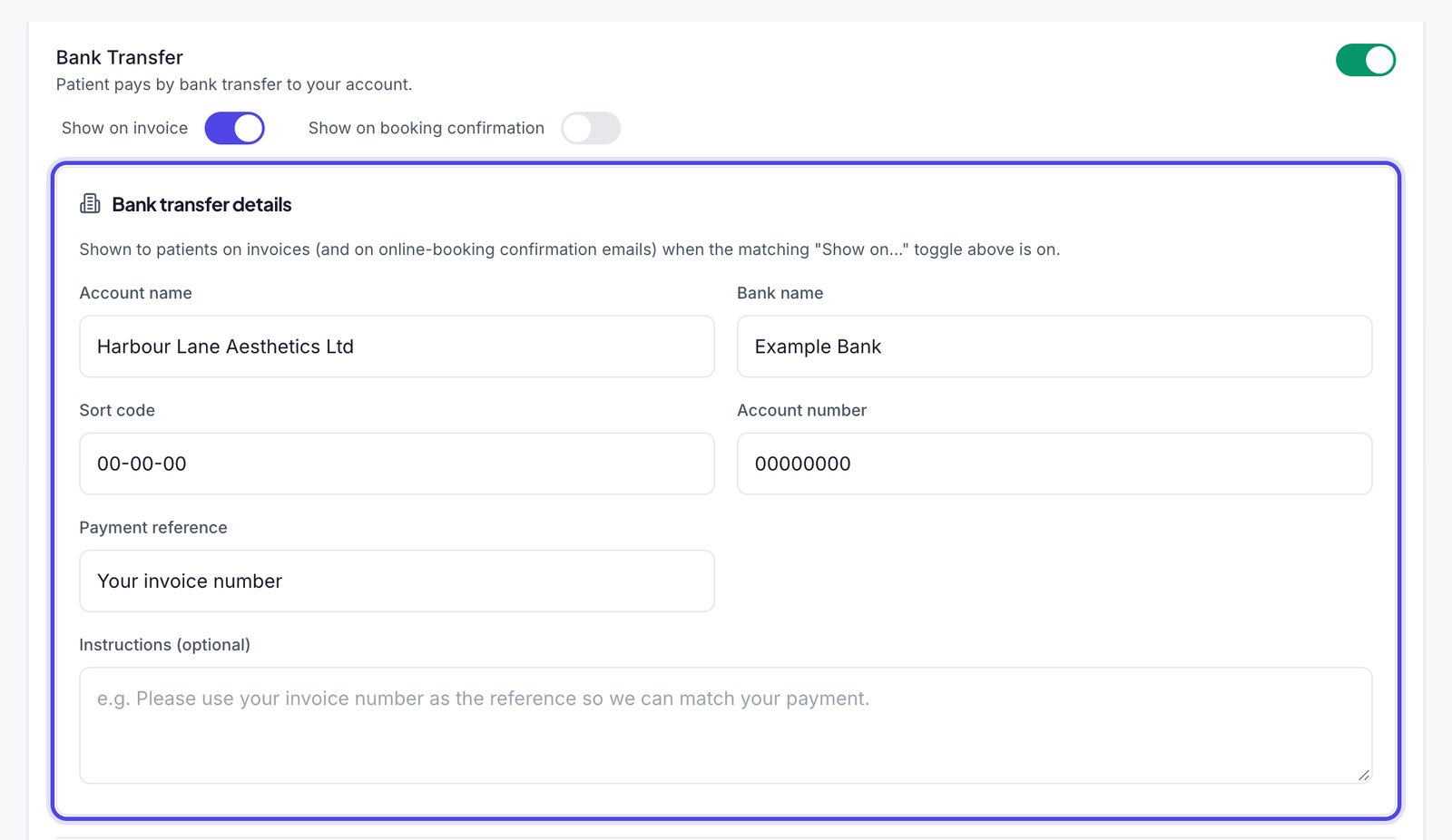
For each one that is on, Show on invoice names it in the email that sends a patient their invoice. For Bank Transfer, also fill in Bank transfer details: with Show on invoice on, your bank details go on invoice emails, and with Show on booking confirmation on, they go on online booking confirmation emails too.
Click Save payment methods. A Payment methods saved message confirms it.
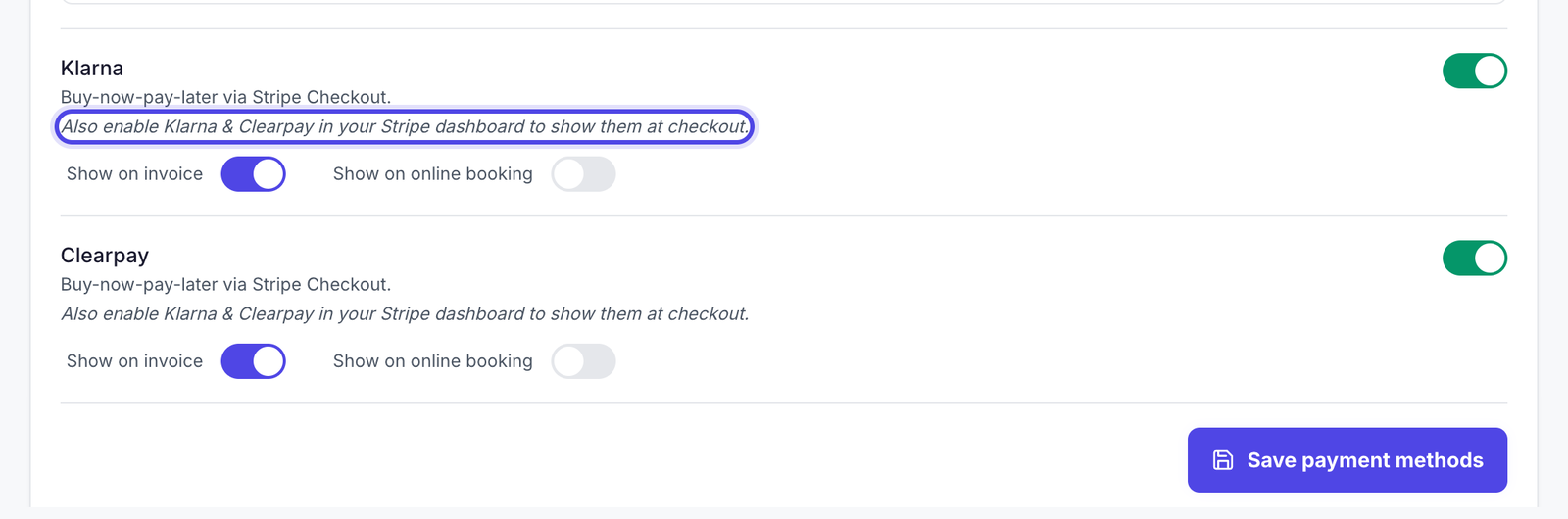
Check this: Klarna and Clearpay are offered through Stripe, so also switch them on in your Stripe dashboard. They are offered on invoice pay links only, not for booking deposits or at the till.
Good to know: Cash and bank transfer are taken in clinic or by the patient themselves. You record them against the invoice or at the till when they arrive.
How you take payment. Your bank details for patients who pay by transfer. Klarna and Clearpay also need switching on in Stripe. Step 4: Send a pay link
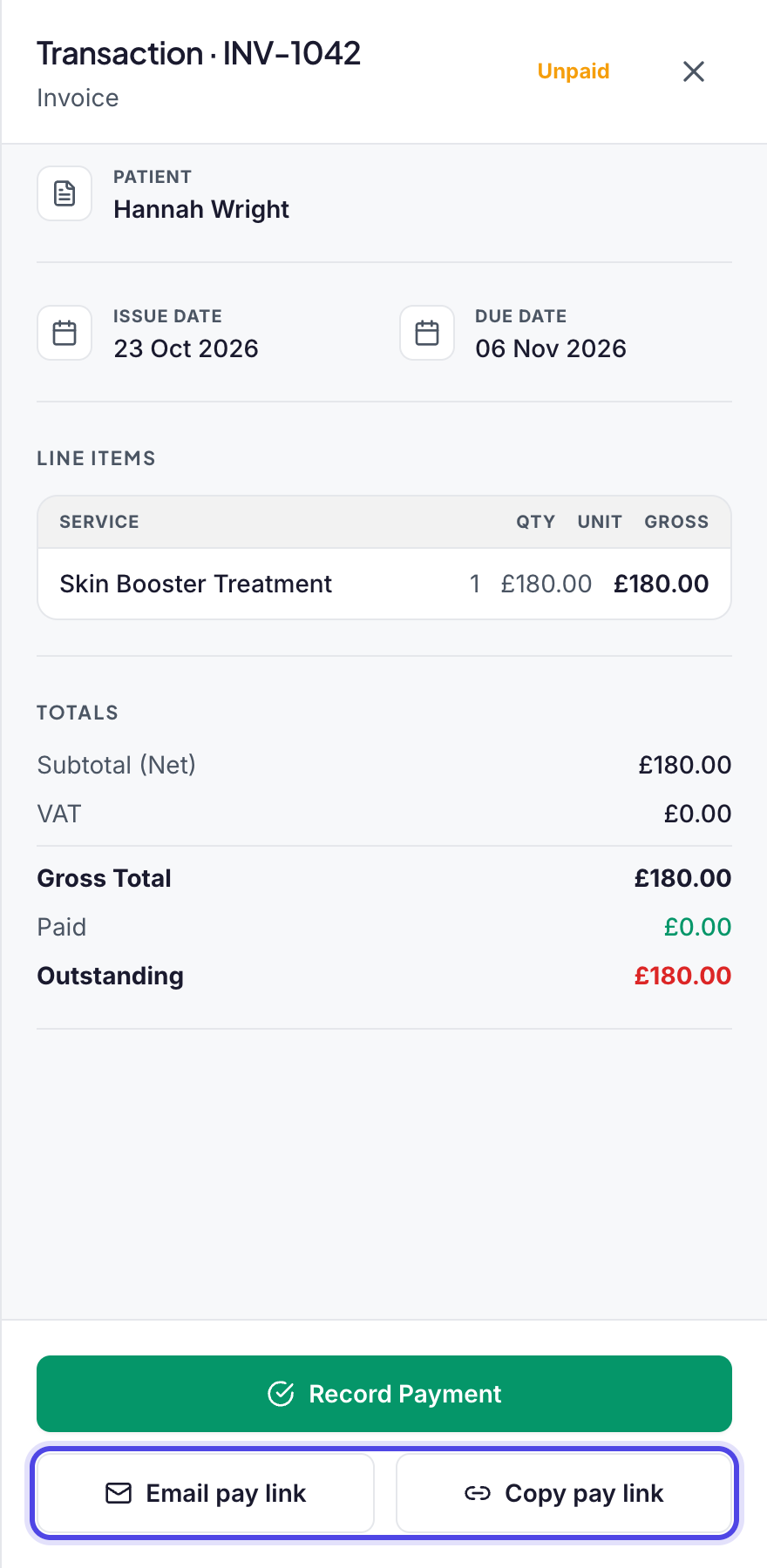
Open Transactions in the left-hand menu and click an unpaid invoice. Click Email pay link to email it to the patient, or Copy pay link to paste it into a text or WhatsApp.
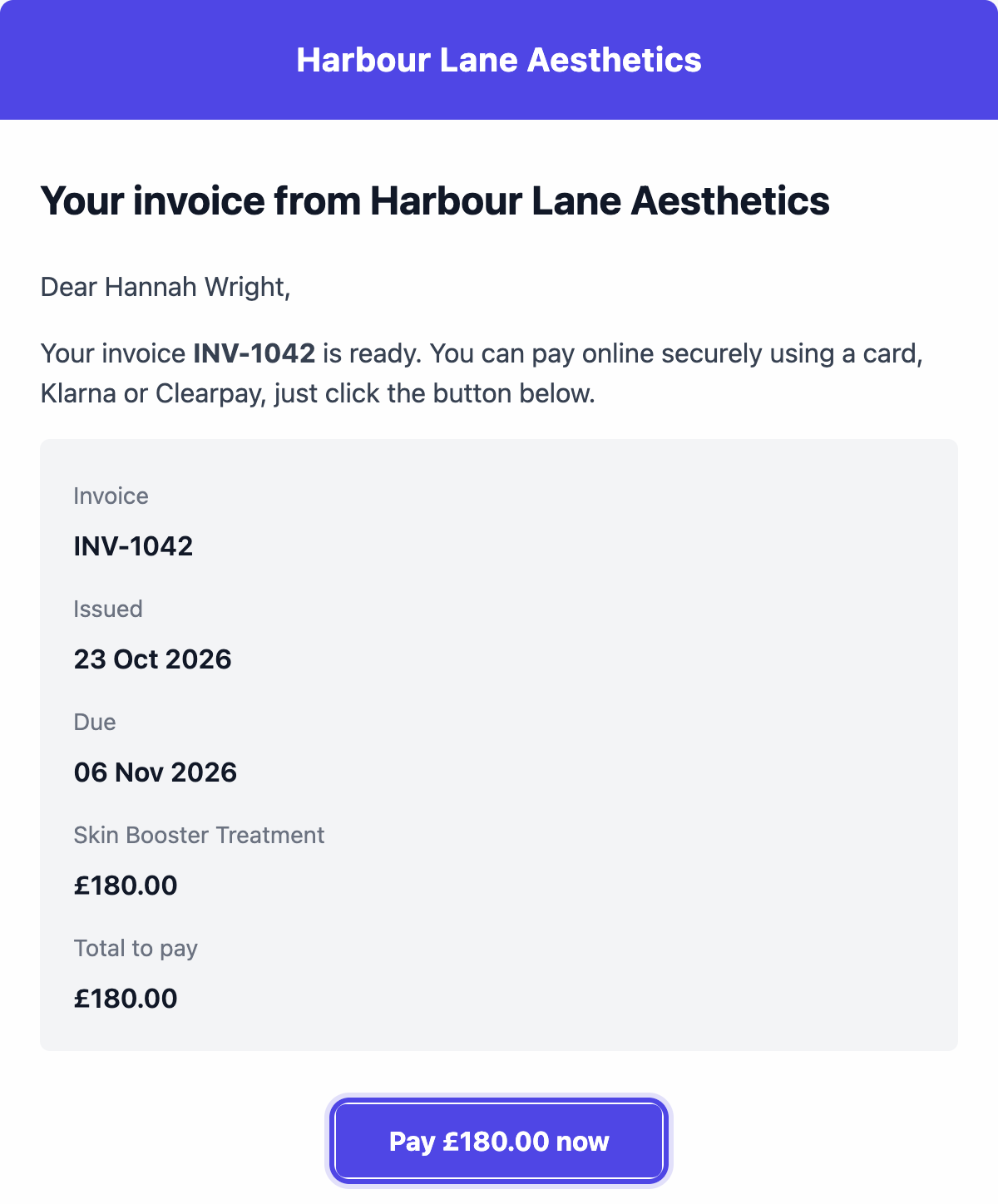
The patient's email lists the invoice and a Pay button for the amount due, with your bank details if you show them. The button opens Stripe's secure payment page, where they pay by card, or with Klarna or Clearpay if they are switched on in your Stripe account. The link does not expire, so it still works if they pay a few days later.
When they pay, the invoice is marked paid and the patient is emailed a receipt.
Tip: To let patients pay an invoice in parts, switch on Let patients part pay online under Part payments on the same page, and set the smallest amount they can pay.
Email or copy the pay link. What the patient receives. Step 5: Take deposits when patients book
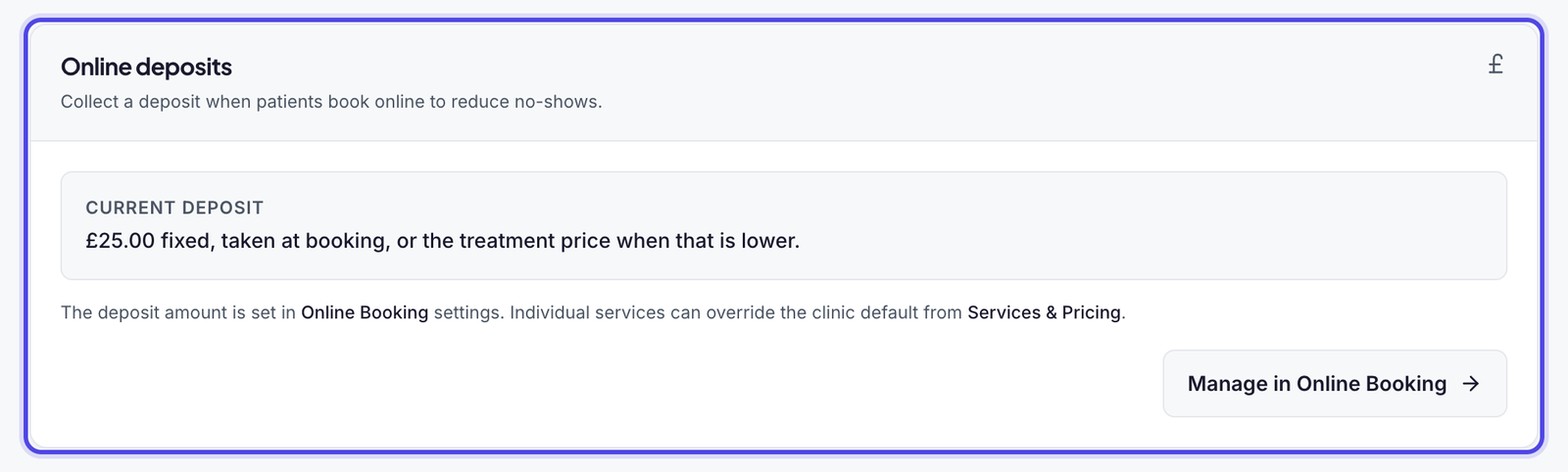
With Stripe connected, you can take a deposit when patients book online. They pay it by card on your booking page. Online deposits on this page shows your current deposit; you set it in Online Booking settings, and each treatment can have its own in Services & Pricing.
Tip: To save patients' cards and charge them later, switch on Allow storing patient cards under Card on file on this page.
Your current deposit, set in Online Booking. Step 6: Check your payouts and fees
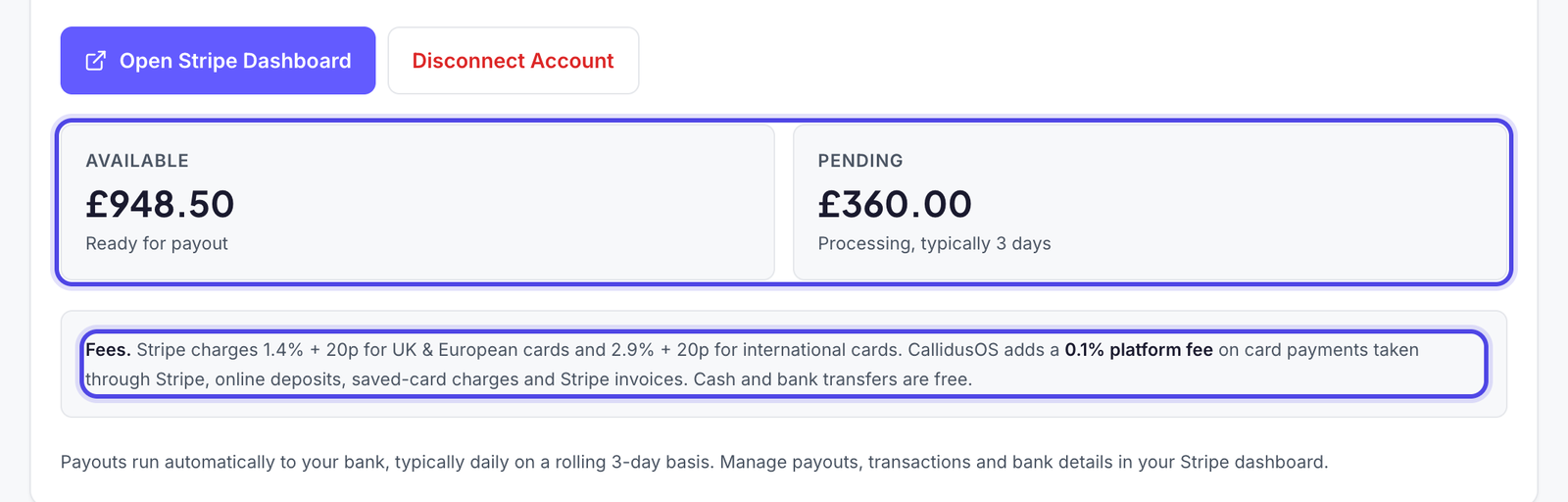
The Available and Pending balances show what Stripe holds for you. Stripe pays it into your bank automatically. To see your payouts, transactions and fees, or change your bank details or payout timing, click Open Stripe Dashboard.
Stripe charges its own fee on each card payment, shown in your Stripe dashboard. CallidusOS adds a platform fee of 0.1% on payments taken through Stripe: card payments, booking deposits, saved-card charges and invoice pay links. Cash and bank transfers have no fee.
Good to know: Refunds are made from your Stripe dashboard. A full refund marks the invoice as refunded in CallidusOS.
Balances here; payouts and fees in Stripe.
What happens next
- Patients can pay invoices online from the link you send, and the invoice is marked paid when they do.
- Online bookings take the deposit you set, by card, when the patient books.
- Stripe pays the money into your bank automatically.
Was this guide helpful?
Still stuck?
Real people, here to help. Pick whichever suits you.
- Live chatMessage our UK team from inside the app.Open the app
- Email usWe get back to you within 24 hours, usually much sooner.support@callidusos.co.uk
- Book a callA free 1-to-1 call with our team to set things up together.Book a call
Every way to reach us, plus free setup and data migration, is on Help and support.