Set up consent forms
Switch on the forms you need from the library, check the wording, attach them to your treatments and see how patients sign them.
- Updated
- 5 min read, 2 min 1 sec video
- For owners and admins. Managers can also attach forms to treatments.
In the app:SettingsthenConsents & Aftercare
On this page
Consent forms are what your patients read and sign before treatment. You switch on the forms you need, check the wording, then attach each one to the treatments that need it, and the form is emailed to the patient when their booking is confirmed.
Before you start
- Add the treatments you offer first. See Add a new service.
- To hand a tablet to patients in clinic, set a Device Lock PIN in Clinic Details in Settings, under Device Security.
Read the transcript
Here's how to set up consent forms.
Open Settings, then Consents & Aftercare.
Search the library for your treatment and preview the form.
Click Activate for Clinic.
It's now your clinic's form, so check the wording. The pencil edits it.
In Services & Pricing, open the treatment.
Tick the form under Required Consent Forms, then save.
When a booking for it is confirmed, the form is emailed to the patient.
They answer the questions, tick one box and sign.
To sign in clinic, start a new consent from the patient's Files & Consents tab.
Hand to Patient locks the screen until you enter your PIN.
Signed forms stay on the patient's record, as a PDF.
The full guide is in our help centre.
Step 1: Open Consents & Aftercare
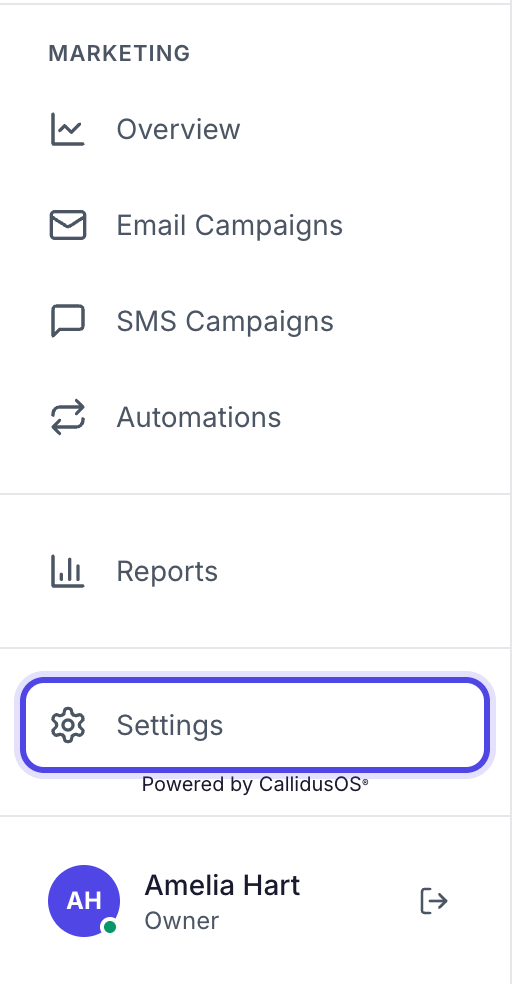
Click Settings at the bottom of the left-hand menu, just above your name. On a smaller screen, scroll the menu down to find it.
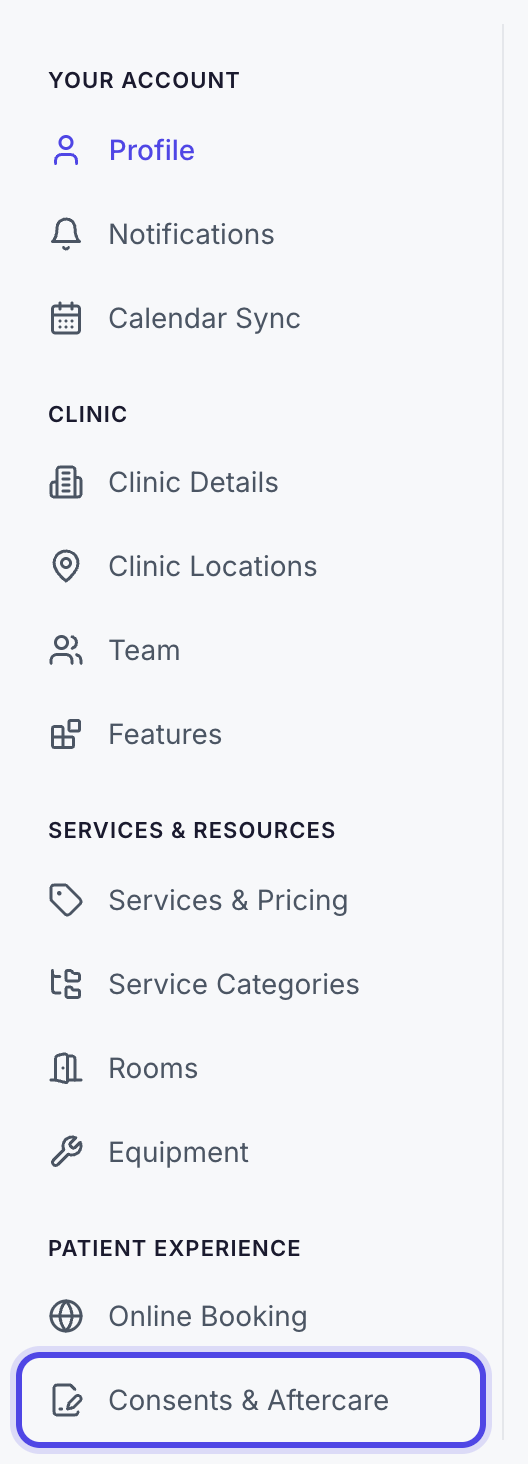
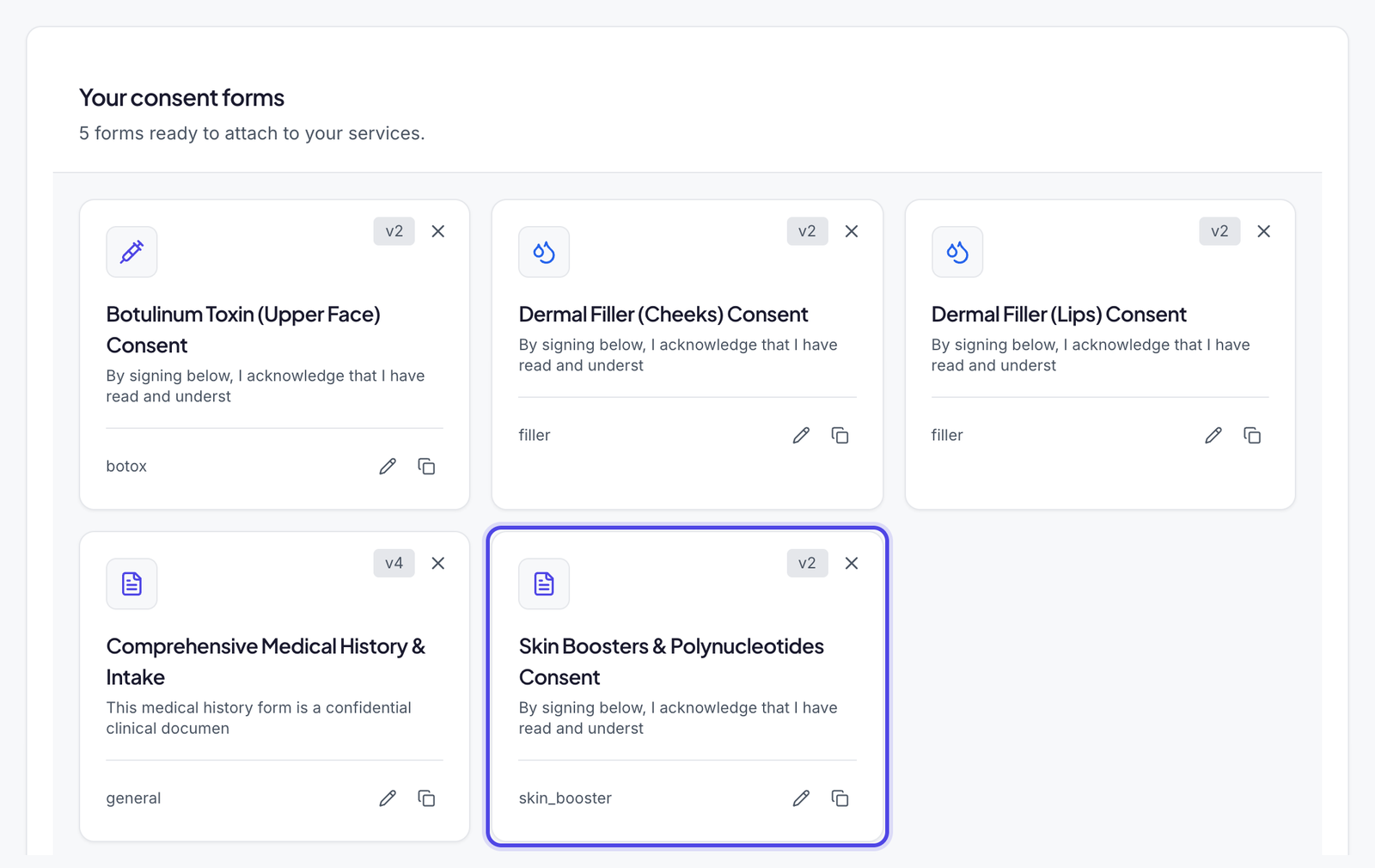
In the settings menu, under Patient Experience, click Consents & Aftercare. It opens on the Consent forms tab, where Your consent forms lists the forms your clinic has already switched on.
Tip: In a hurry? Press Ctrl+K (Cmd+K on a Mac), type "consents" and choose Consents & Aftercare.
Settings is at the bottom of the menu. Consents & Aftercare, under Patient Experience. Step 2: Find a form in the library and activate it
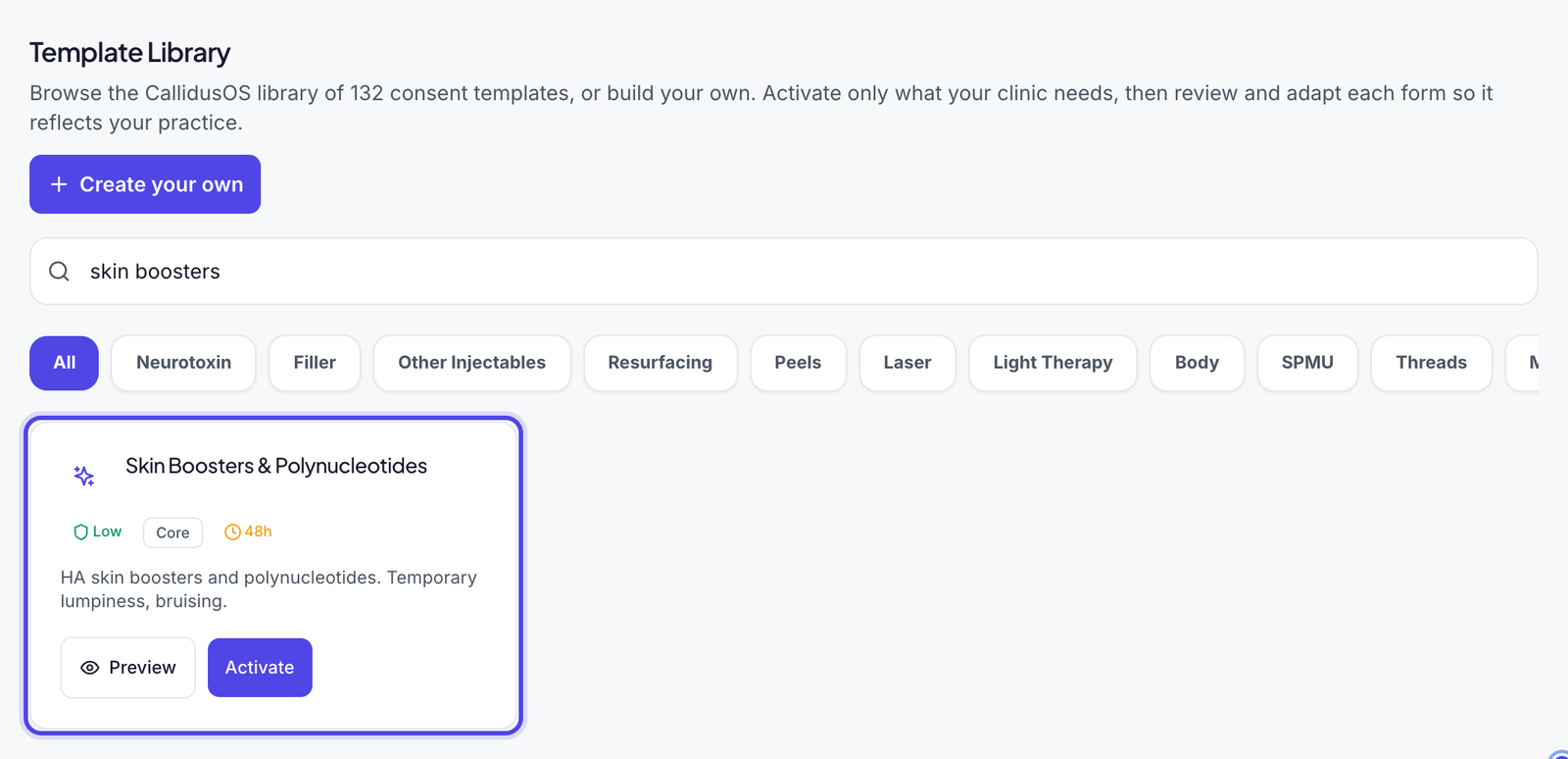
Scroll down to Template Library. Search for the treatment, or pick a type such as Filler or Other Injectables. You can also search for the name of a product you use: the form that covers it is shown with a Covers label.
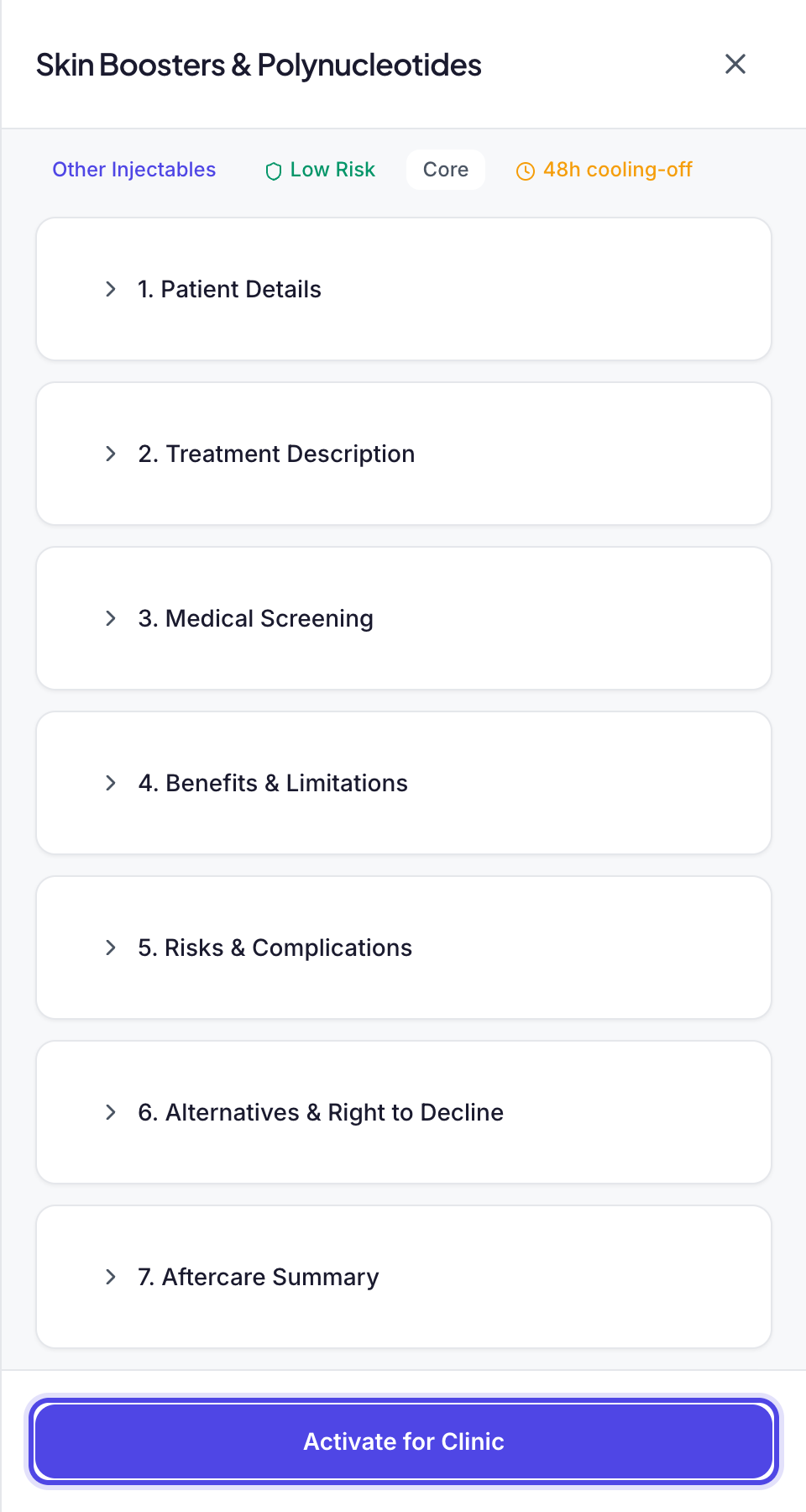
Click Preview to read the form section by section, then click Activate for Clinic. A Template activated message confirms it.
Good to know: The library is organised by treatment and treatment area, not by brand. Nothing suitable? Click Create your own at the top of the library to build your own form.
Search the library, then preview the form. Activate for Clinic adds it to your forms. Step 3: Check the wording, and edit it if you need to
The form now appears under Your consent forms. It belongs to your clinic, so read it through before you use it with patients and make sure it reflects your practice and the treatment you provide.
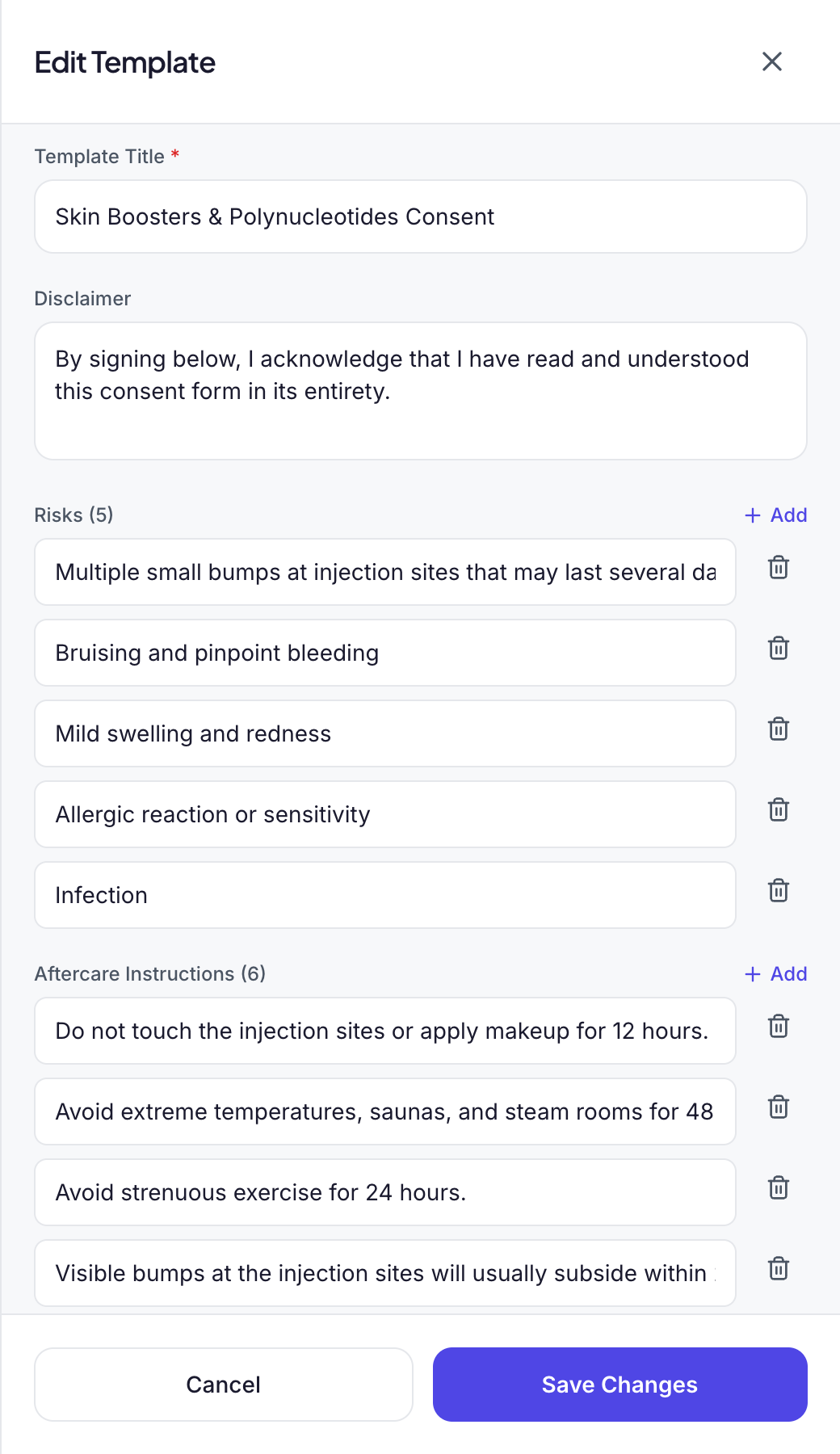
To change it, click the pencil on its card. In Edit Template you can change the title, the disclaimer, the risks and the aftercare instructions, then click Save Changes. The version number goes up each time you save, and every signed form records the version the patient signed.
Check this: Library forms are a starting point. Your clinic is responsible for the forms it uses, so review and adapt each one before you send it to patients.
Tip: To keep the original and make a variation, click the copy button beside the pencil to duplicate the form. Your own health questions from the Screening questions tab can be added to a form in Edit Template too.
Your forms, with the new one added. Edit Template: title, disclaimer, risks and aftercare. Step 4: Attach the form to your treatments
In the settings menu, click Services & Pricing, then click the treatment's name to open it.
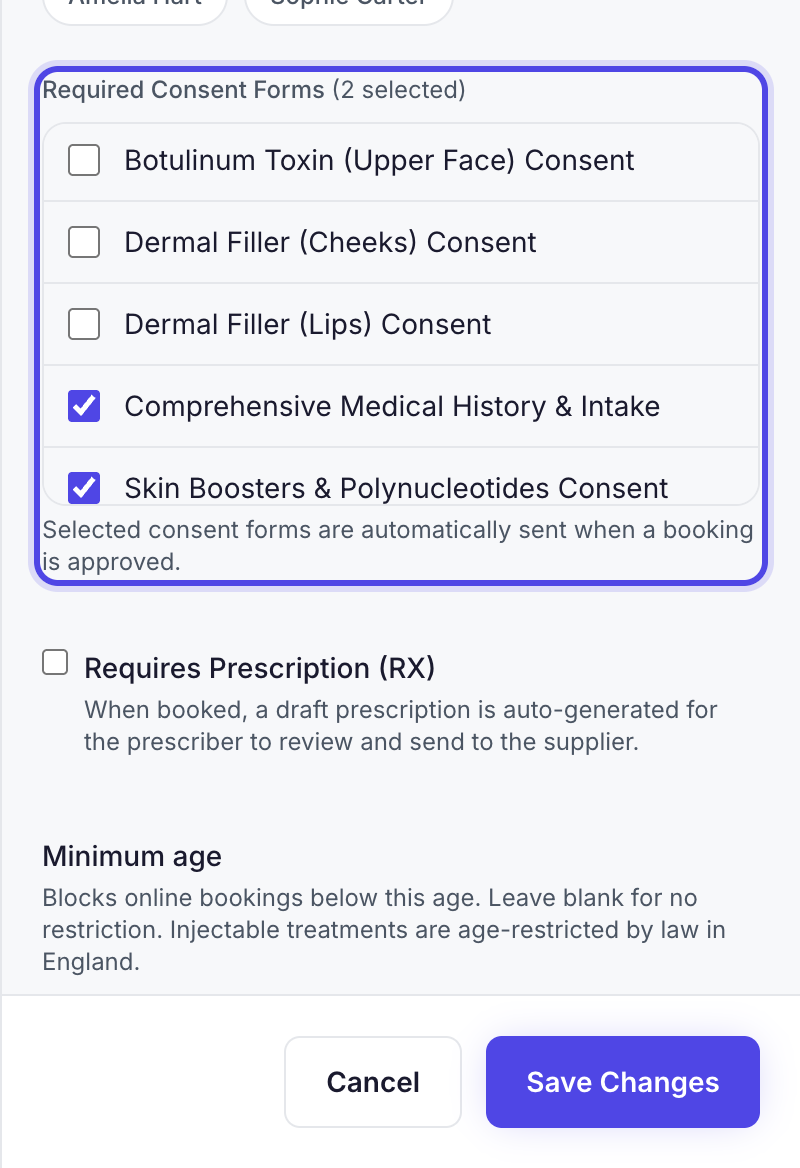
Under Required Consent Forms, tick each form the treatment needs, then click Save Changes. A treatment can have more than one form: here the skin booster treatment also asks for the medical history form.
Check this: Nothing is sent to a patient until the form is attached to a treatment they book.
Tick the forms the treatment needs. Step 5: Check what your patients receive
When a booking for the treatment is confirmed, the patient is emailed a link to each form the booking needs, all in one email. That is when you approve an online booking or it is confirmed automatically, and when your team books an appointment that is confirmed.
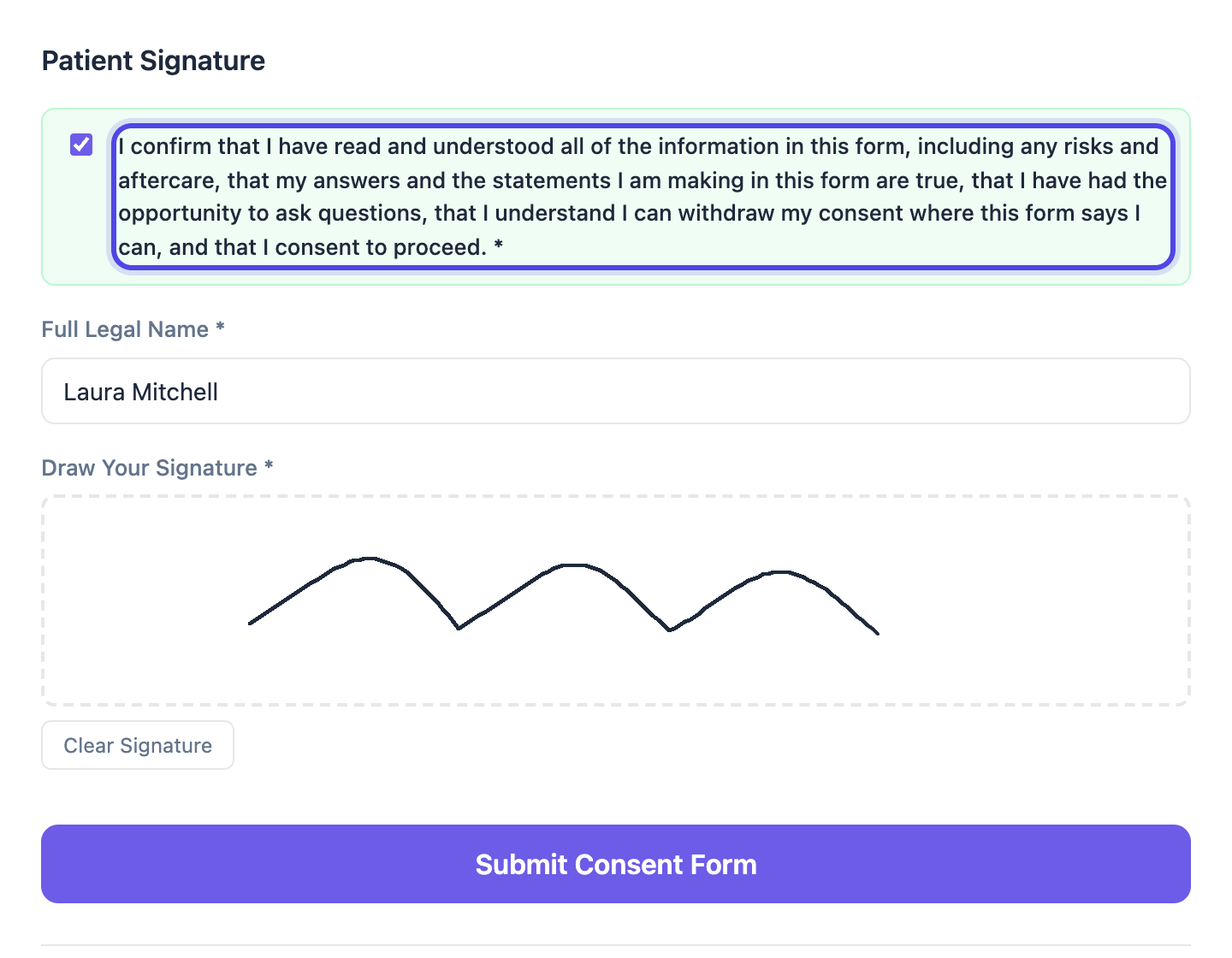
The patient opens the link, checks their details, answers the medical screening questions and reads the risks and aftercare. They then tick one box to confirm, type their name, sign and click Submit Consent Form. They do not need an account.
Good to know: The link works for at least 7 days, or until the day after the appointment if that is later. If the form is still not signed in the 48 hours before the appointment, the patient gets one reminder. You can see whether forms are signed, and send a link again, from the appointment in your calendar.
Check this: The patient needs an email address on their record. If there is none, or the appointment has already started when it is confirmed, nothing is emailed: sign the form in clinic instead.
One confirmation, then the patient's signature. Step 6: Sign a form in clinic
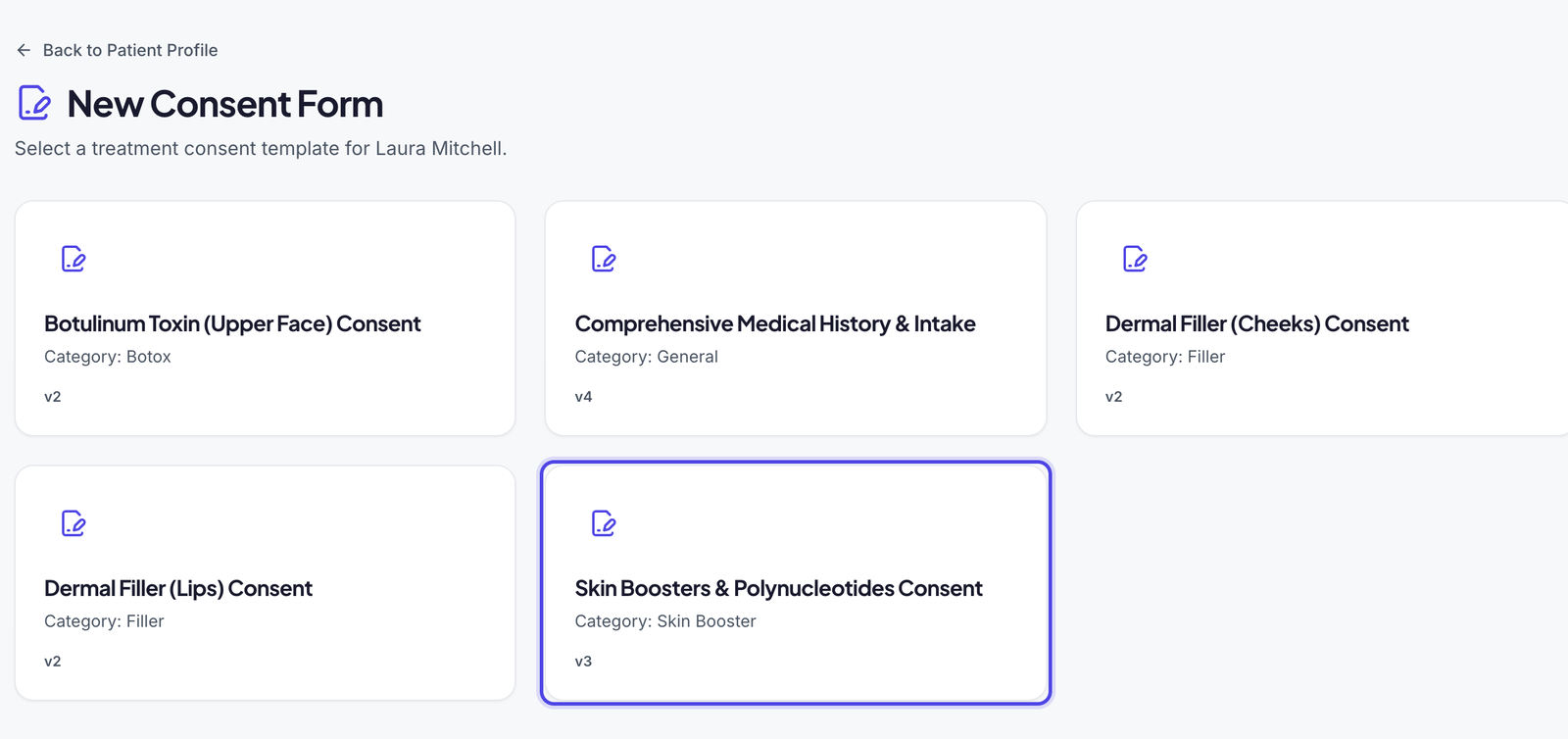
Open the patient, click the Files & Consents tab, then Start New Consent (or + New Consent once they have signed forms). Choose the form. Only forms your clinic has switched on are listed.
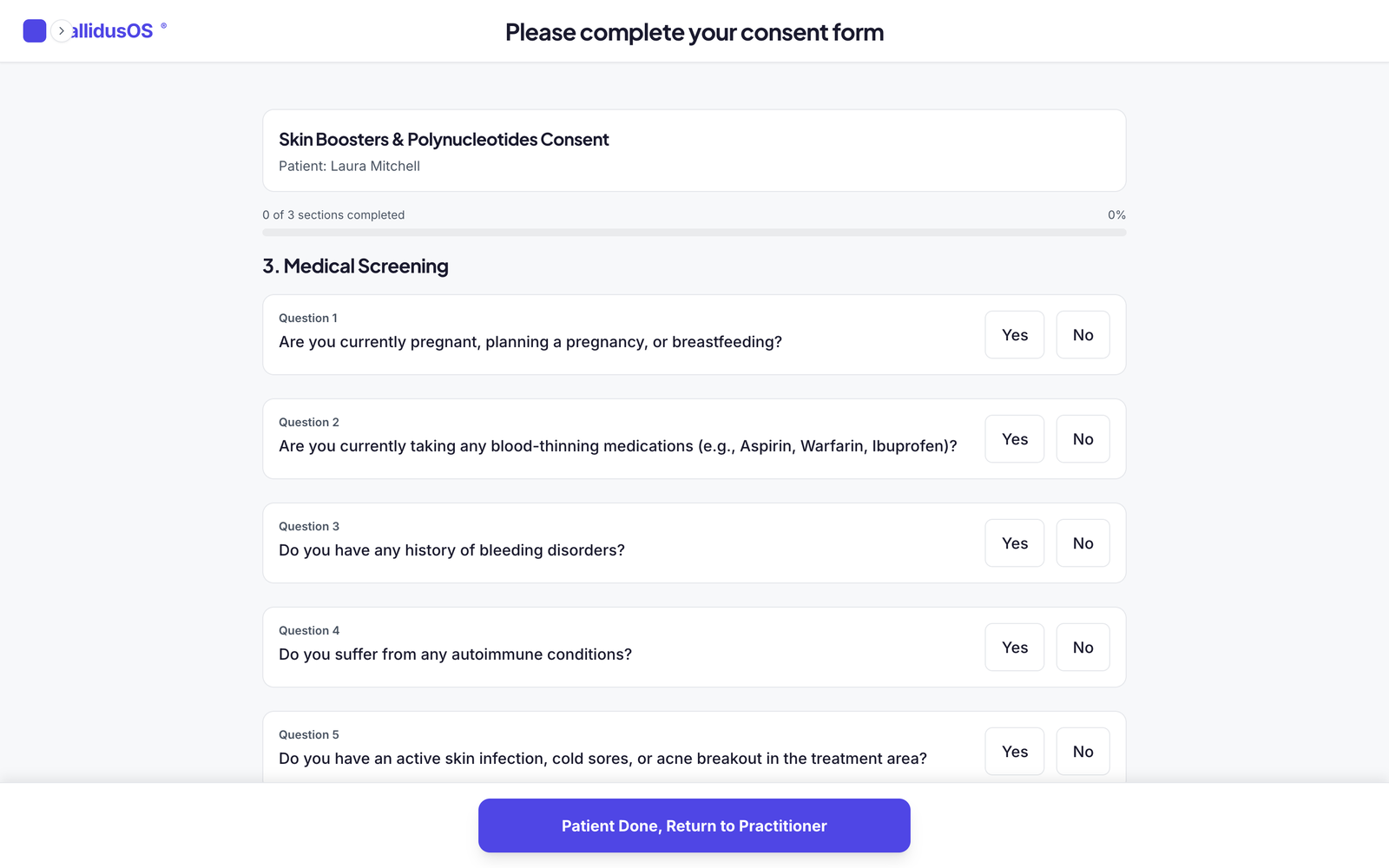
Fill in your parts, such as the areas to be treated and your declaration and signature. To let the patient complete theirs on a tablet, click Hand to Patient (Device Lock): the rest of the app is hidden and the patient sees only their parts of the form. When they have signed, they tap Patient Done, Return to Practitioner and you enter the PIN. Then click Submit Consent.
Check this: Hand to Patient (Device Lock) is greyed out until a Device Lock PIN is set in Clinic Details in Settings, under Device Security.
Choose the form to sign. What the patient sees with Device Lock on. Step 7: Find signed forms
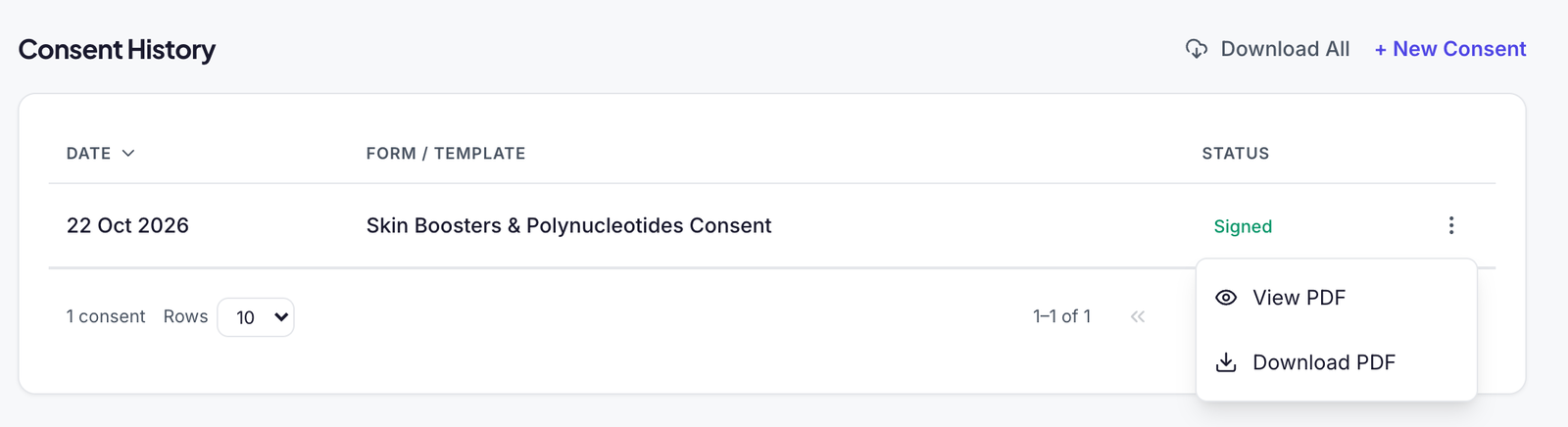
Signed forms are kept on the patient's Files & Consents tab, under Consent History, marked Signed. Click the three dots on a row to View PDF or Download PDF.
To see every signed form in your clinic in one list, open Audit Log in Settings.
Signed forms, with their PDF.
What happens next
- When a booking for a treatment with a form is confirmed, the patient is emailed a link to sign it before they arrive.
- Each signed form is saved to the patient's Files & Consents tab, with a PDF of what they signed.
- Any aftercare attached to the treatment is emailed once the appointment is marked complete.
Was this guide helpful?
Still stuck?
Real people, here to help. Pick whichever suits you.
- Live chatMessage our UK team from inside the app.Open the app
- Email usWe get back to you within 24 hours, usually much sooner.support@callidusos.co.uk
- Book a callA free 1-to-1 call with our team to set things up together.Book a call
Every way to reach us, plus free setup and data migration, is on Help and support.