Book an appointment
Book a patient in from the Calendar, with the treatment, practitioner, date and time.
- Updated
- 4 min read, 1 min 46 sec video
- For everyone on your team can book appointments: owners, admins, managers, practitioners and receptionists.
In the app:Calendar
On this page
You book an appointment for a patient from the Calendar. Click a free time in a practitioner's column, choose the patient and the treatment, check the details and click Create Booking.
The appointment shows on the calendar straight away. If the patient has an email address, they are emailed the details, and any consent forms the treatment needs.
Before you start
- Add at least one service, so there is a treatment to choose. See Add a new service.
Read the transcript
Here's how to book an appointment for a patient in CallidusOS.
Open Calendar, and click a free time in the practitioner's column.
You can also click New Booking, at the top of the Calendar.
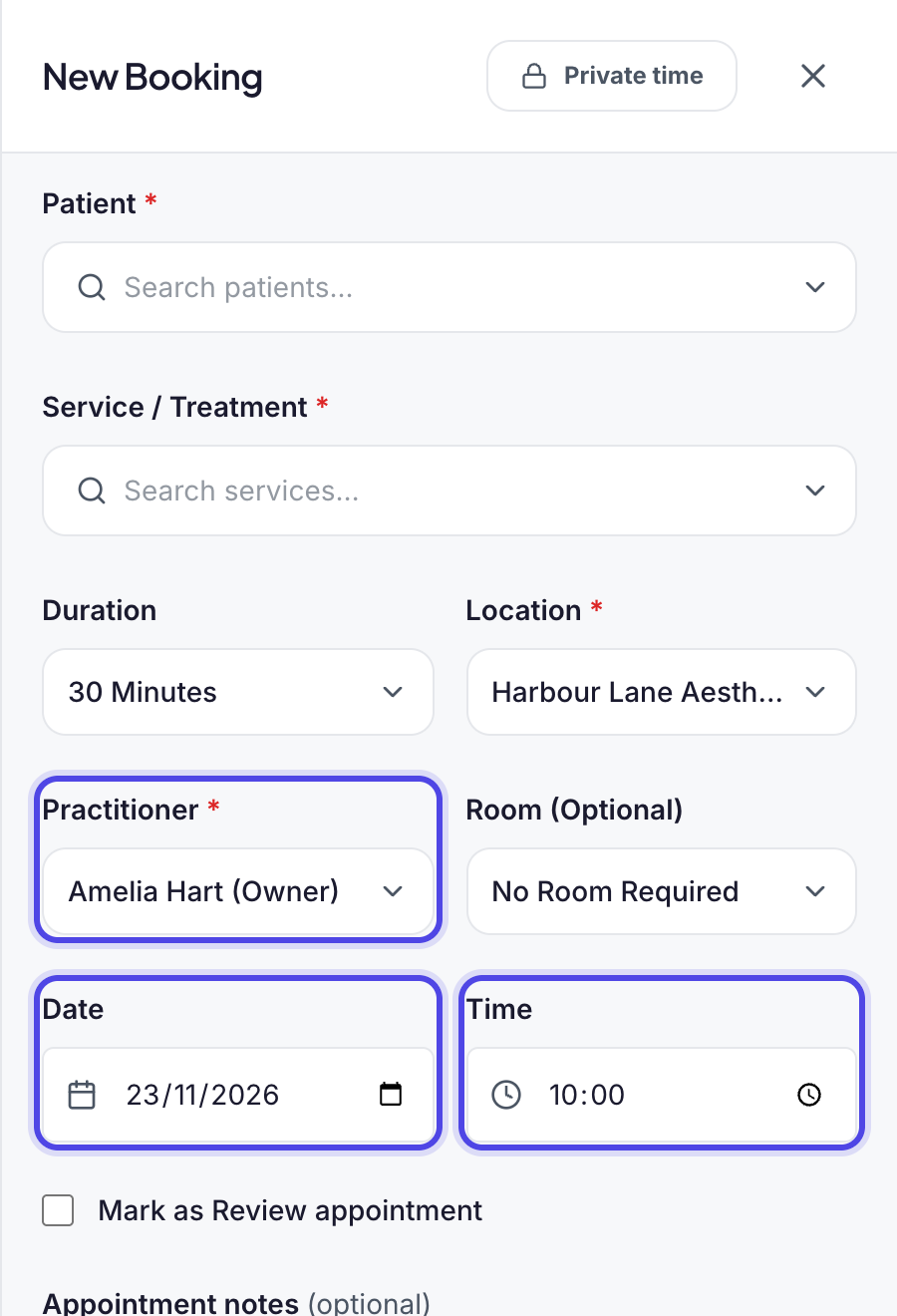
New Booking opens, with that practitioner, the date and the time filled in.
Start typing the patient's name, and pick them. For someone new, choose Create patient.
Then choose the treatment. The duration fills in from the service.
Check the practitioner, date and time, and add another service if you need to.
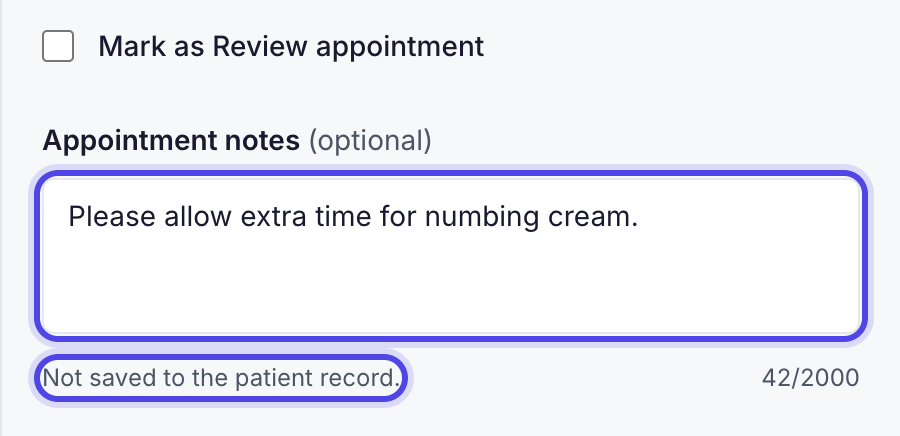
Appointment notes are for your team only. They aren't saved to the patient record.
Click Create Booking.
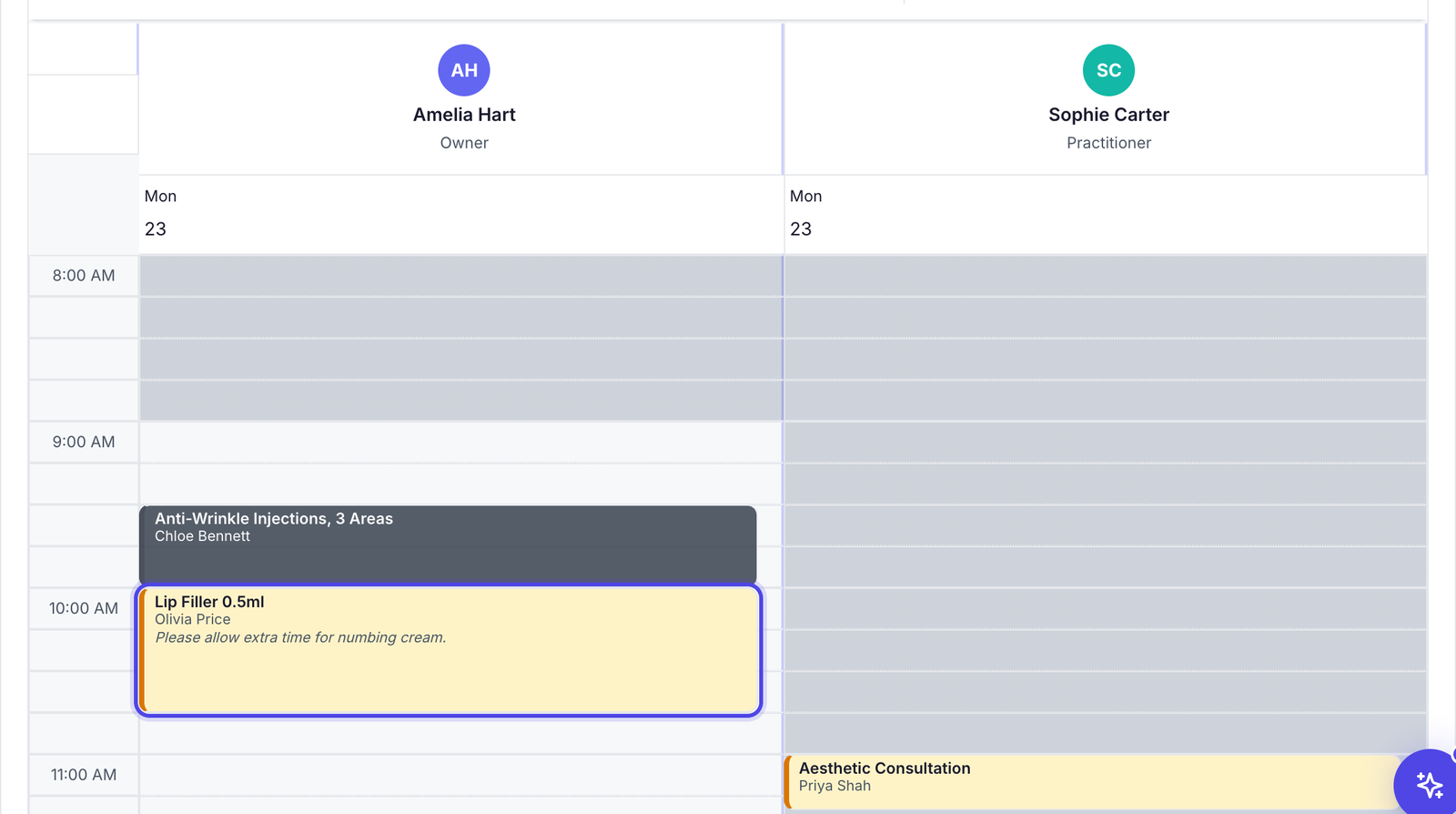
The appointment appears on the calendar, in the practitioner's column.
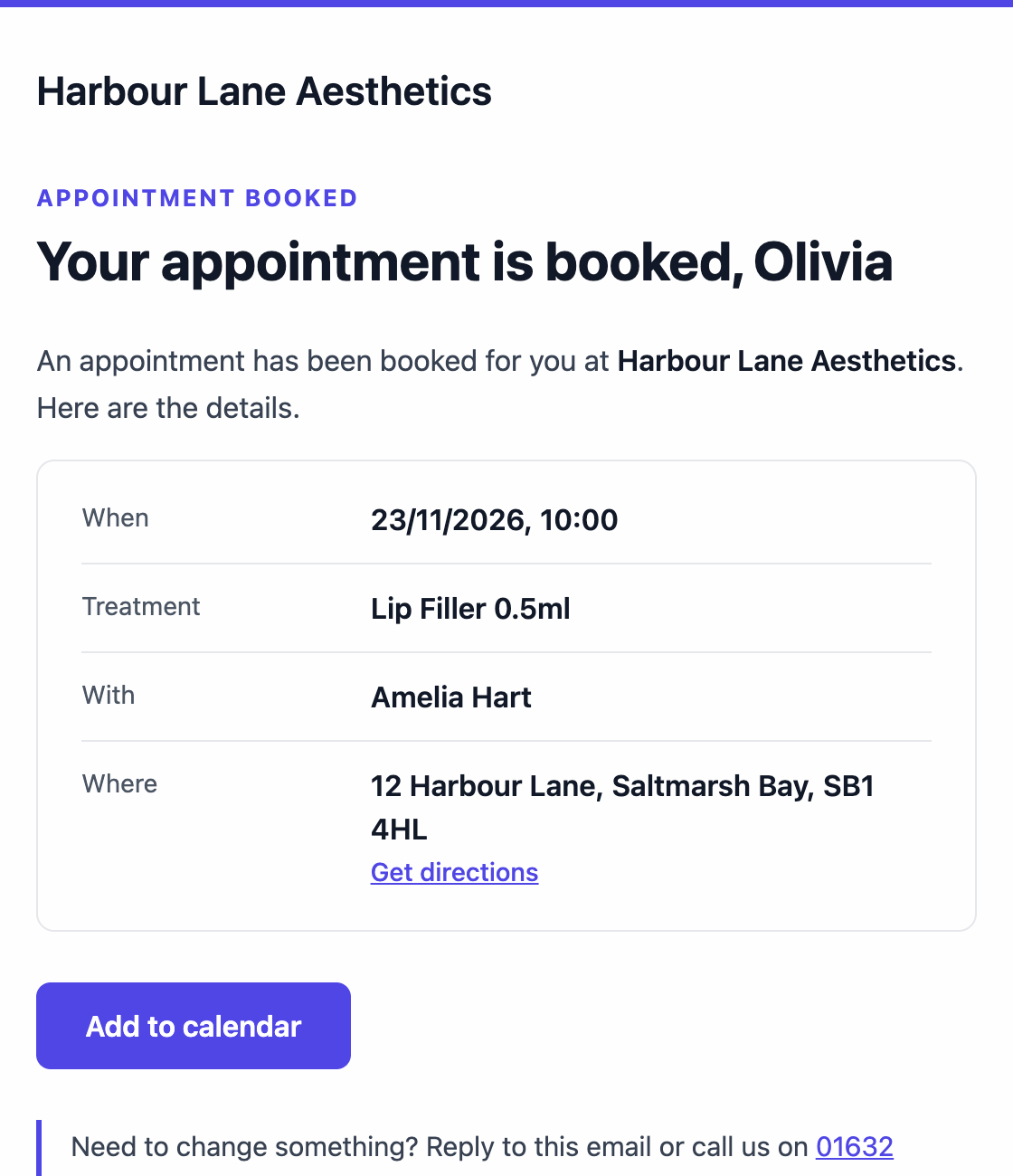
If the patient has an email address, they're emailed the details, with a button to add it to their calendar.
Any consent forms the treatment needs are emailed too, ready to sign before the visit.
A new clinic starts with an empty calendar. Add your services first, so there's a treatment to choose.
The full guide is in our help centre.
Step 1: Open the Calendar and pick a time
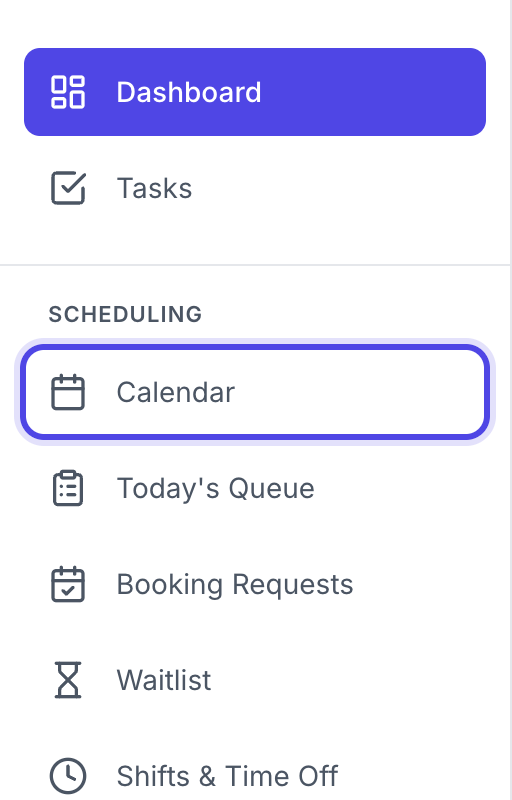
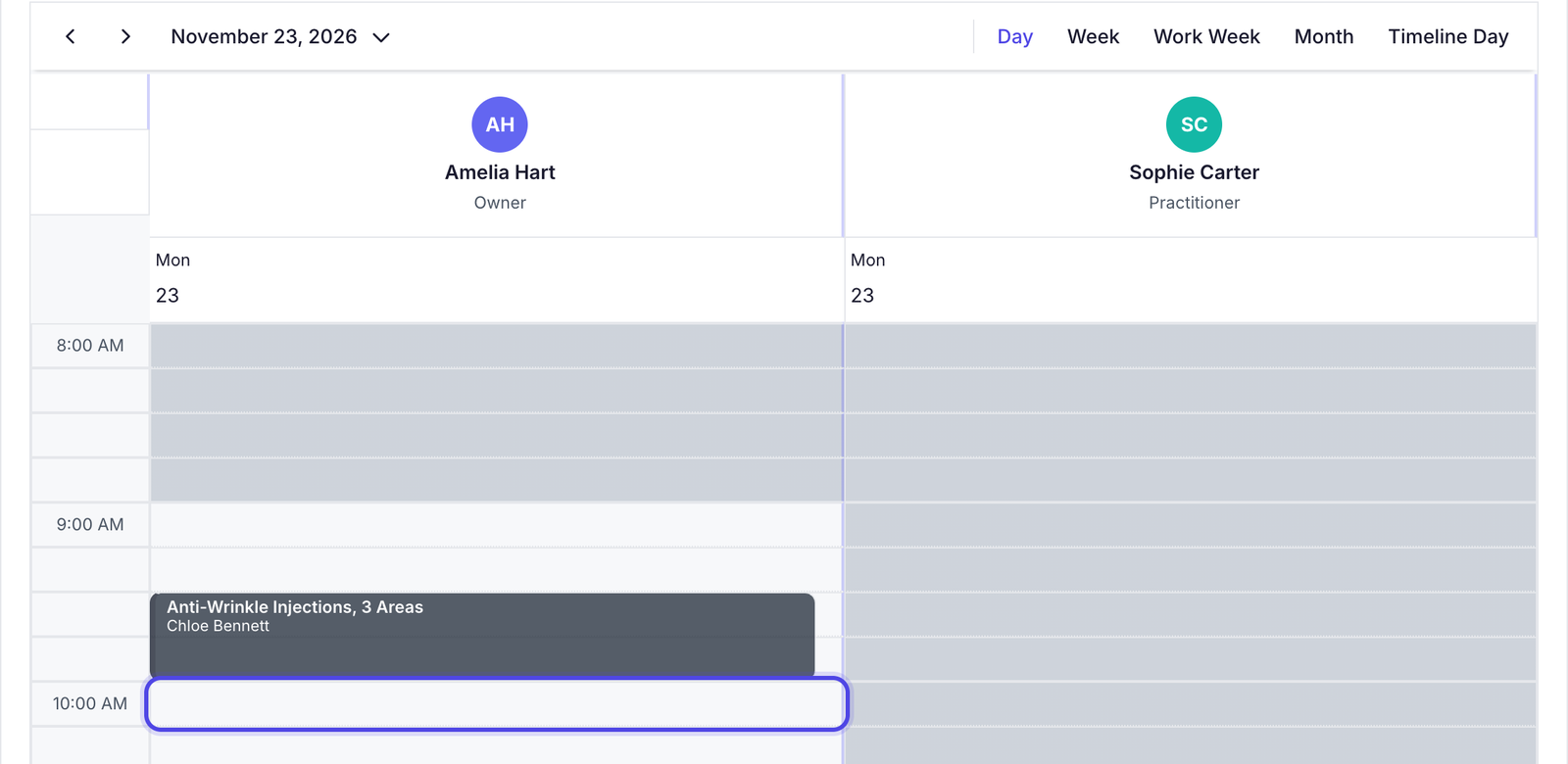
Click Calendar in the left-hand menu. In Day view each practitioner has their own column, and grey times are outside their working hours.
Click a free time in the practitioner's column. New Booking opens with that practitioner, the date and the time already filled in.
You can also click New Booking at the top of the Calendar. It opens at 09:00 today with no practitioner chosen (unless your clinic has only one), so set the practitioner, date and time yourself.
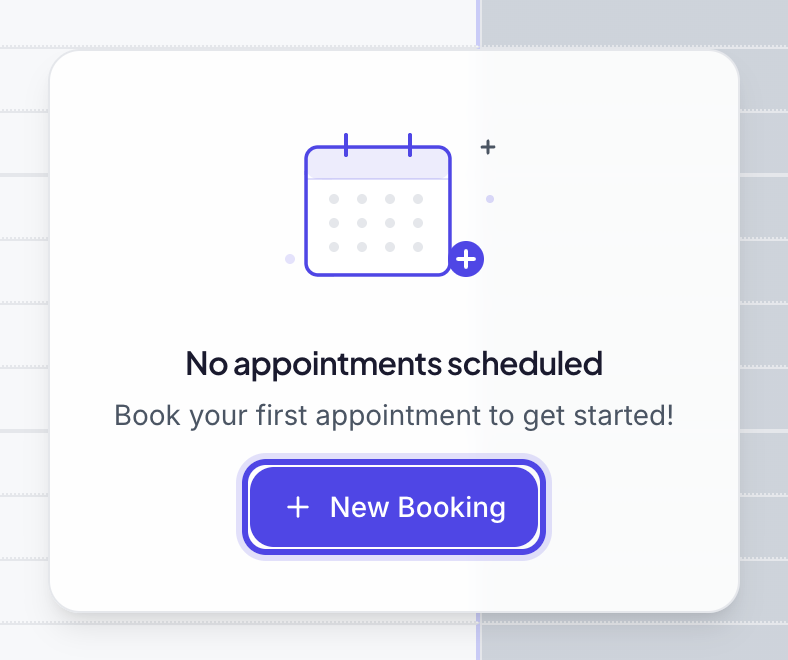
Good to know: A new clinic's calendar shows No appointments scheduled with a New Booking button. You need at least one service before you can book, because Service / Treatment is required. If you have just signed up and not yet clicked the link in the email we sent you, New Booking asks you to do that first.
Calendar is under Scheduling. Click a free time in the practitioner's column. Filled in from the time you clicked. What a new clinic sees. Step 2: Choose the patient
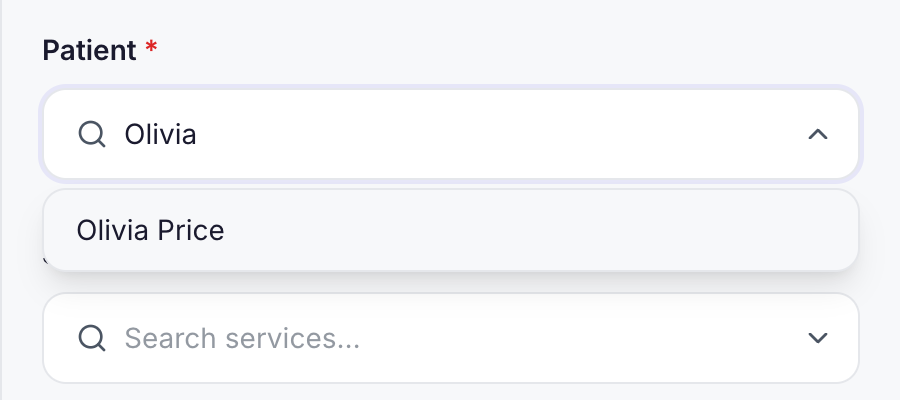
Under Patient, start typing the patient's name and click them in the list. Their age shows underneath.
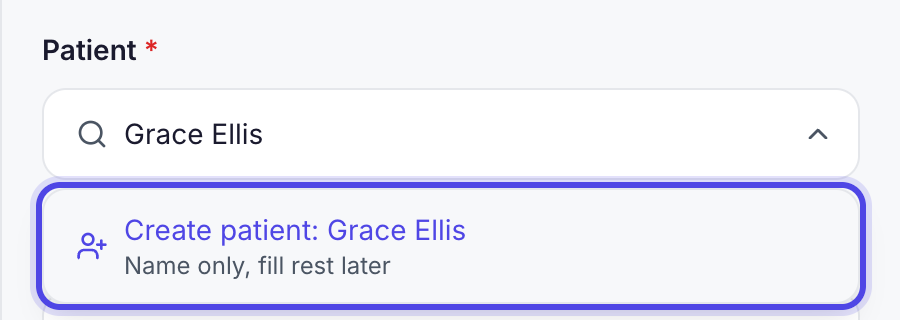
For someone who is not on your list yet, type their full name and choose Create patient. A new patient form opens with the name filled in; save it and you are back in the booking with them chosen.
Good to know: If a treatment has a minimum age, New Booking will not book a patient who is too young for it and says why. Treatments that need a consent form for toxin, fillers or another injectable count as 18 and over.
Type part of the name. For someone new, choose Create patient. Step 3: Choose the treatment
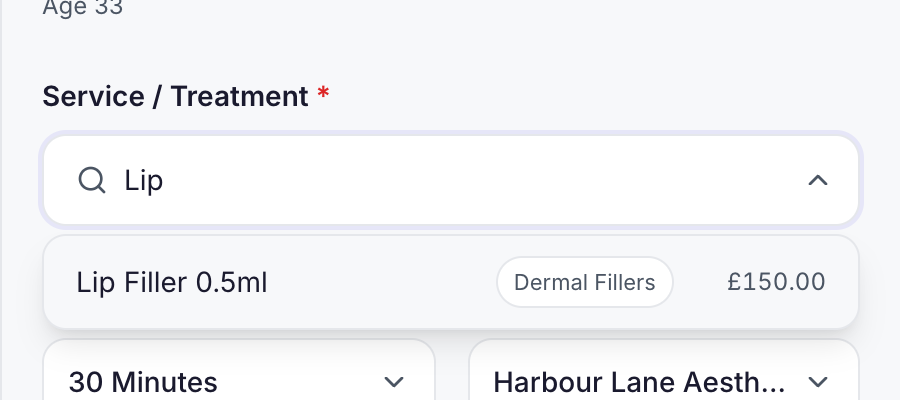
Under Service / Treatment, click the box to see your treatments, or type to narrow the list. Each one shows its category and price.
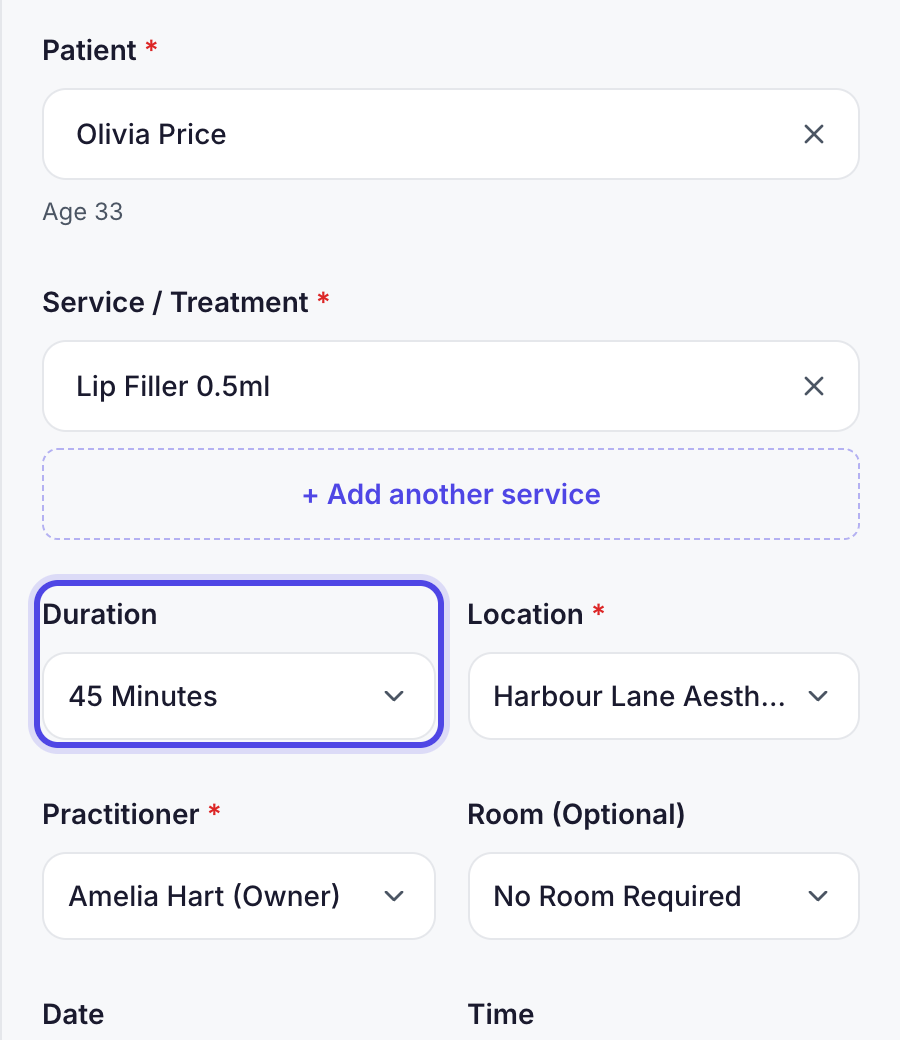
Choose one, and Duration fills in from the service. To book more than one treatment in the same appointment, click + Add another service (up to six). The total time and price show underneath.
Each treatment shows its category and price. The duration comes from the service. Step 4: Check the details
Check Practitioner, Date and Time, and Location if you have more than one clinic. Choose a Room if you use rooms; otherwise leave it as No Room Required.
If a treatment is only offered by some of your team, the Practitioner list shows just those people.
Tick Mark as Review appointment for a follow-up. The review is linked to the patient's last completed treatment, so you can see its notes, and forms they have already signed are not asked for again.
Appointment notes are for your team. They show on the appointment but are not saved to the patient record.
Good to know: If the time clashes with another appointment or blocked time, a warning says why and the button changes to Book anyway. You can still book it; patients cannot book online at that time.
Notes are for your team. Step 5: Create the booking
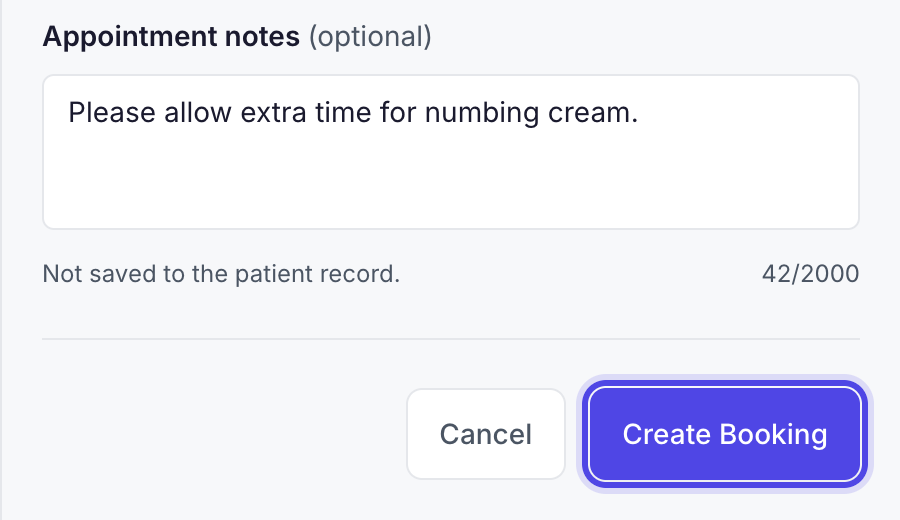
Scroll to the foot of the panel and click Create Booking. A Booking created message confirms it, and the appointment shows on the calendar in the practitioner's column.
Click the appointment at any time to open it.
Create Booking is at the foot of the panel. The appointment is on the calendar. Step 6: What your patient receives
If the patient has an email address, they are emailed that their appointment is booked, with the date, time, treatment and practitioner, and an Add to calendar button.
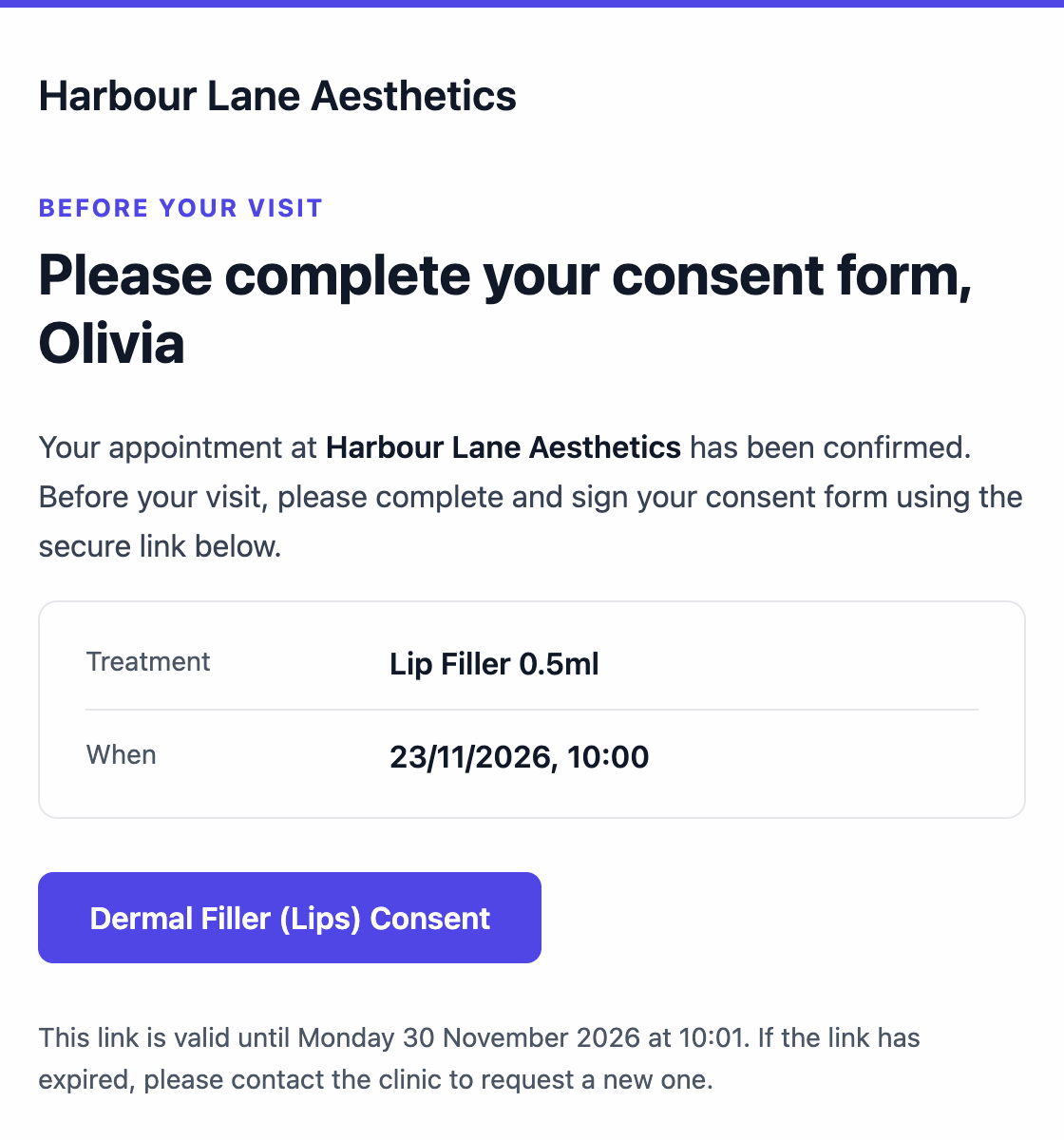
If the treatment needs consent forms, they are emailed too, in one email with a button for each form, so the patient can sign before their visit. If the patient has no email address, or the appointment has already started, the forms are signed in clinic instead.
If the patient has never filled in a medical history, or their last one is over 12 months old, they are also emailed the medical history questionnaire, unless your clinic has switched that off.
Tip: Which messages go out, and whether by email or text, is set in Settings, Communications. If appointment confirmations are switched off there, no booking email is sent.
The email your patient receives. One email with a button for each form.
What happens next
- The appointment is on the calendar as confirmed, ready to check in on the day from Today's Queue.
- The patient has the booking details by email, and any consent forms to sign before their visit.
- Appointment reminders go out before the visit if you have them switched on in Settings, Communications.
Was this guide helpful?
Still stuck?
Real people, here to help. Pick whichever suits you.
- Live chatMessage our UK team from inside the app.Open the app
- Email usWe get back to you within 24 hours, usually much sooner.support@callidusos.co.uk
- Book a callA free 1-to-1 call with our team to set things up together.Book a call
Every way to reach us, plus free setup and data migration, is on Help and support.